WooCommerce tracking and analytics: see why shoppers don’t buy
WooCommerce analytics show what sold. Tracking shows why the rest didn’t buy: where shoppers come from, what they click and where they give up, without cookies.
Published Last checked
Your WooCommerce shop knows every order. It knows what sold, for how much and when. What it can’t tell you is why everyone else left without buying.
That is the job of WooCommerce tracking. This article explains what tracking can show you about your shop, what the usual WooCommerce analytics tools cover, where they stop, and how to see the rest without cookies.
Why tracking a WooCommerce shop matters
Most visitors to a shop never buy. Some only look around. But many leave for a reason you could fix, if you knew what it was.
Orders show the end of the story. They don’t show the steps before it:
- Where visitors come from: a search engine, a newsletter, an ad or a link someone shared.
- What they click: the menu, the search, the products they put in the cart.
- Where they give up: on a product page, in the cart or at the checkout.
- What breaks on the way: a button that does nothing, a coupon field that throws an error, a checkout that takes too long to answer.
The people who ordered are the few who made it through. The answers are with the many who didn’t. Tracking is how you see them.
What the usual WooCommerce analytics tools show, and what they miss
Several good tools cover parts of this. Each does some things well, and each leaves something out.
Last checked: 12 October 2026, against each tool’s own documentation.
WooCommerce Analytics
WooCommerce comes with its own Analytics. It has reports for revenue, orders, products, variations, categories, coupons, customers, taxes, downloads and stock, plus order attribution. They come straight from your orders, so they are exact.
They are also about sales only. There is nothing on visitors, page views, clicks or funnels. You see what sold, not how people got there or why others didn’t.
WooCommerce Order attribution
Order attribution is built into WooCommerce too. For each order, it records where the customer came from: the website they came from, the tags of a campaign link (also called UTM parameters), the type of device and the pages they viewed on that visit. You find this on the order page, in the Orders list and in an Order attribution report.
So WooCommerce itself can tell you which source brought in which revenue. The Privatrak plugin doesn’t split revenue by source, so for this WooCommerce is the right tool.
Two limits come with it. It uses six cookies, whose names start with sbjs_, and it supports the WP Consent API. With a consent banner, it records only the shoppers who agree. And it covers only people who placed an order. Everyone who left before buying stays out of view.
Google Analytics for WooCommerce
Google Analytics for WooCommerce is a free extension made by Woo. It sends shop events, such as product views and cart actions, to Google Analytics 4. Google Analytics has a wide range of reports and links with Google Ads.
Google Analytics sets cookies, such as _ga. That is why sites in the EU show a consent banner for it. Visitors who decline are missing from the reports, or only estimated with Google’s Consent Mode.
MonsterInsights
MonsterInsights is a popular plugin that connects WordPress to Google Analytics. Its Enhanced eCommerce Tracking for WooCommerce is part of its paid plans: Plus, Pro and Elite. Underneath, it is Google Analytics, with the same cookies and the same consent banner.
Plausible and Matomo
Plausible is simple web analytics without cookies, made and hosted in the EU. Its revenue attribution and funnels are part of its Business plan.
Matomo is broad web analytics with goals and e-commerce reports. You host it yourself or use Matomo Cloud. It sets cookies by default. It can be set up to work without them, but it then recognises returning visitors less well. Heatmaps and session recordings are paid premium plugins.
What none of them shows
WooCommerce knows your orders. Google Analytics knows your visitors, except the ones who decline a banner. But none of these tools gives you a ready list of the buttons in your shop that fail when people click them.
How Privatrak fills the gap
Privatrak is analytics for what people do on your site, not only which pages they open. For WordPress and WooCommerce, there is a free plugin, Privatrak Analytics, on wordpress.org.
Once it is connected, it records all of this without any setup:
- Every page view and every click.
- Clicks on your menus and on the search button.
- Clicks on add to cart buttons, with the product, its price and the currency.
- Every order, as an event called Purchase, with its total, its currency and the number of items. Nothing about the customer is sent.
- Clicks that go wrong: buttons that do nothing, that people click again and again, that answer slowly or that cause an error.
Privatrak sets no cookies and stores nothing in your visitors’ browsers. So in many countries no consent banner is needed for it. That also means visitors who would decline a banner are counted too, and your numbers are complete.
This is general information, not legal advice. Privacy lists exactly what Privatrak stores.
WooCommerce’s Order attribution and Privatrak work well side by side. WooCommerce attributes your orders to their sources. Privatrak shows everyone who came, what they did and where they gave up.
What’s broken in your checkout
Some shoppers don’t leave because they changed their mind. They leave because something didn’t work.
Privatrak calls these click problems and lists them for you. It notices four kinds: a click that has no effect, the same thing clicked again and again, a click followed by an error in your site’s code, and a response that takes more than a second.
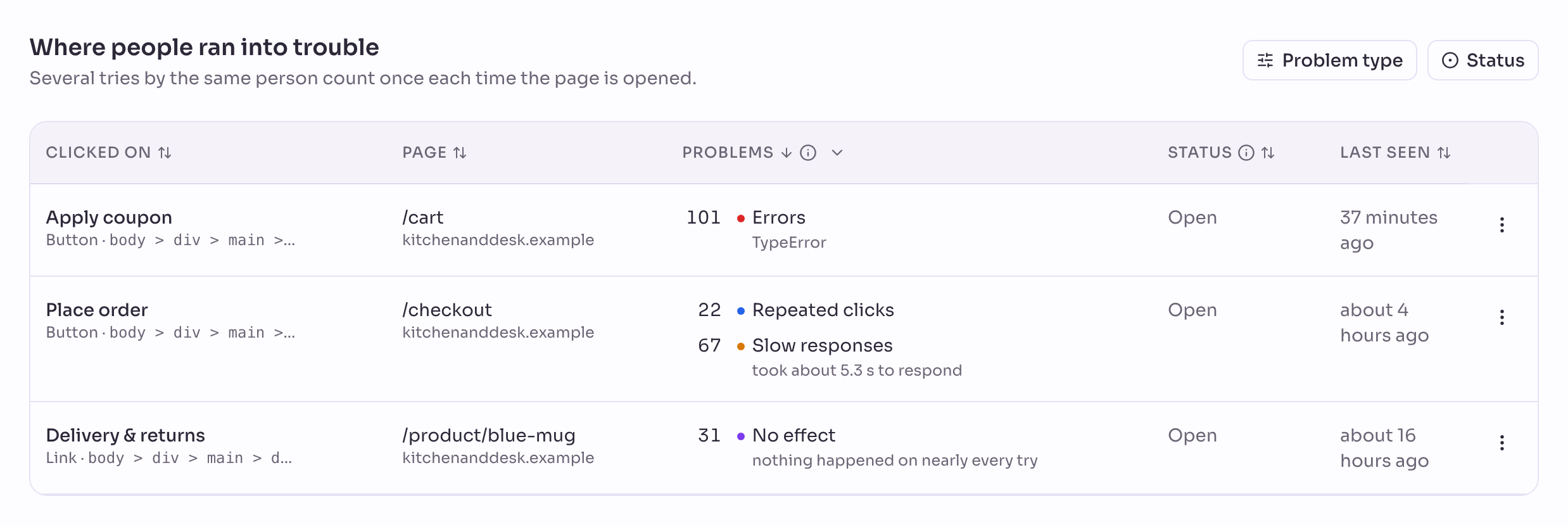
In this shop, the Place order button takes about five seconds to respond, so people press it again. The Apply coupon button causes an error, and Privatrak names its type. It never sends the error’s message. And a Delivery & returns link on the product pages does nothing at all.
You open each one on your own site to see exactly where it is. Once you’ve fixed it, you mark it resolved. If clicks on it fail again, it comes back on the list. Find what’s broken in your WooCommerce checkout shows how.
Where shoppers leave, and who leaves
A funnel shows how many shoppers reach each step on the way to an order, and where the rest give up. You build one from what the plugin already records: Add to cart, the checkout page and Purchase.
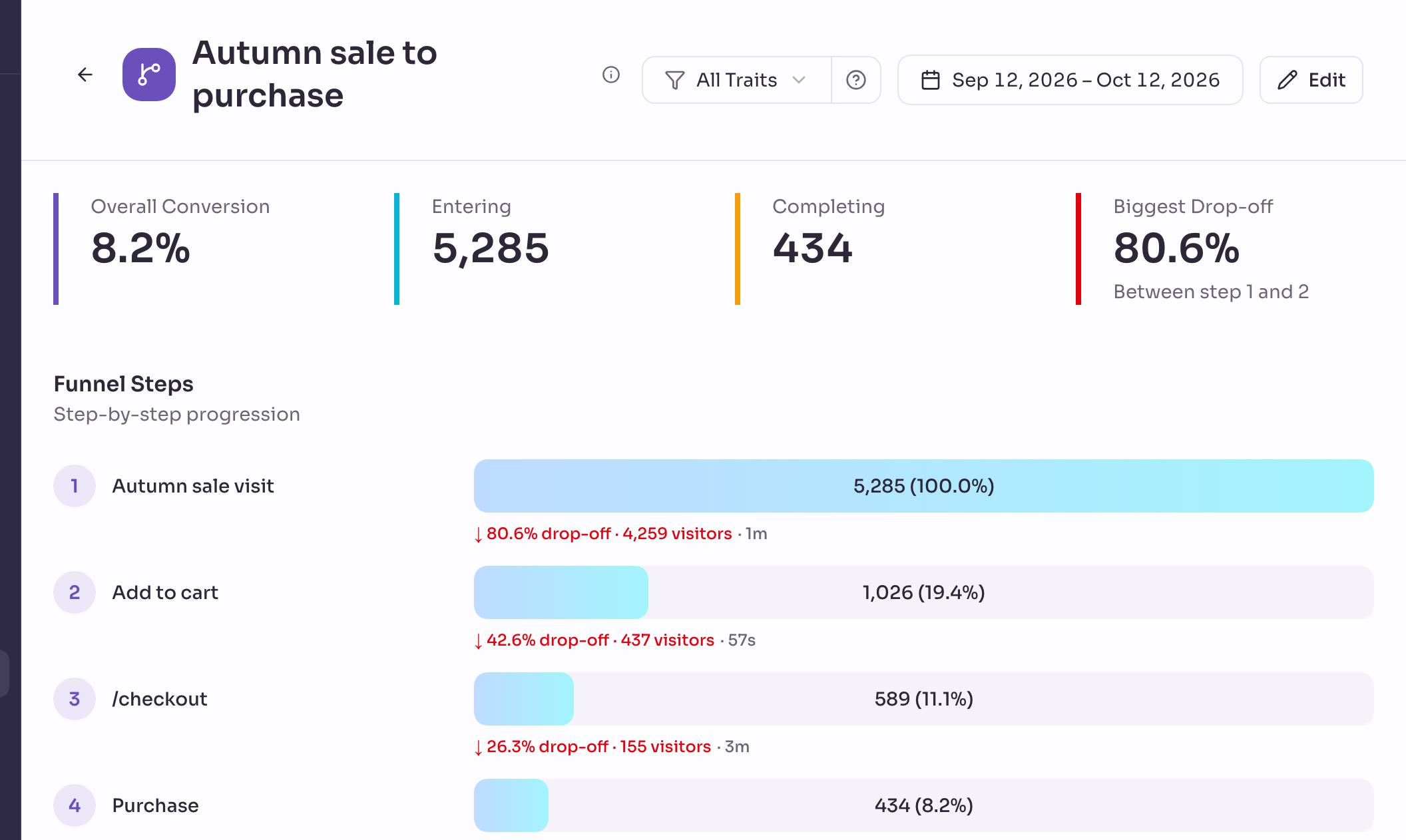
The same funnel tells you who leaves. Compare shoppers who are signed in to your shop with everyone else. Or start a funnel with the visitors of one campaign, and set it beside the funnel of another.
A funnel counts from the day you create it, so create yours early. Privatrak shows you where carts are abandoned. It doesn’t send reminder emails. Measure your WooCommerce cart abandonment rate builds the funnel step by step.
Revenue that counts every visitor
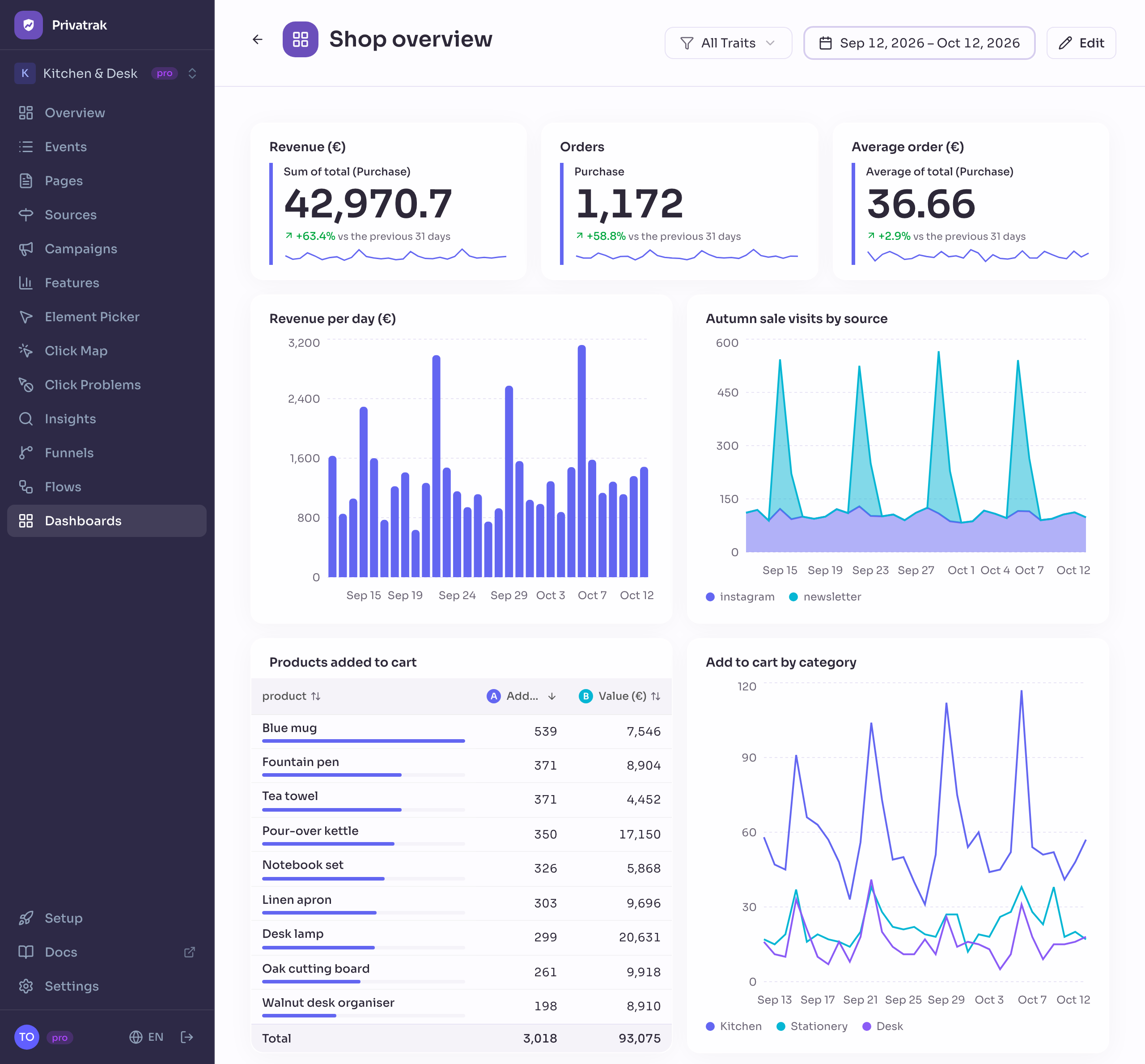
Every order arrives in Privatrak with its total. So you see your revenue, your number of orders and your average order value in Privatrak too, on the same dashboard as your visitors, your campaigns and your funnels.
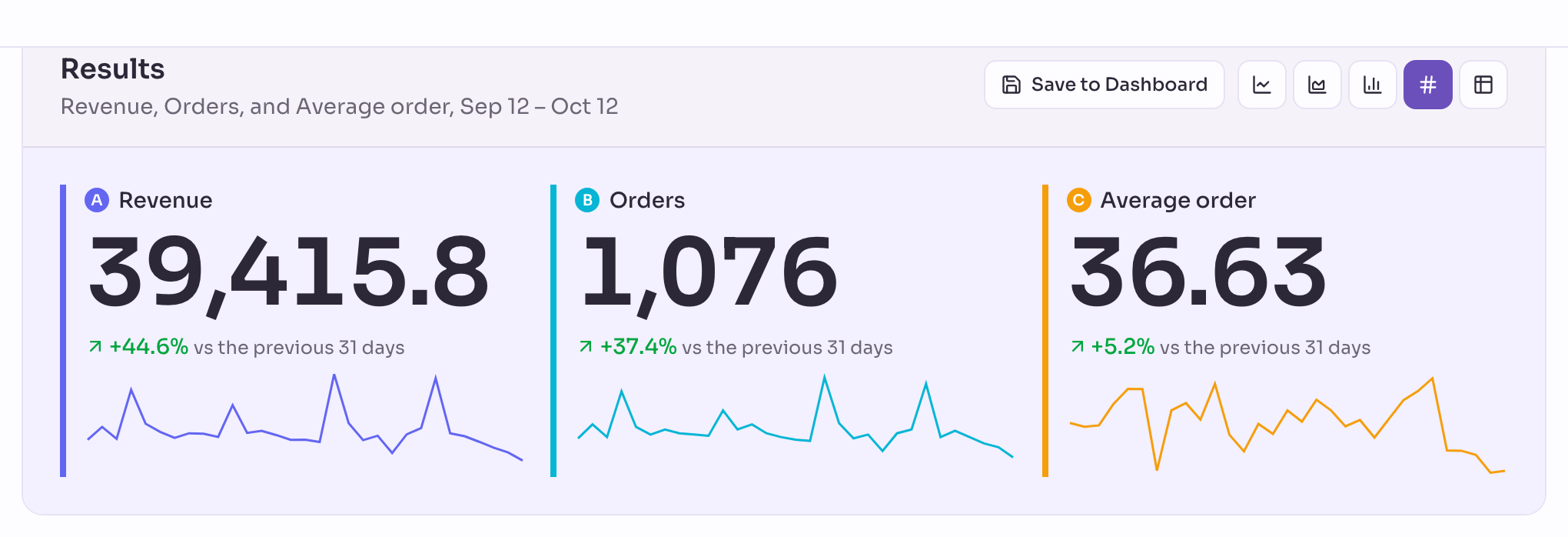
No cookie is involved, so a declined banner leaves no gap in these numbers or in the visitors beside them. The total includes shipping and tax, and a refund doesn’t reduce it. So it can differ a little from WooCommerce’s own reports. Track revenue in WooCommerce builds these numbers step by step.
What shoppers search for and click
The search box tells you what shoppers expected to find. WordPress puts the words someone searched for into the address of the results page. Privatrak records that address with each page view, so you can list what your shoppers search for.
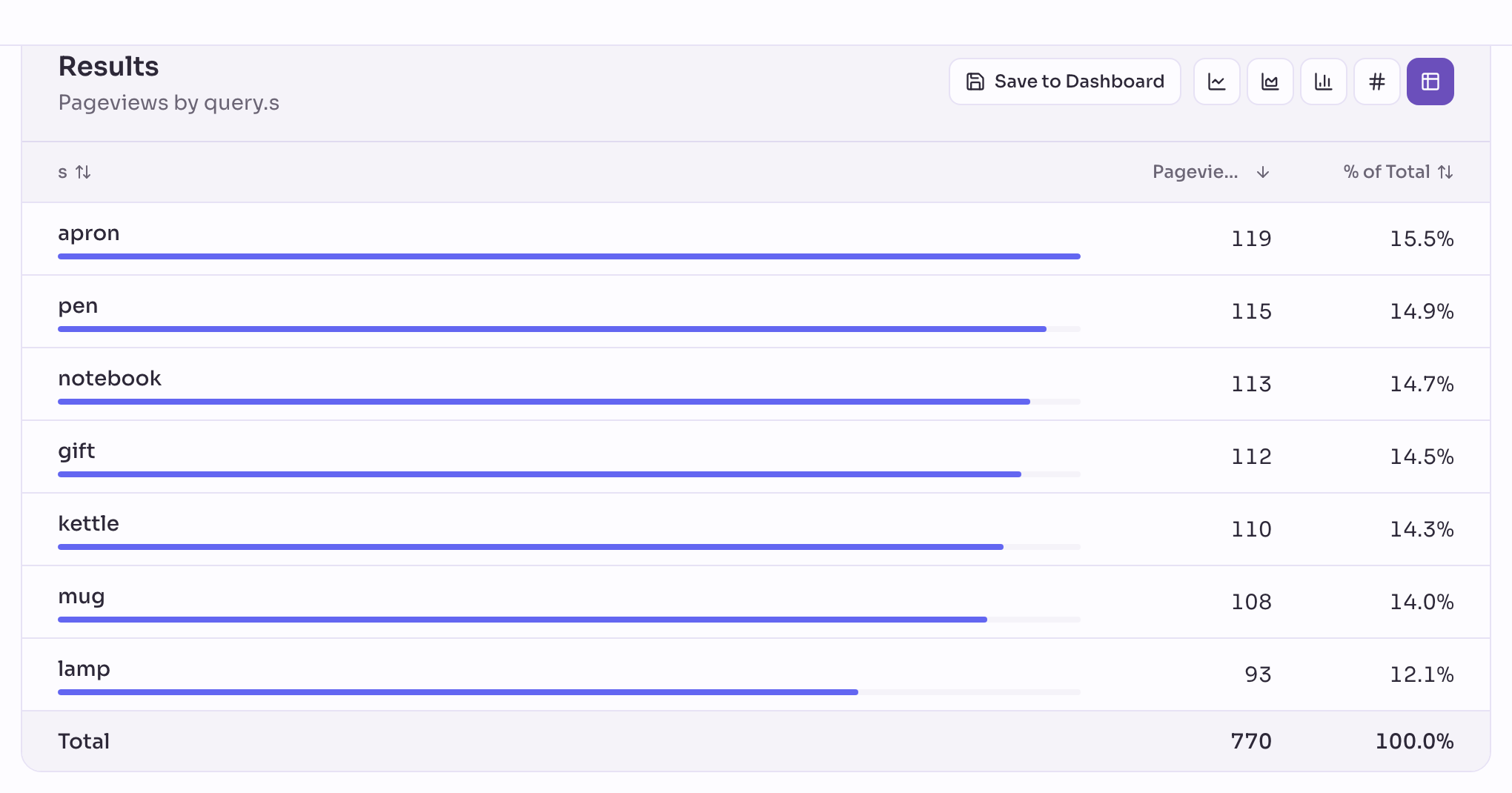
Clicks tell you what people use. The Features page shows how often shoppers use the menu, the search and the add to cart buttons, and whether that is growing. A feature is simply a name for something people do on your site.
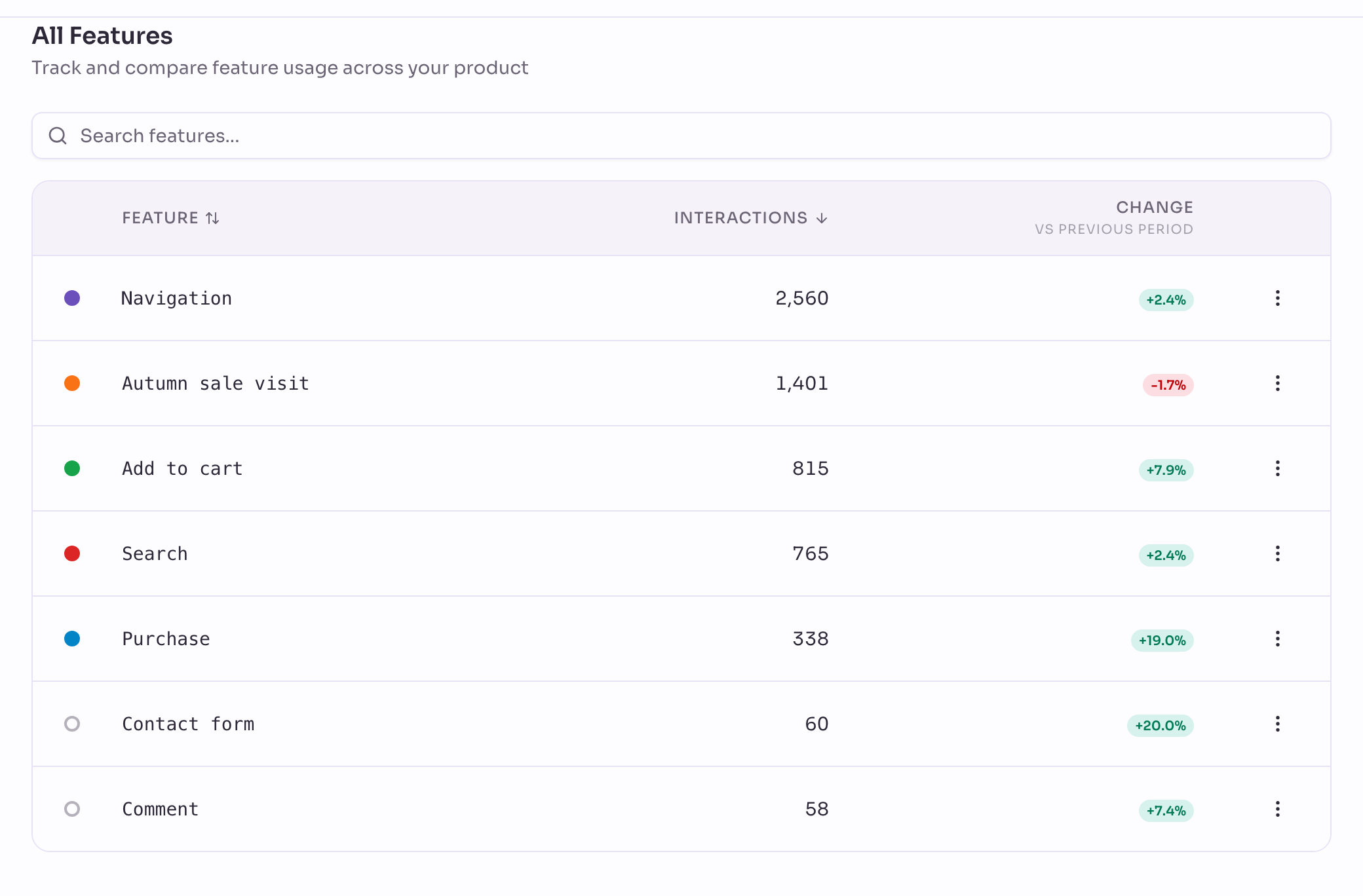
To count any other button, such as a size guide or a wishlist, click it on your own site with the Element Picker and give it a name. No code is needed, and the count includes the clicks from before you named it. See what WooCommerce shoppers search for and click shows how.
Ask your AI assistant about your shop
If you use an AI assistant such as Claude, Codex or Cursor, you can connect it to Privatrak and ask about your shop in your own words. Where do shoppers drop off between the cart and the order? Which buttons go wrong most often?
You connect it by signing in with your Privatrak account. You choose which projects it may see, and whether it may only read or also set up features, funnels and dashboards for you. Everything it changes is recorded, and you can undo it in one step.
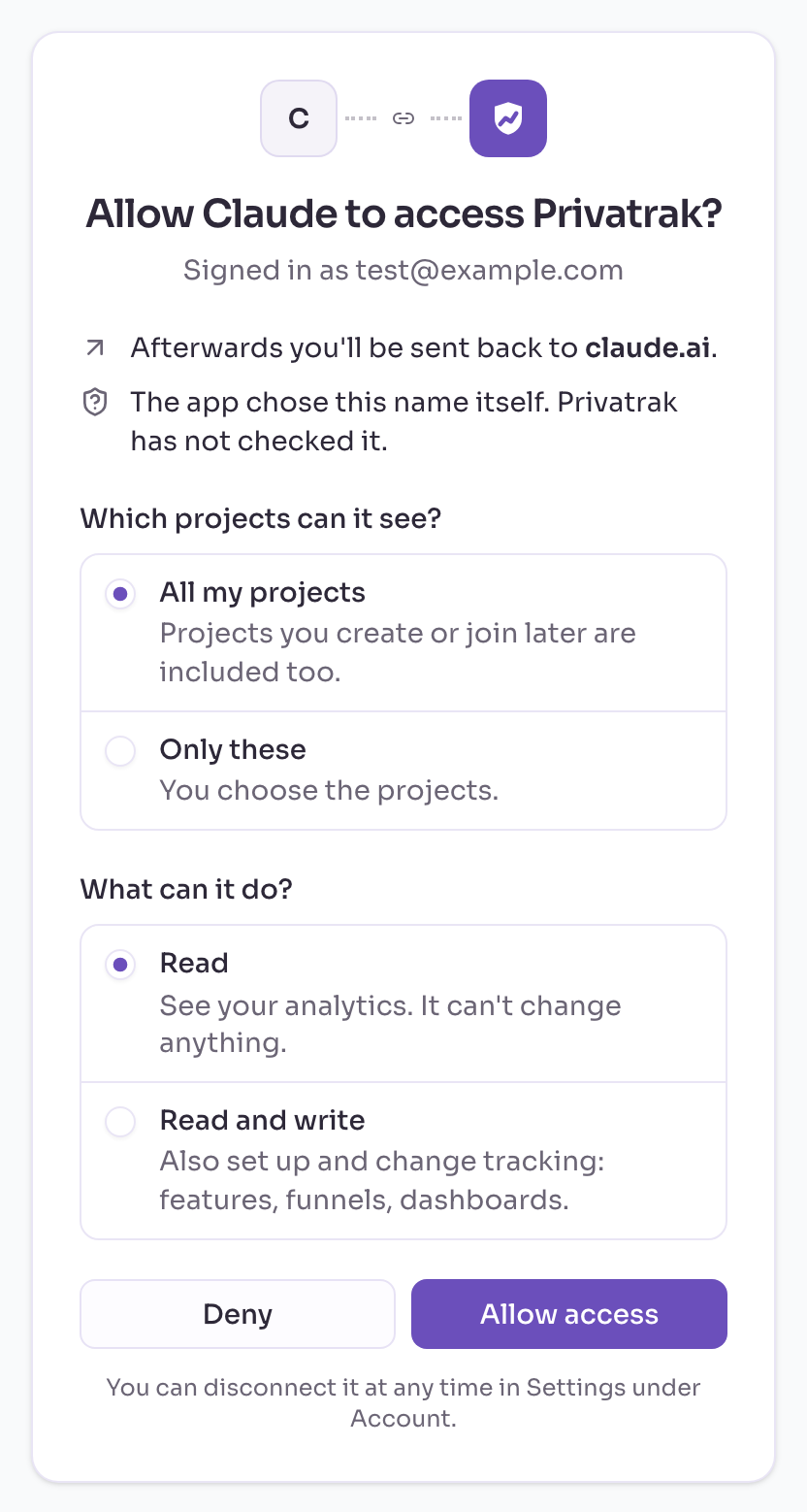
Connect an AI assistant shows how, for each assistant.
Getting started
- Create a free Privatrak account and a project for your shop.
- In WordPress, go to Plugins › Add Plugin, search for Privatrak, then install and activate Privatrak Analytics.
- In Privatrak, open Settings › API Keys and copy your website key.
- In WordPress, go to Settings › Privatrak, paste the key into Website key and save.
The plugin checks the key and tells you when your site is connected. Your first page views arrive within a few seconds. Privatrak leaves out anyone who can edit your site, you included, so check it in a private browser window.
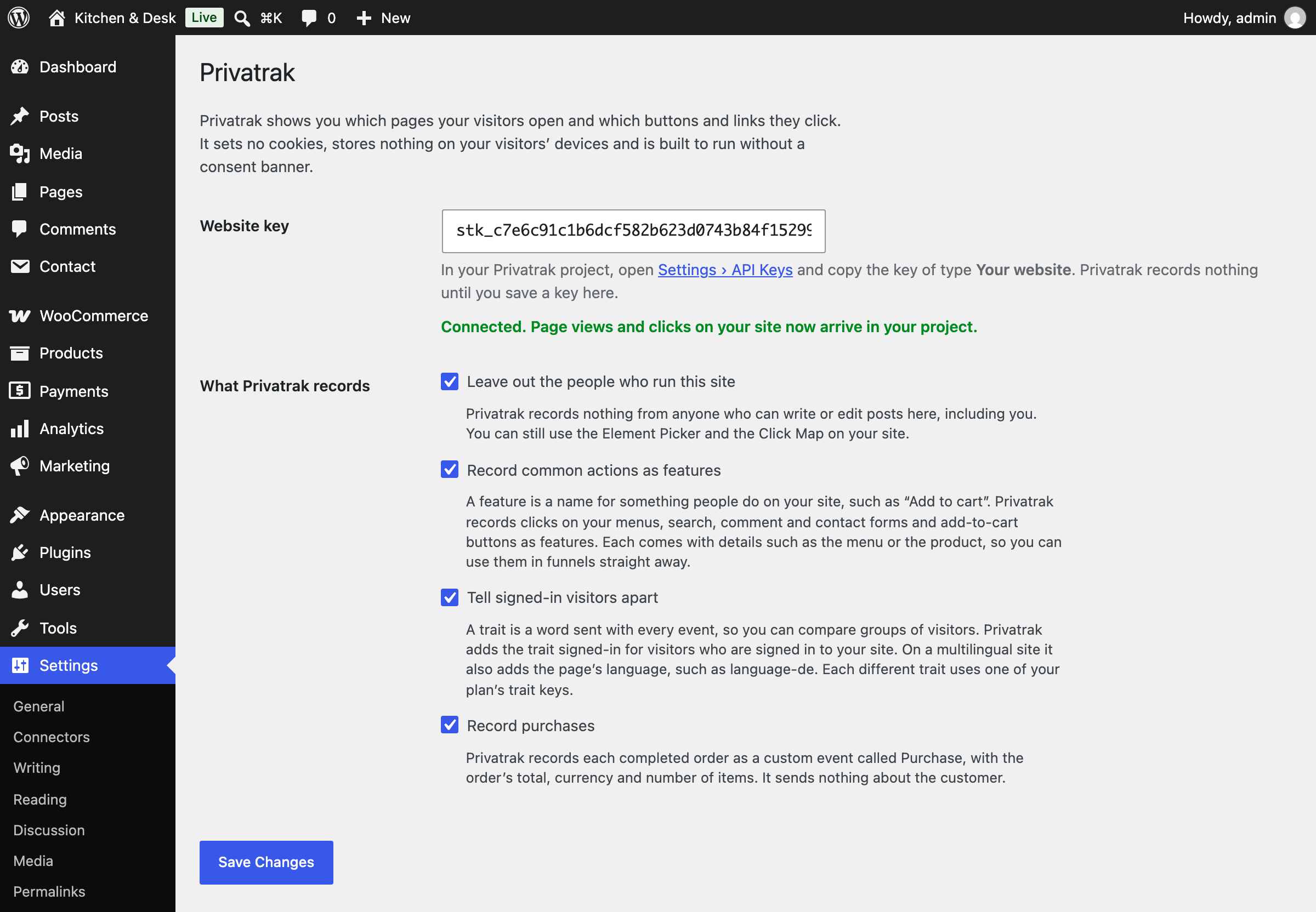
The WordPress guide covers every step and every setting.