Documentation
Set up Privatrak, name what matters to you and read every report.
Measure your WooCommerce cart abandonment rate
A WooCommerce abandoned cart is a visitor who adds something to the cart but never finishes the order. Your cart abandonment rate is how many of them that is, and a funnel, also called a conversion funnel, shows exactly where they stop: at the cart, at checkout, or never at all.
Privatrak measures where and how many carts are abandoned. It doesn't send cart recovery emails.
Before you start
The plugin already records Add to cart and Purchase automatically, and every WooCommerce store has a /checkout page.
1. Build the funnel
Open Funnels and click New Funnel. Under Name, enter a name such as Cart to purchase.
For Step 1, click Add Filter, choose Feature and pick Add to cart.
Click Add Step. For Step 2, choose Page path and enter /checkout.
Click Add Step again. For Step 3, choose Feature and pick Purchase.
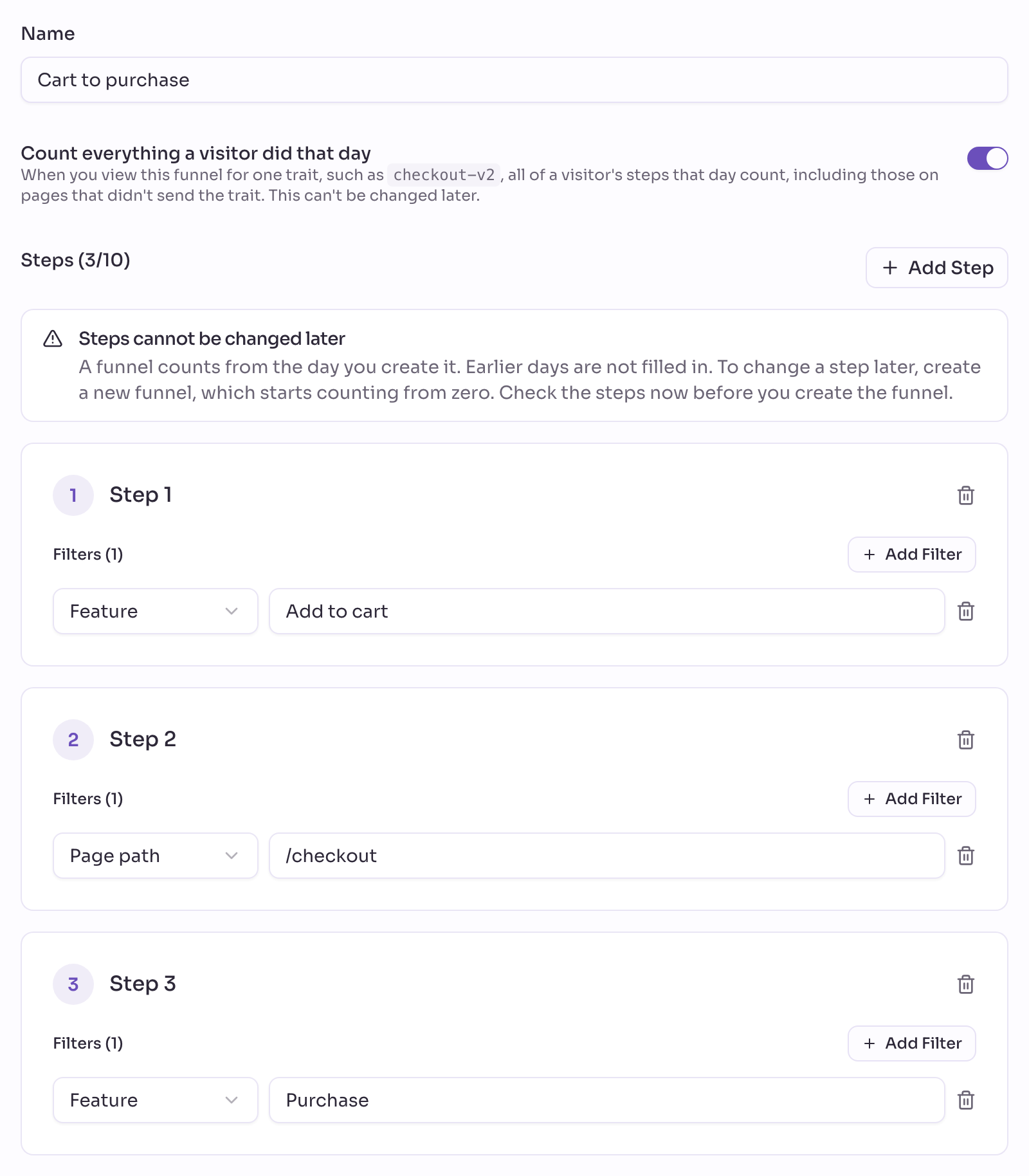
Check the steps, then click Create Funnel.
A funnel counts from the day you create it, so your first numbers appear only once new shoppers have gone through these steps. Earlier weeks stay empty.
A funnel's steps can't be changed later, so check them before you save. Funnels explains every kind of step.
Start from one campaign
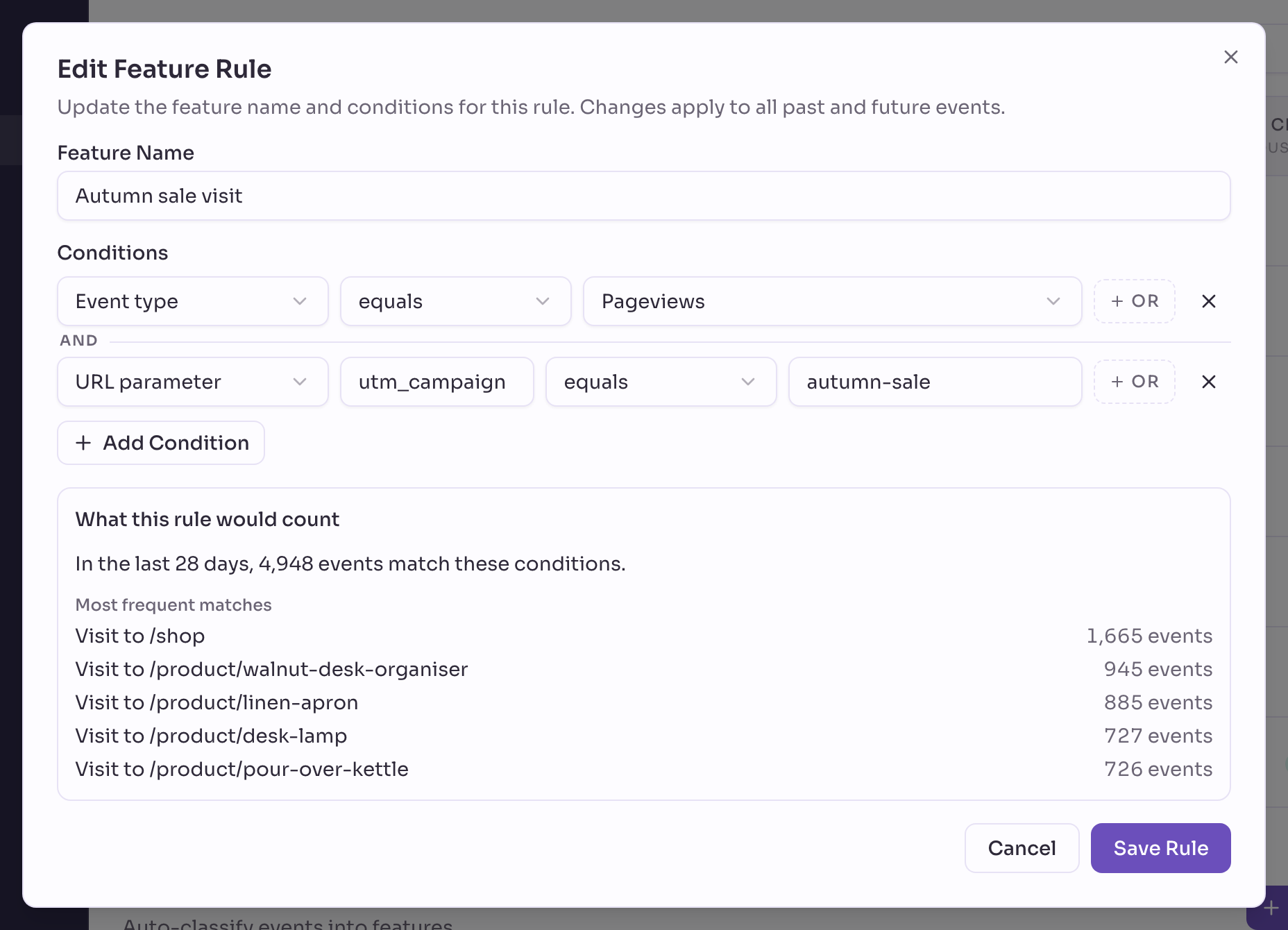
To see this for shoppers from one campaign, create a feature rule first: Event type equals Pageviews and URL parameter utm_campaign equals your campaign's name, such as autumn-sale. Add it as Step 1, before Add to cart.
Read the drop-off
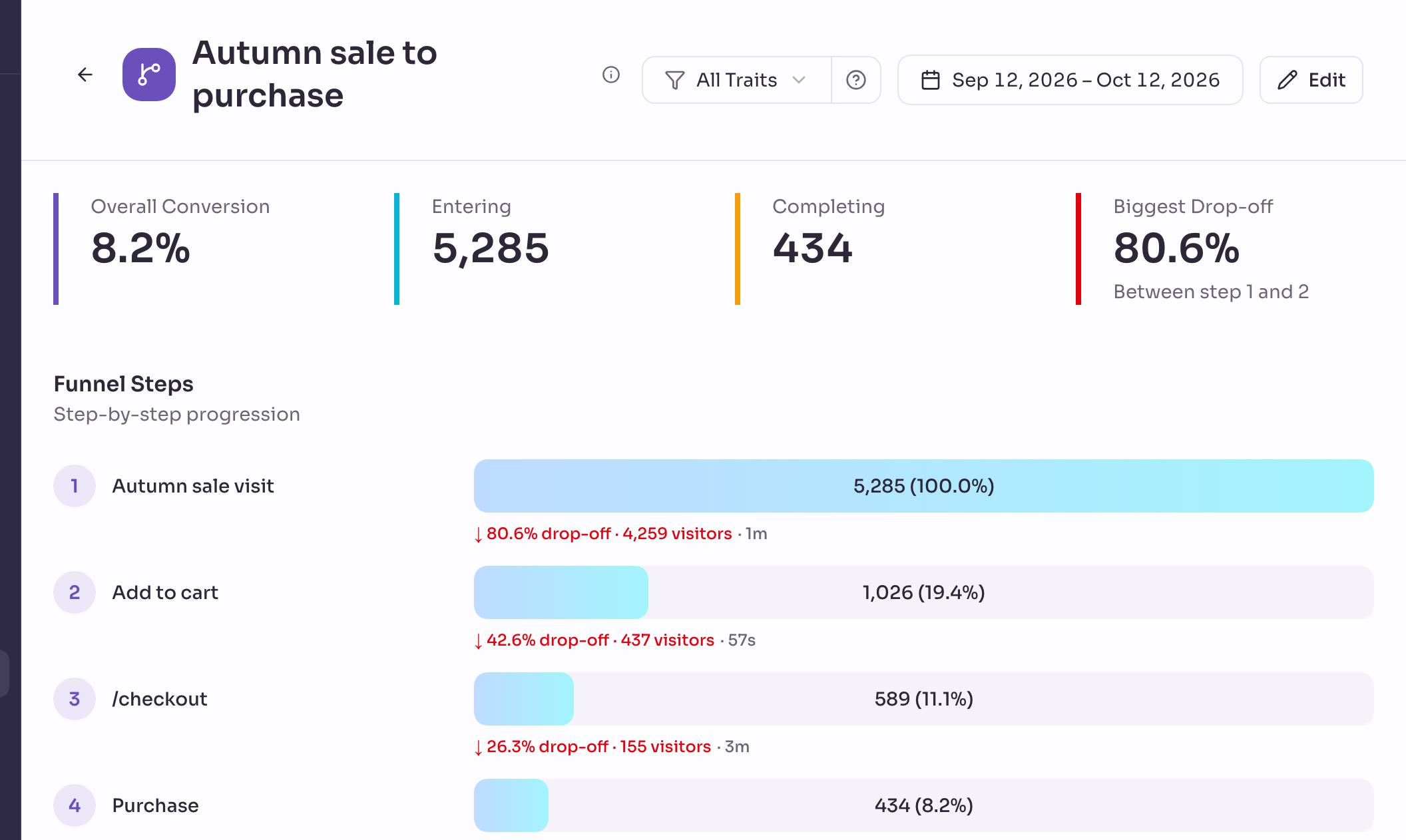
Open the funnel. Entering is how many shoppers did the first step, and Completing is how many of them bought. Biggest Drop-off names the two steps between which the most shoppers left. Under Funnel Steps, each step shows its drop-off: how many shoppers left before the next one, and how long the others typically took to get there.
Compare signed-in shoppers
Choose the trait signed-in under All Traits to read the funnel for shoppers who are signed in to your store, and compare it with All Traits for everyone. Funnels explains how a funnel counts for one group.
Compare one campaign with another
To compare shoppers from two campaigns, build one funnel per campaign, each starting from a feature rule on utm_campaign. Campaigns lists the tagged links you already have, such as Kitchen & Desk's autumn-sale and weekly-news.
Create a feature rule such as Autumn sale visit (Event type equals Pageviews, URL parameter utm_campaign equals autumn-sale), then a second rule for the other campaign. Build a funnel for each, with Feature equals the campaign's rule as the first step, and compare their conversion rates.
Compare languages
On a multilingual store built with Polylang or WPML, the plugin adds a trait for the page's language, such as language-de. Choose it under All Traits to read the funnel for shoppers in one language, then switch to another to compare.
Next steps
- Track revenue in WooCommerce: build your revenue, orders and average order value.
- WooCommerce analytics: everything Privatrak records in your store without any setup.
- Funnels: read every number a funnel shows.