Documentation
Set up Privatrak, name what matters to you and read every report.
Features
A feature is a name for something people do on your site, such as Export CSV or Invite teammate. The Features page shows feature adoption: how often each one is used, and whether that is going up or down.
A name can come from four places. Every name shows up on the Features page automatically:
- A feature rule you create on the Features page. You don’t change your site for it.
- The Element Picker. You click a button, link or form on your site and name it, and it creates the feature rule for you.
- A
data-trackattribute on an element in your site’s code. See Name things in your code. - A
track()call in your code, for something that isn’t a click, such as a completed payment.
Read feature adoption on the Features page
Open Features in the sidebar and choose the dates at the top. To look at one group of visitors, such as those on a paid plan, choose a trait under All Traits.
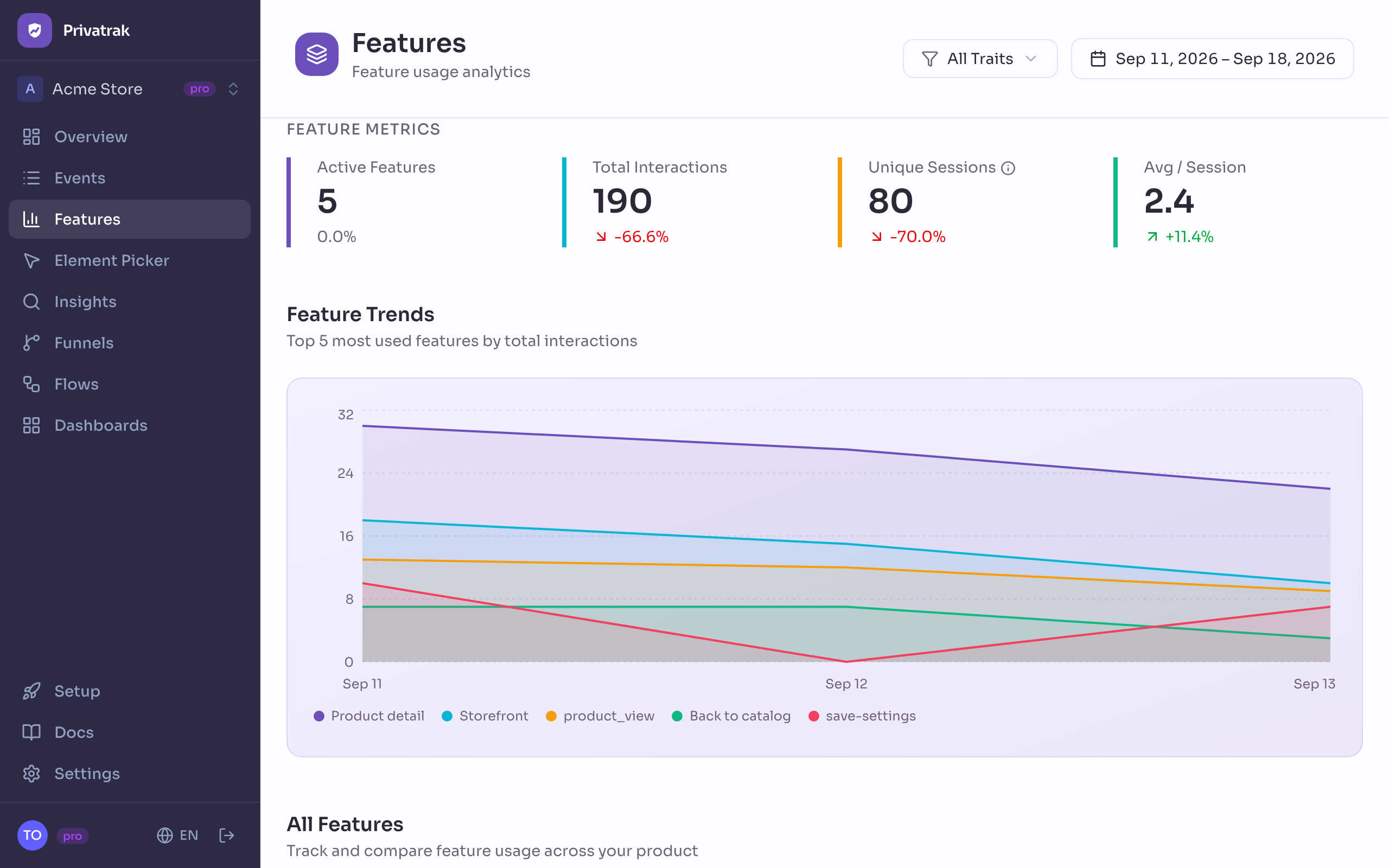
Under Feature Metrics you see four numbers for the date range:
- Active Features: how many different features were used at least once.
- Total Interactions: how many events carried at least one feature name. An event that belongs to several features counts once.
- Visitors: everyone who came to your site in the date range, whether or not they used a feature. Privatrak counts each visitor once per day.
- Avg / Visitor: Total Interactions divided by Visitors. This is how often a visitor uses a feature on an average day.
Feature Trends shows the 5 most used features over time. Switch between Hourly and Daily to see them by the hour or by the day. Use the dot beside a feature in the table to add it to the chart or take it out, up to 10. Reset chart brings back the 5 most used.
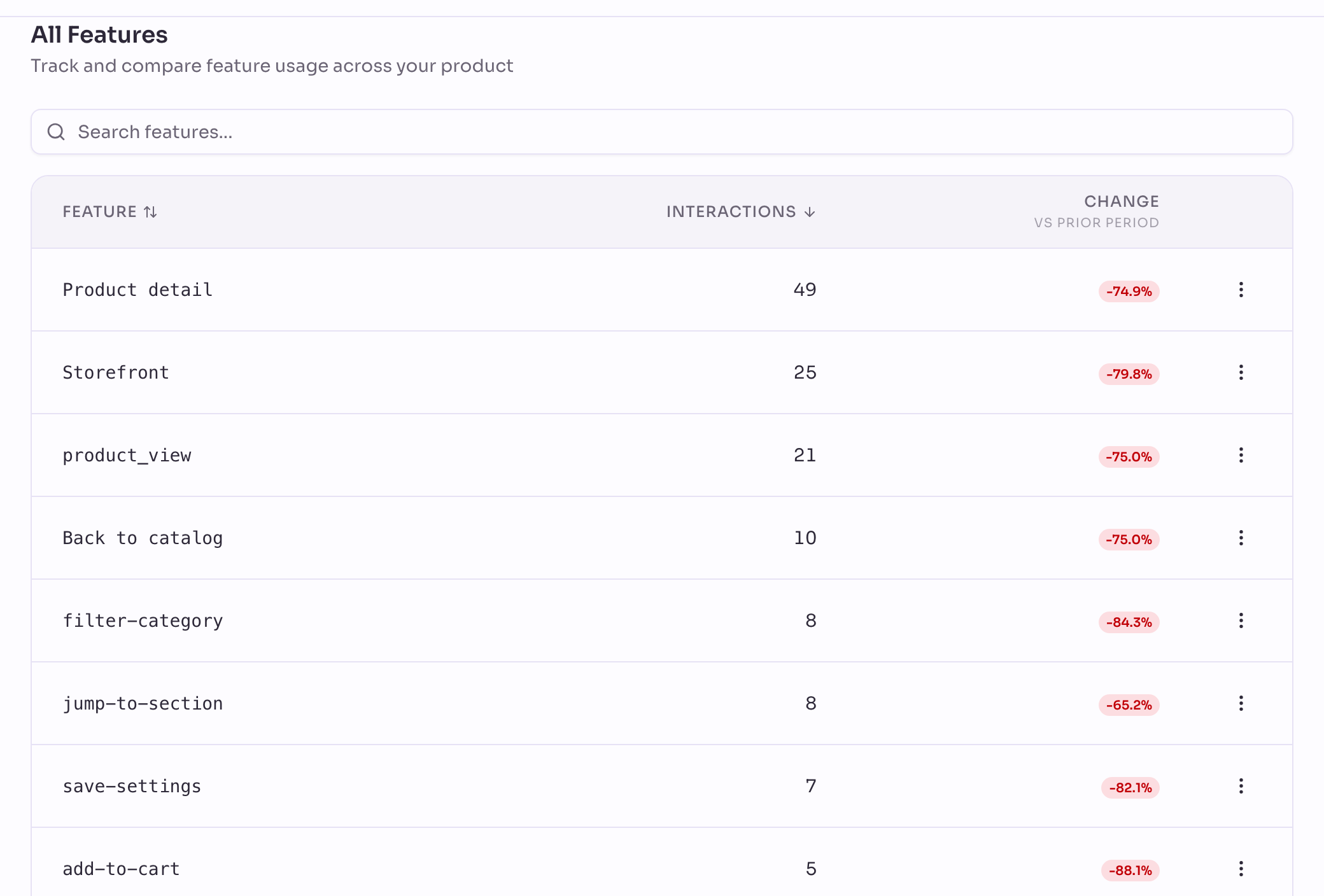
All Features lists every feature. Interactions is how many events carry its name in the date range, and Change compares that with the previous period. A feature that had nothing in the previous period shows New. View Insights in a feature’s menu opens it in Insights.
Create a feature rule
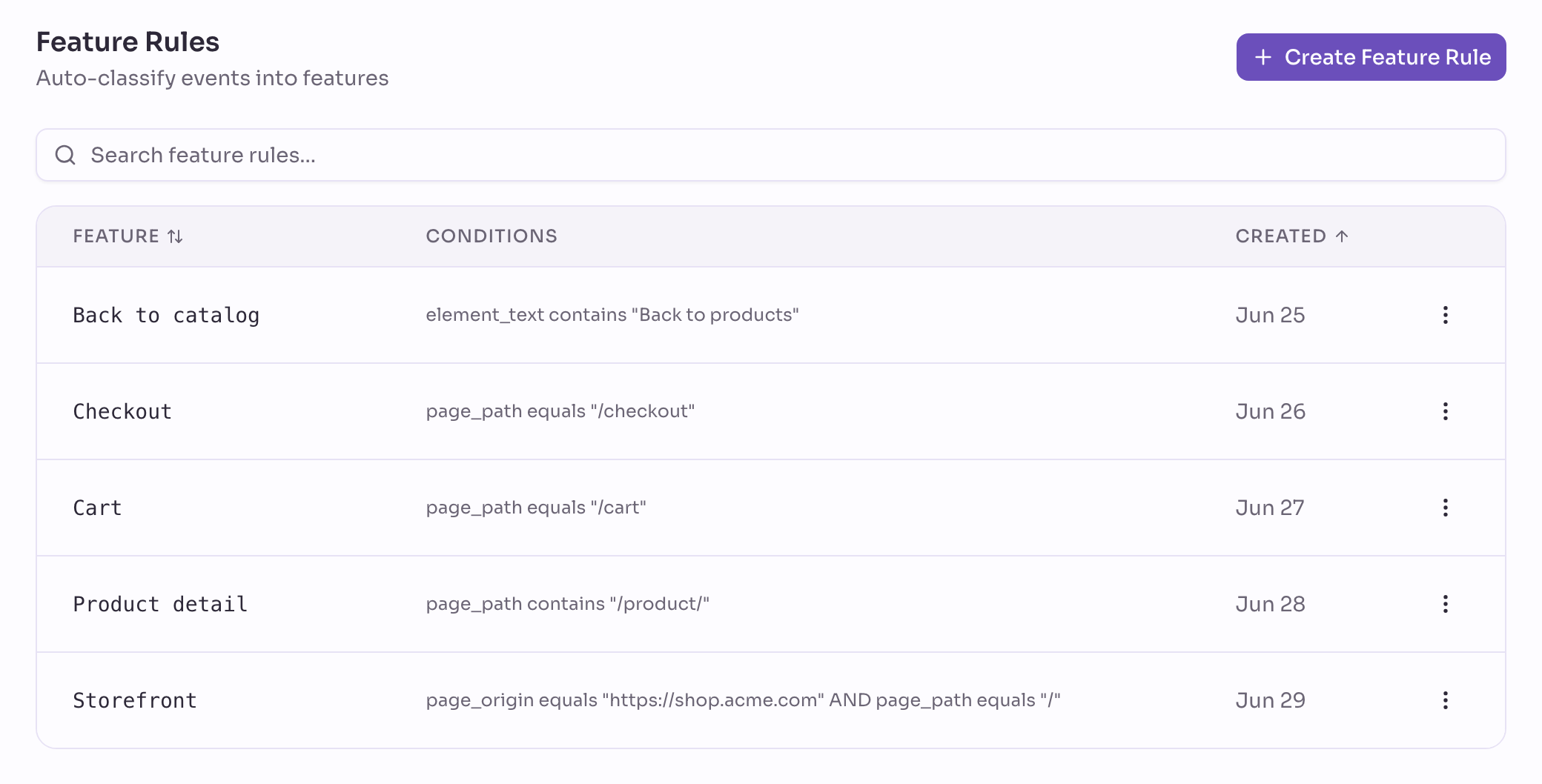
A feature rule gives a name to every event that meets its conditions, such as the clicks on one button or the page views of a group of pages.
- On the Features page, go to Feature Rules and click Create Feature Rule.
- Under Feature Name, type the name, such as
Export CSV. - Set the first condition: a property, how it compares and a value. For example, Element text equals
Export CSV. - To add another condition, click Add Condition. An event has to meet every condition.
- Check What this rule would count. You see how many events of the last 28 days the rule would count, and the most frequent ones.
- Click Create Rule.
The feature appears under All Features, with the matching events from before you created the rule included.
What a condition can check
- Event type: Pageviews, Clicks, Form submits or Custom events.
- Site address: the site, such as
https://shop.example.com. Use it when several sites send to one project. - Page path: the part of the address after the site, such as
/pricing. - Referrer: the website the visitor came from.
- URL parameter: one of the details at the end of a campaign link, such as
utm_campaign. A feature can then mean “came from the newsletter”. - Element text: the text on the button or link, such as
Add to cart. - Element tag: the kind of element, such as
button, orafor a link. - Element selector and Generalized selector: where the element sits on the page, either exactly or for every element like it. The Element Picker and Assign to Feature fill these in for you.
Each condition compares with equals, starts with, contains or matches pattern, where * stands for any text. The table under Group pages into one feature shows examples.
Values must match exactly, capitals included. The URL parameters utm_source, utm_medium and ref are the exception. They ignore capitals, as the Sources and Campaigns pages do. So utm_source equals newsletter also matches Newsletter, but utm_campaign equals spring-sale doesn’t match Spring-Sale.
When one of several values is enough
An event has to meet every condition of a rule. Sometimes one of several values is enough. Visitors from Google, for example, come from www.google.com, from www.google.de or through a link with utm_source=google.
Click + OR at the end of a condition. A new line appears below it. Enter the other value, or choose another property. The rule then counts every event that meets any one of these lines. A group holds up to 20 alternatives.
Group pages into one feature
Privatrak counts every page on its own, so a shop with 200 product pages shows 200 pages. To see them as one, such as “all product pages”, group them with a feature rule. You can then use the group on the Features page, as a funnel step, in filters and on dashboards.
- On the Features page, click Create Feature Rule.
- Name it, such as
Product page. - Set the first condition to Event type equals Pageviews.
- Click Add Condition and choose Page path. Pick how the path compares, using the table below, and enter the value, such as starts with
/product/. - Click Create Rule. Page views of every matching page count as
Product page, the ones from before the rule included.
| Comparison | Example | Matches |
|---|---|---|
| starts with | /product/ | every path that begins with it: /product/desk-mat, /product/lamp/reviews, but not /admin/product/edit |
| matches pattern | /product/*/reviews | the whole path, where * stands for any text: /product/lamp/reviews, /product/desk-mat/reviews |
| equals | /pricing | exactly this one page |
| contains | sale | every path with this text anywhere in it, often more than you want |
Good to know
- Capitals count.
/Product/doesn’t match/product/, so type the path as it appears in your addresses. - Flows show each page on its own. The group doesn’t combine pages there.
- Several sites with the same paths? Add Site address as a third condition.
- Pages whose addresses have nothing in common? Click + OR after the page path and enter the second one. Page path equals
/pricingor/planscounts both as one feature.
Rules include past events
A new rule also counts matching events from before you created it, as far back as your plan keeps data. An event can belong to several features. A new rule adds its name and takes nothing away from other features.
In funnels, a rule counts from the day you create it.
Change or delete a rule
Under Feature Rules, open the menu at the end of the rule’s row and choose Edit or Delete. A change applies to past and future events. When you delete a rule, its events stop counting for that feature. Other features they belong to stay as they are.
How many rules a project can have depends on your plan.
Other ways to create a rule
- Assign to Feature on any event on the Events page fills in the conditions from that event.
- Create feature on Sources and Campaigns makes a feature from a source or a campaign. On Pages, a page’s details offer Create feature for this page.
- Open Element Picker on the Features page opens your site, so you click the element instead of describing it. The Element Picker page shows each step.
Next steps
- Funnels: use a feature as a step and see how many visitors get through.
- Insights: chart a feature over time and break it down.
- Element Picker: name a button by clicking it on your site.