Documentation
Set up Privatrak, name what matters to you and read every report.
Measure your SaaS onboarding
Many people sign up for your product, but not all of them get started. What counts is the moment a new sign-up first does the thing your product is for: at Formhaven, publishing a first form. This guide shows how many new sign-ups get there, where the others stop and which templates they pick, without any code. Product teams call this user activation.
The example in this guide
Formhaven is an online form builder for small businesses. People sign up at app.formhaven.com/signup with Create account and land on /welcome, which asks “What do you want to build first?”. There they pick one of four templates with Use template or click Start from scratch, and the form editor opens. A new account has really started once it clicks Publish form for the first time, so that is the moment Formhaven counts.
Before you start
The tracker is installed on your app, including the sign-up page. Nothing else in your code needs to change.
1. Choose the moment that counts
Think about what a new account does when your product first proves useful to them. That is the moment that counts, and it becomes the last step of your funnel. Pick one thing you can see on your site, a button people click or a page they reach, such as a first project created, a first file shared or a first teammate invited. At Formhaven, it is the click on Publish form.
Pick something people can do on the day they sign up. Privatrak recognises a visitor for one day only, so the funnel counts what happens on the day of sign-up. At Formhaven, a new sign-up who publishes a form that same day counts as started. One who comes back a week later to publish it doesn’t.
2. Name the steps of your onboarding
Write down the pages and buttons a new sign-up passes on the way to that moment: the first page after signing up, the choices they make and the button that counts. Pages need no setup, because Privatrak counts every page already. Buttons get a name with the Element Picker, right on your site. At Formhaven, new sign-ups land on /welcome, pick a template there, edit their form in the editor at /app/forms/new and click Publish form. The two pages are counted already, so only the template buttons and Publish form need a name.
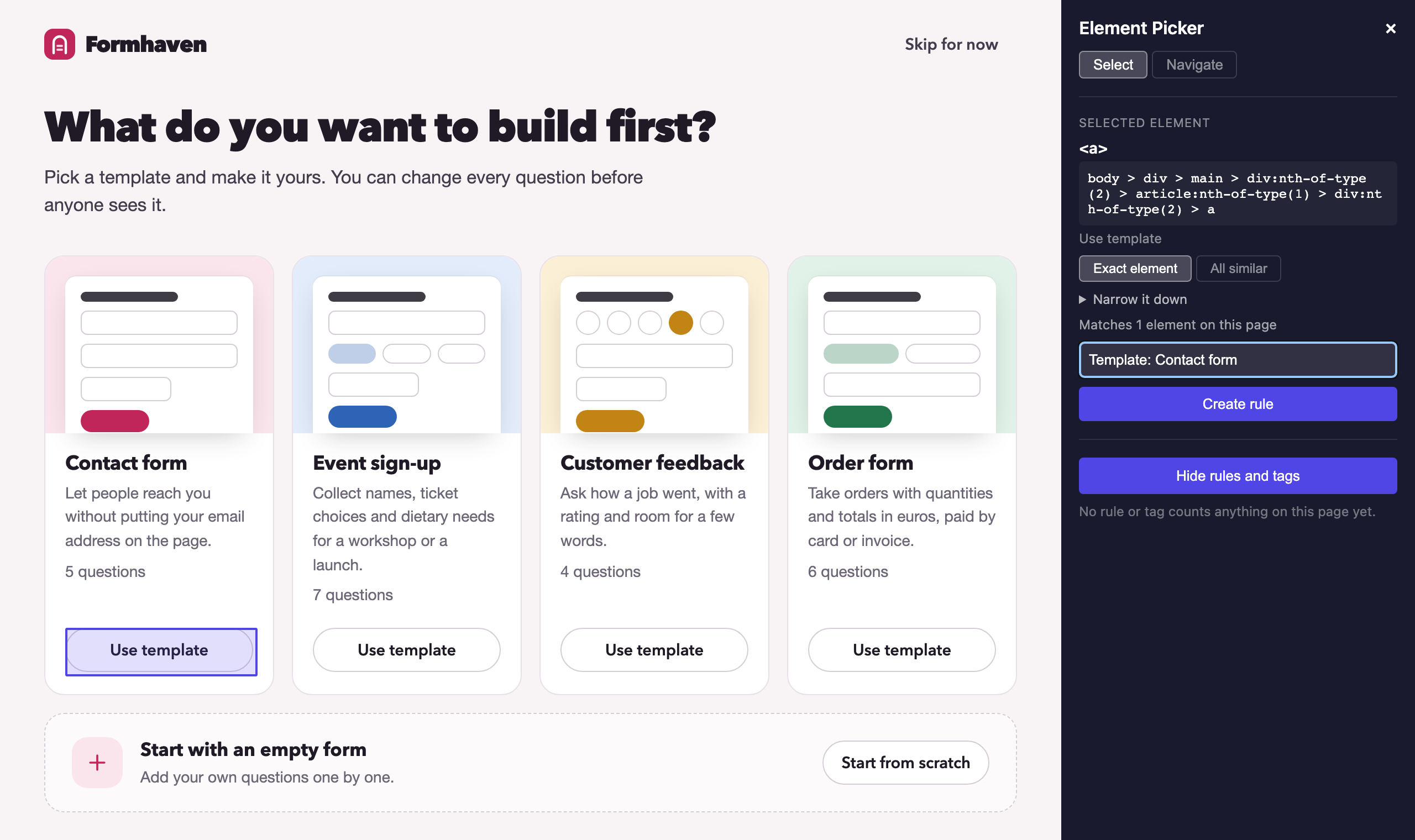
- Open Element Picker in the sidebar. Under Page address, enter the address of the first page new sign-ups see, and click Open page. At Formhaven, that is
https://app.formhaven.com/welcome. - Your site opens in a new tab with the Element Picker window. Choose Navigate to go through your onboarding the way a new sign-up would, and Select when you see a button you want to name.
- If new sign-ups choose between options, such as templates or plans, name each option on its own, so you can compare later which one people pick. Click the option’s button and keep Exact element, so only this one button counts. Under Feature name, type a name and click Create rule. Start the names of related options the same way, so you find them together later. At Formhaven, that is Use template on the Contact form card, named
Template: Contact form.
- Do the same for every other option. Formhaven names the other three cards
Template: Event sign-up,Template: Customer feedbackandTemplate: Order form, and names Start from scratch too. - Then name the button for the moment that counts, and any button after it that you care about. Formhaven names Publish form in the editor and Copy link on the page that says “Your form is live”.
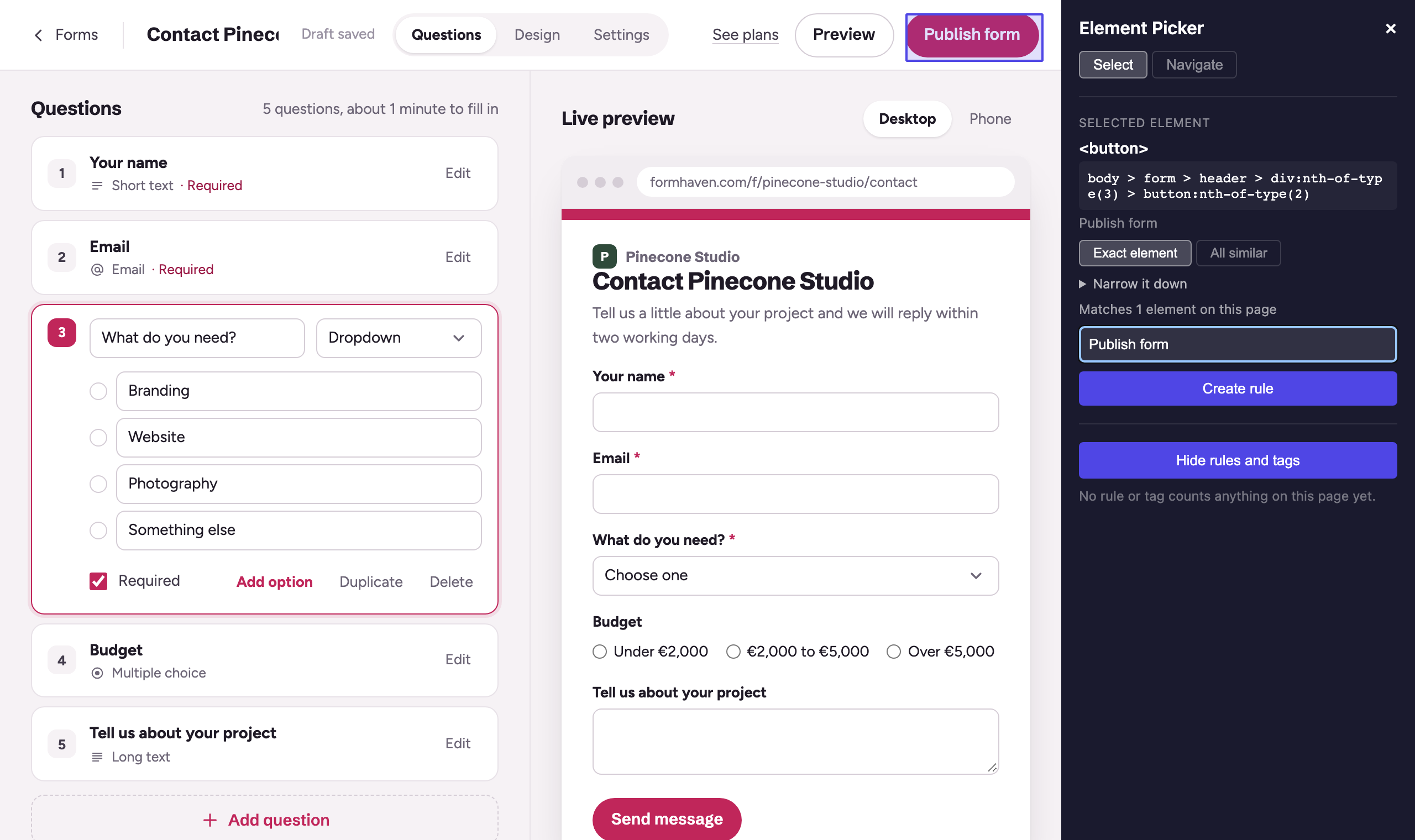
Each name becomes a feature. You use them as funnel steps and compare them on the Features page.
Your AI assistant can also set this up for you if you chose Read and write when you connected it. Ask it, for example: “Set up Privatrak: name the buttons of our onboarding and create a funnel from /welcome to Publish form.”
3. Create the onboarding funnel
Do this as soon as your steps are named. A funnel counts from the day you create it, and earlier days stay empty. When counting starts has the details.
Open Funnels and click New Funnel. Then:
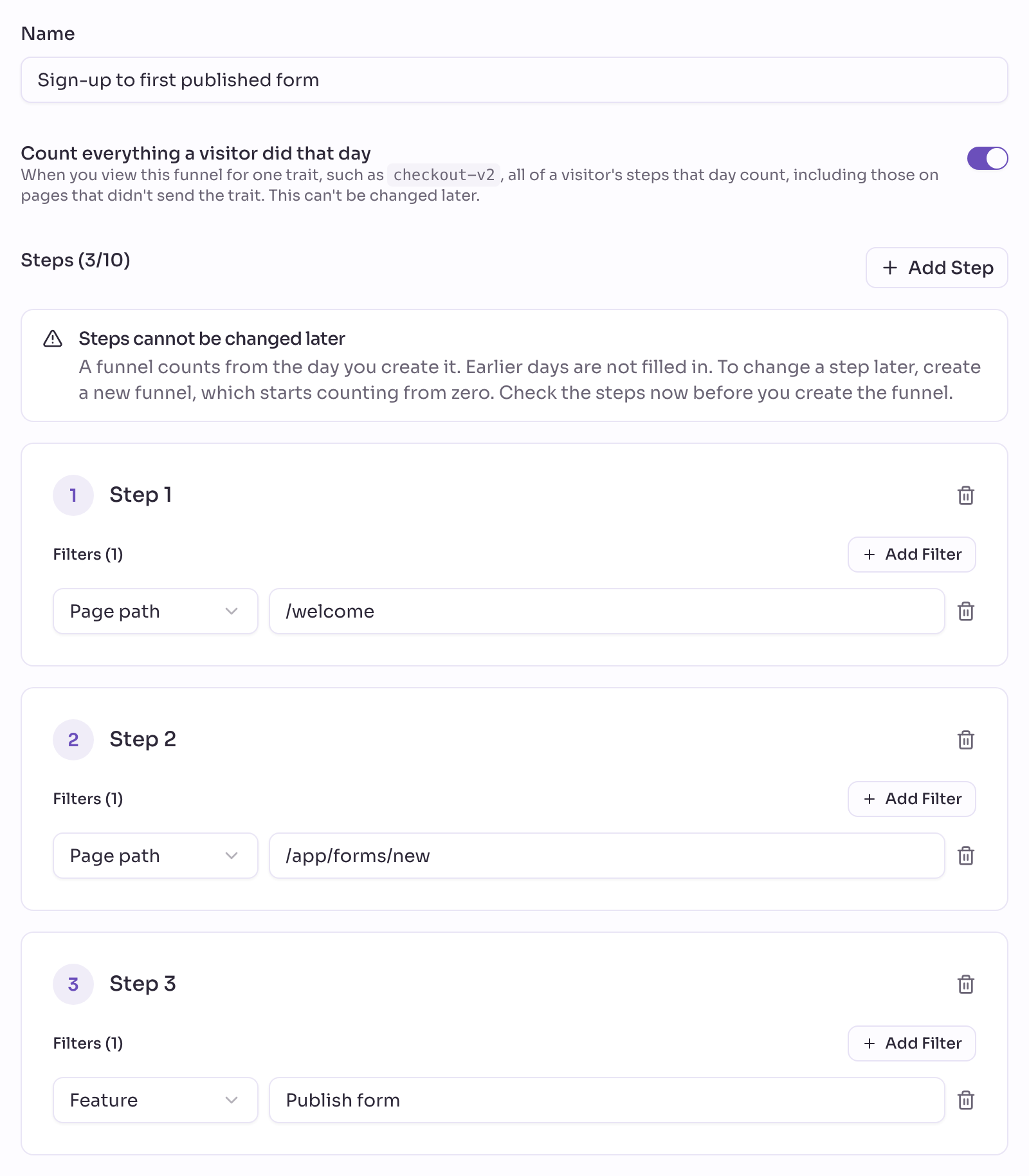
- Give it a name that says which journey it measures. Formhaven calls it
Sign-up to first published form. - For Step 1, click Add Filter, choose Page path and enter the first page new sign-ups see. At Formhaven, that is
/welcome. - Click Add Step for each stage on the way, in the order people go through them. Choose Page path for a page or Feature for a button you named. These steps show where new sign-ups stop. Formhaven adds the form editor,
/app/forms/new. - Click Add Step once more and choose the moment that counts, usually a Feature. At Formhaven, that is
Publish form. - Click Create Funnel.
The steps can’t be changed later, so check them before you save.
4. See how many get started
Give the funnel a few days, then open it in Funnels:
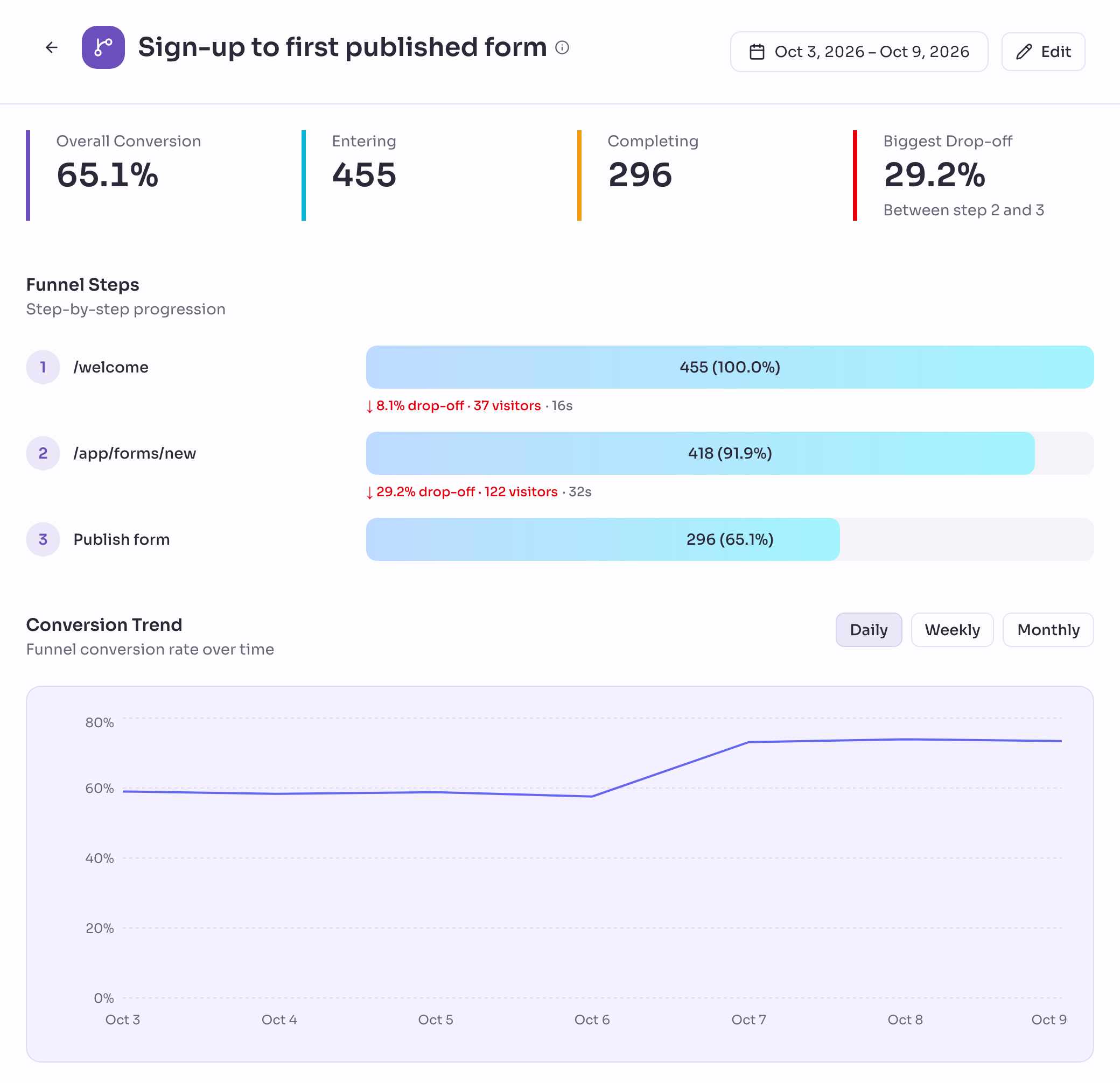
- Overall Conversion is the share of new sign-ups who reached the moment that counts. This is your activation rate.
- Biggest Drop-off names the two steps between which most people stop. Look at that part of your onboarding first. A high drop-off right after the first page can mean people don’t know where to start. One right before the last step means they got close, so look at what stands in their way there.
- Conversion Trend shows that share day by day. After you change your onboarding, choose Daily and check whether the line steps up from that day on. At Formhaven, a change to the form editor on 7 October lifted it from about 58% to about 73%. Step 6 shows how Formhaven found what to change.
You can also ask your AI assistant, with the names from your own funnel: “How many sign-ups published a first form last month, and at which step do the others stop?”
5. See which options new sign-ups pick
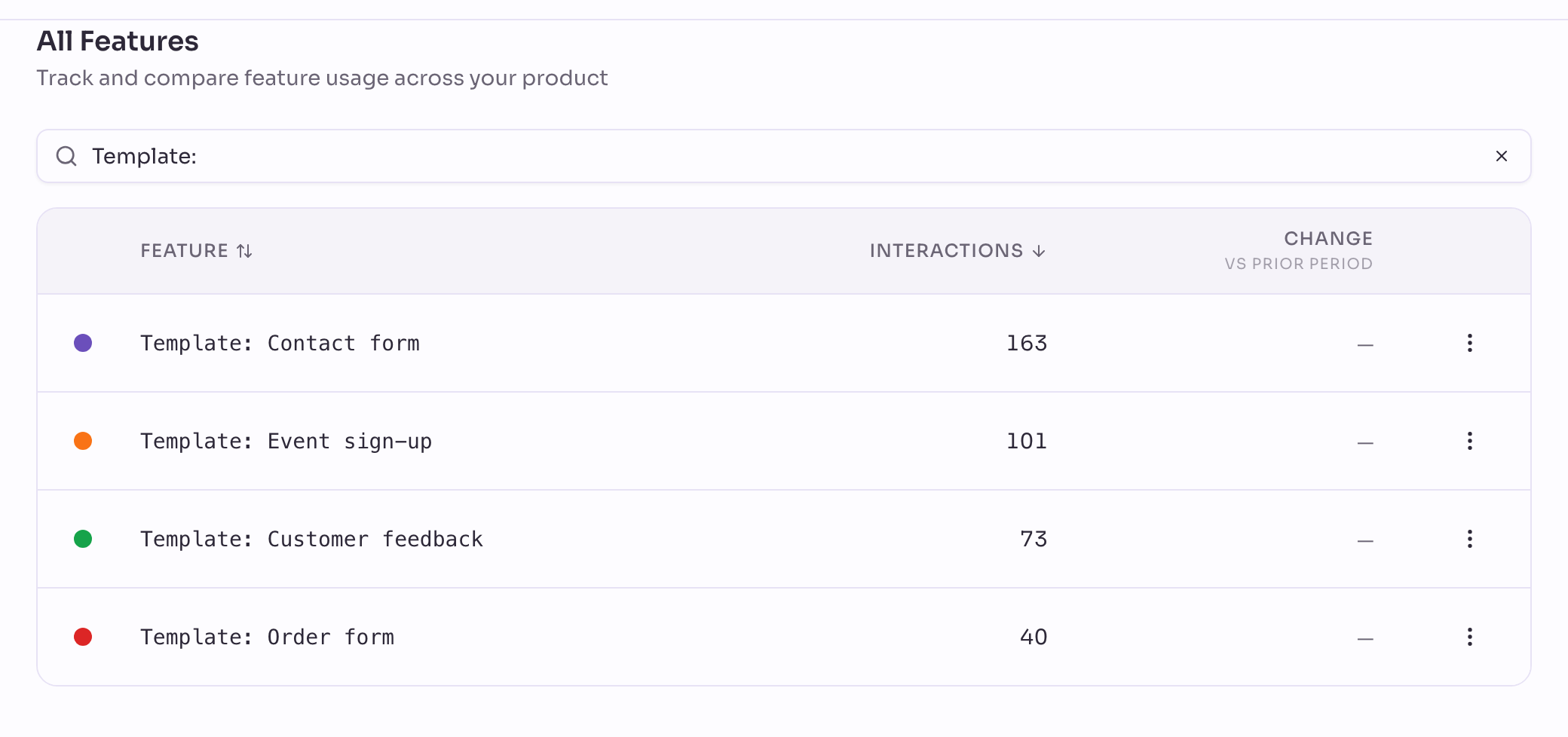
Open Features and search All Features for the names you gave the options. At Formhaven, a search for Template: lists the four templates. Interactions shows how often each one was chosen, and Change compares it with the previous period. A feature rule also counts clicks from before you created it, so the numbers are there right away.
To follow the options over time, open Insights. Add the filter Feature starts with and the beginning all their names share, such as Template:, and choose Feature under Breakdown. You get one line per option.
6. See where new sign-ups go instead
The funnel shows where people stop. Flows shows where they go instead. Open Flows. Under Start from, search for the step with the biggest drop-off, and keep Level at Pages and features. The first column shows what visits did next, and Exit shows where they ended. Click a step to see what came after it.
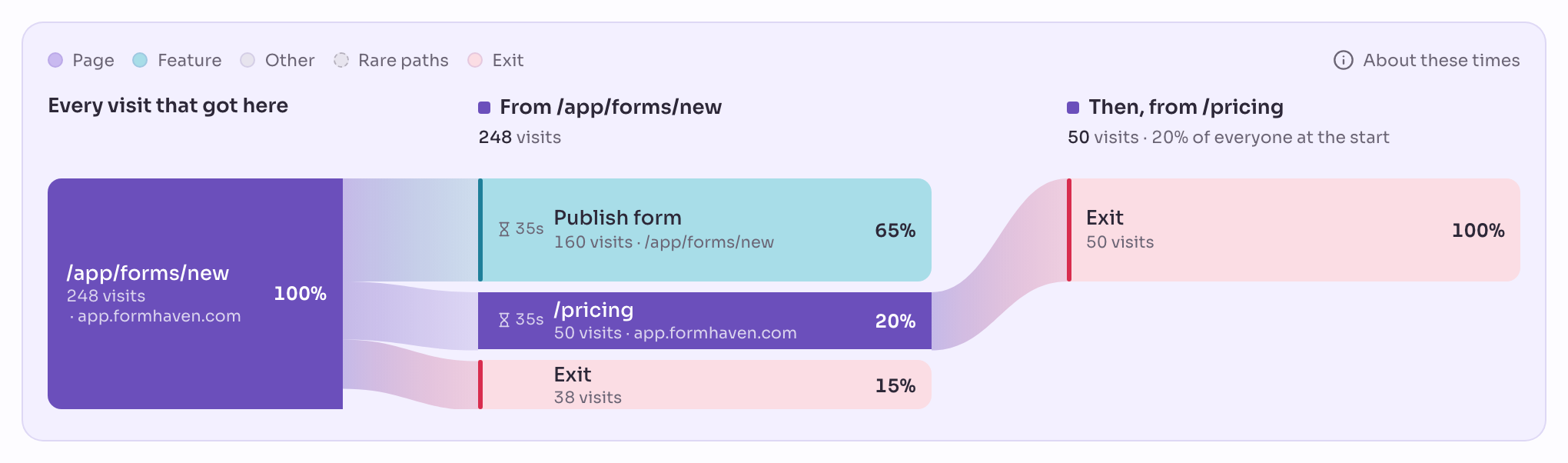
Formhaven started from its form editor, /app/forms/new, for the days before its change. A fifth of the editor visits went to the pricing page, and every one of them left from there. People about to publish weren’t sure it was free. On 7 October Formhaven added “Publishing is free. Your plan includes 3 published forms.” next to Publish form, and the detour to the pricing page almost disappeared.
What to expect
- Each device counts as its own visitor. Someone who signs up on a phone and publishes the form from a laptop counts as two visitors, so the funnel doesn’t join their steps.
- Read the numbers over a few weeks. With a handful of sign-ups a day, the share can swing widely from one day to the next.
Next steps
- Funnels: read your funnel step by step and see where visitors drop off.
- Let it set up your project: let your AI assistant name your features and build your funnels.
- Name things in your code: for developers who would rather name these steps in code.