Dokumentation
So richten Sie Privatrak ein, benennen, was Ihnen wichtig ist, und lesen jeden Bericht.
Element Picker
Mit dem Element Picker tracken Sie Klicks ohne Code. Sie benennen einen Button, einen Link oder ein Formular, indem Sie es auf Ihrer eigenen Website anklicken. Privatrak zählt dann auf der Seite Features unter diesem Namen, wie oft es genutzt wird. Der Element Picker ist nur auf Englisch verfügbar.
Der Element Picker speichert Ihre Auswahl als Feature-Regel. Sie können sie später also wie jede andere Regel ändern.
In der Live-Demo mit Beispieldaten eines Demo-Shops probieren Sie den Element Picker und das übrige Dashboard ohne Registrierung aus.
Bevor Sie beginnen
- Der Tracker ist auf Ihrer Website installiert.
- Ihr Browser erlaubt Pop-ups vom Dashboard.
- Der Tab mit dem Dashboard bleibt offen, solange Sie arbeiten. Über ihn speichert der Element Picker Ihre Regeln.
Ihre Website öffnen
- Öffnen Sie Element Picker in der Seitenleiste.
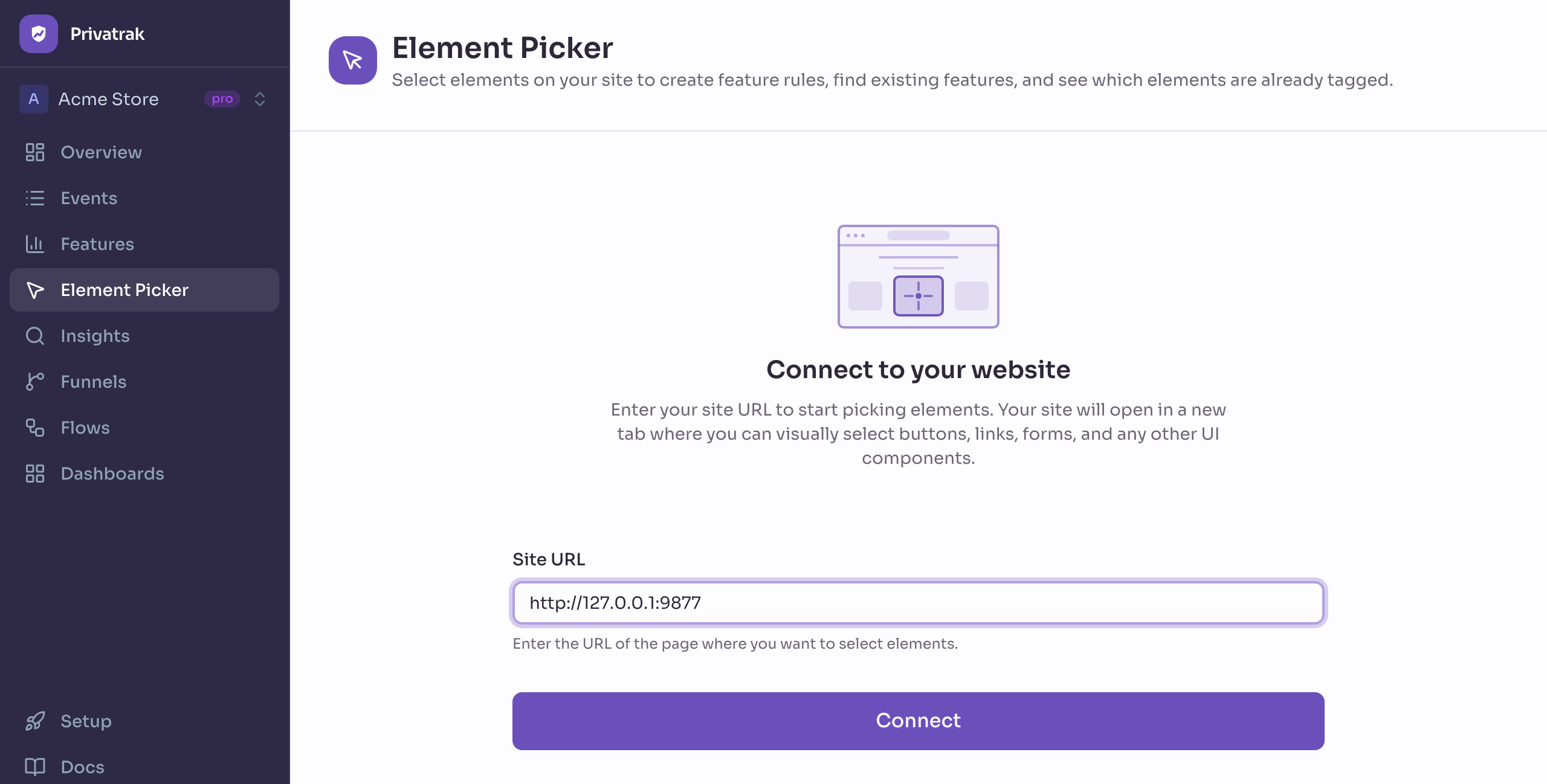
- Geben Sie unter Adresse der Seite die vollständige Adresse einer Seite Ihrer Website ein, etwa
https://beispiel.de/preise. - Klicken Sie auf Seite öffnen. Ihre Website öffnet sich in einem neuen Tab, darauf das Fenster des Element Pickers.
Öffnet sich kein Tab, erlauben Sie Pop-ups für das Dashboard und versuchen Sie es erneut. Meldet das Dashboard Ihre Seite hat nicht geantwortet, prüfen Sie, ob der Tracker auf dieser Seite installiert ist.
Zum Element gelangen
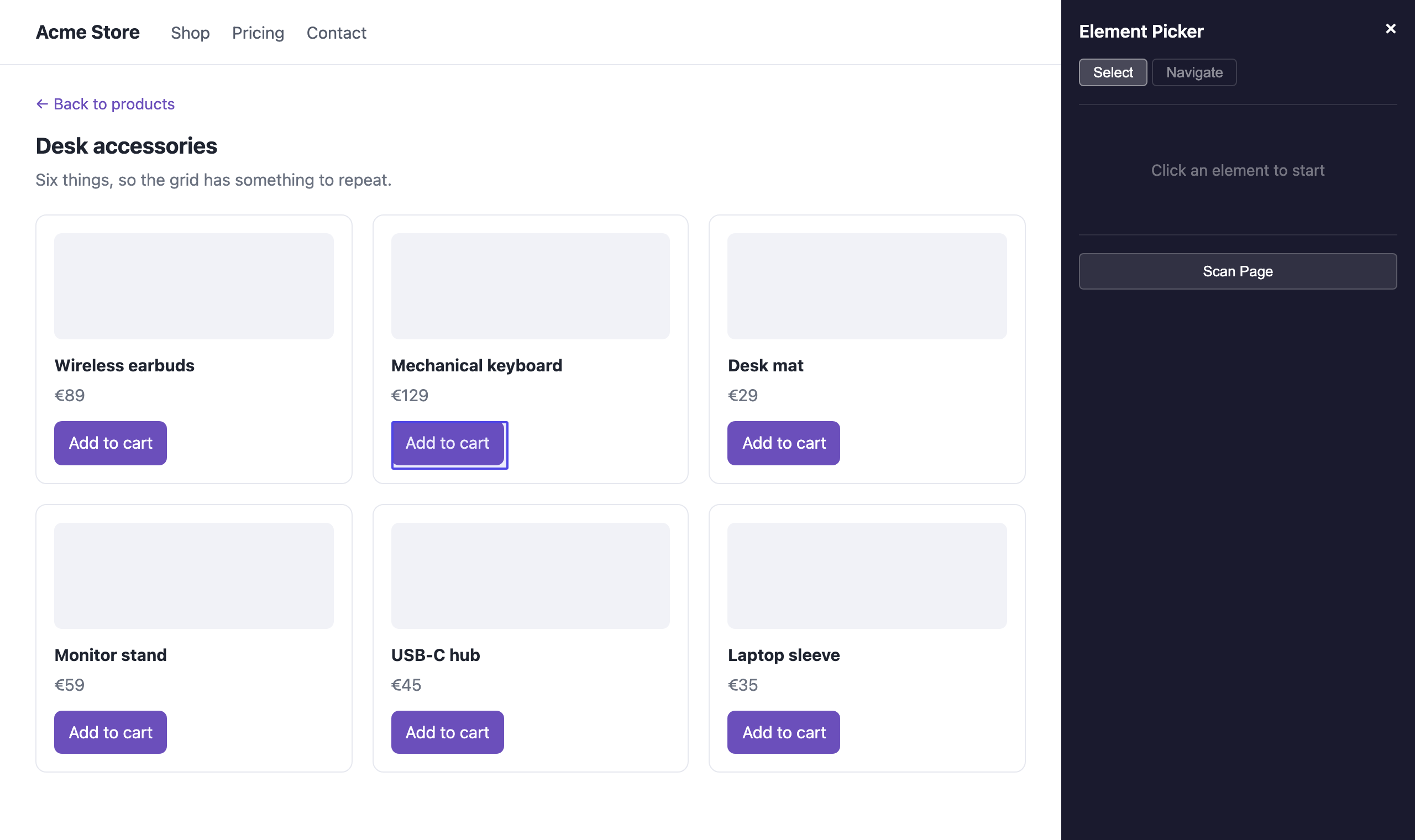
Das Fenster des Element Pickers hat zwei Modi:
- Select: Ein Klick wählt das Element unter dem Mauszeiger aus. Ihre Website reagiert dabei nicht. Links öffnen sich nicht, und Buttons senden nichts ab. Scrollen können Sie weiterhin. Der Element Picker startet in diesem Modus.
- Navigate: Ihre Website funktioniert wie gewohnt. Öffnen Sie Menüs und wechseln Sie die Seite, bis Sie das Element sehen. Schalten Sie dann zurück auf Select.
Der Element Picker bleibt offen, während Sie von Seite zu Seite gehen, und merkt sich Ihre Einstellungen, bis Sie den Tab schließen. Ihre Besucher sehen ihn nie. Was er sich merkt, solange er offen ist, steht unter Datenschutz.
Einen Button benennen und seine Klicks tracken
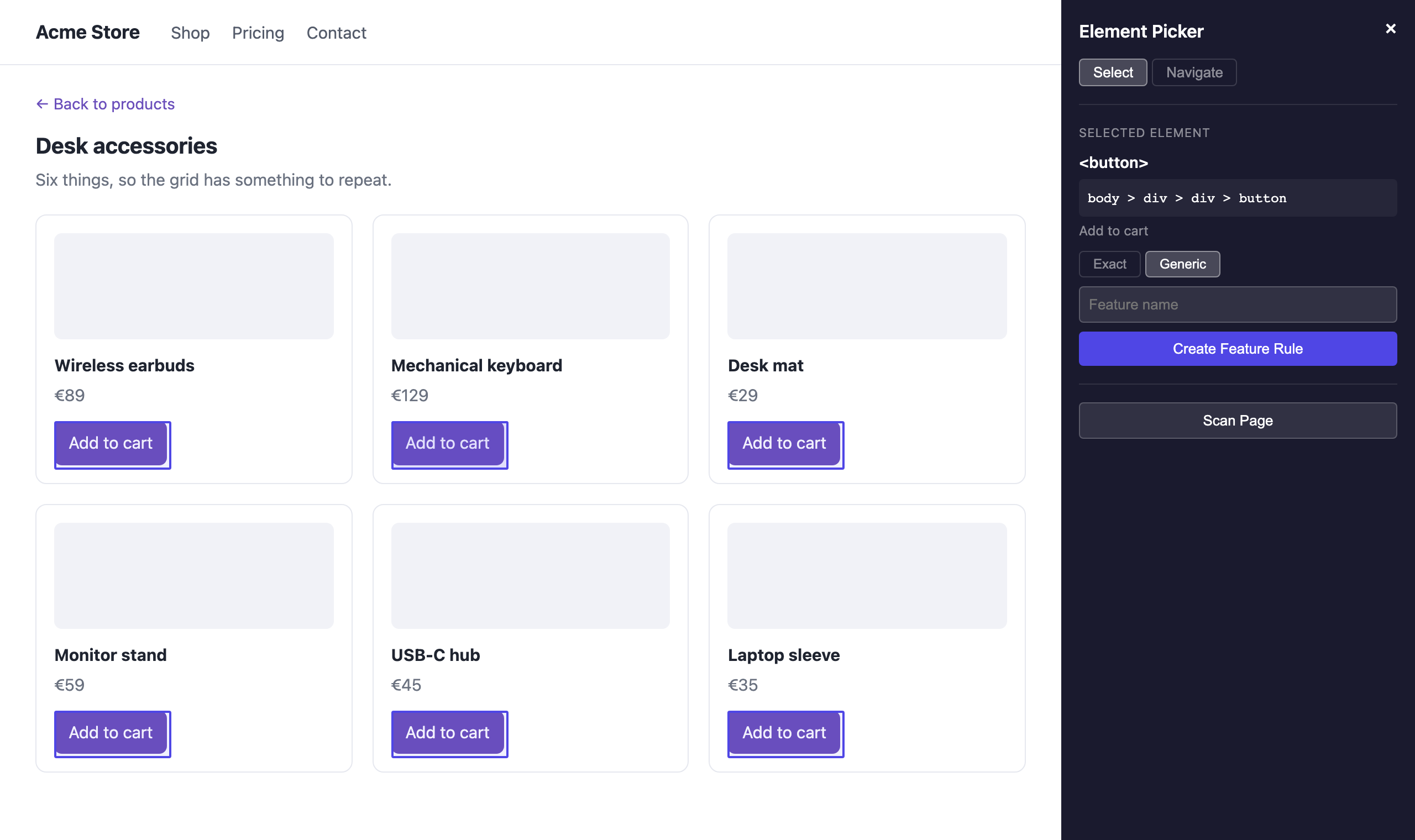
- Zeigen Sie bei eingeschaltetem Select auf einen Button, einen Link oder ein Formular. Es wird umrandet. Klicken Sie darauf.
- Prüfen Sie die Zahl, etwa Matches 6 elements on this page. Die umrandeten Elemente sind die, die die Regel zählen würde. Mit Exact element oder All similar legen Sie fest, ob eines oder alle gezählt werden.
- Geben Sie unter Feature name einen Namen ein, etwa
In den Warenkorb. - Klicken Sie auf Create rule.
Das Fenster meldet Created mit dem Namen. Um die Regel zurückzunehmen, klicken Sie innerhalb von 8 Sekunden auf Undo, spätestens bevor Sie das nächste Element auswählen.
Ein Element oder alle ähnlichen
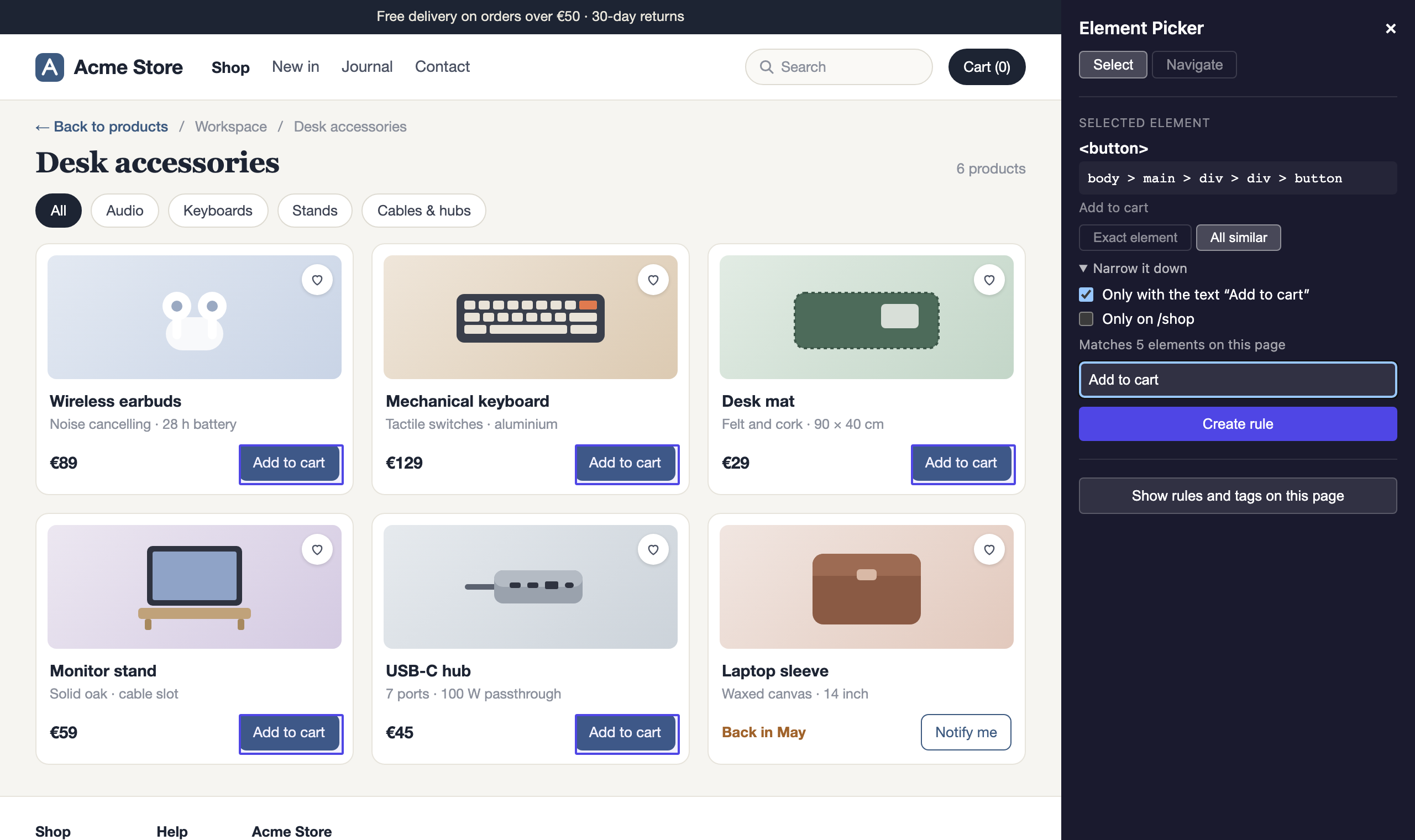
Wiederholt sich das ausgewählte Element, etwa der Button auf jeder Produktkarte, legen Sie fest, was die Regel zählt:
- Exact element: nur das angeklickte Element. Nehmen Sie das für einen einzelnen Button, etwa „Registrieren“ im Kopfbereich Ihrer Website. Der Element Picker beginnt mit dieser Wahl.
- All similar: jedes gleichartige Element an derselben Stelle, etwa den Button „Add to cart“ auf jeder Karte, auch auf Karten, die später dazukommen. Nehmen Sie das für Listen und Raster.
Mit Narrow it down weniger zählen
Narrow it down bietet zwei Kästchen. Jedes, das Sie ankreuzen, schränkt die Regel weiter ein:
- Only with the text …: nur Elemente mit genau diesem Text, etwa Add to cart, aber nicht Notify me. Auf einer mehrsprachigen Website zählt die Regel dann nur die Sprache, in der Sie das Element ausgewählt haben.
- Only on … mit dem Pfad der Seite, etwa
/preise: nur auf dieser Seite. Für Kopf- oder Fußzeilen, die überall zählen sollen, lassen Sie das Kästchen frei. Wie Sie einen ganzen Bereich Ihrer Website zählen, steht unter Seiten zu einem Feature zusammenfassen.
Prüfen Sie die Zahl noch einmal, bevor Sie auf Create rule klicken. Sie gilt für die Seite, auf der Sie gerade sind. Ohne Only on … zählt die Regel passende Elemente auch auf allen anderen Seiten.
Prüfen, was Ihre Regeln zählen
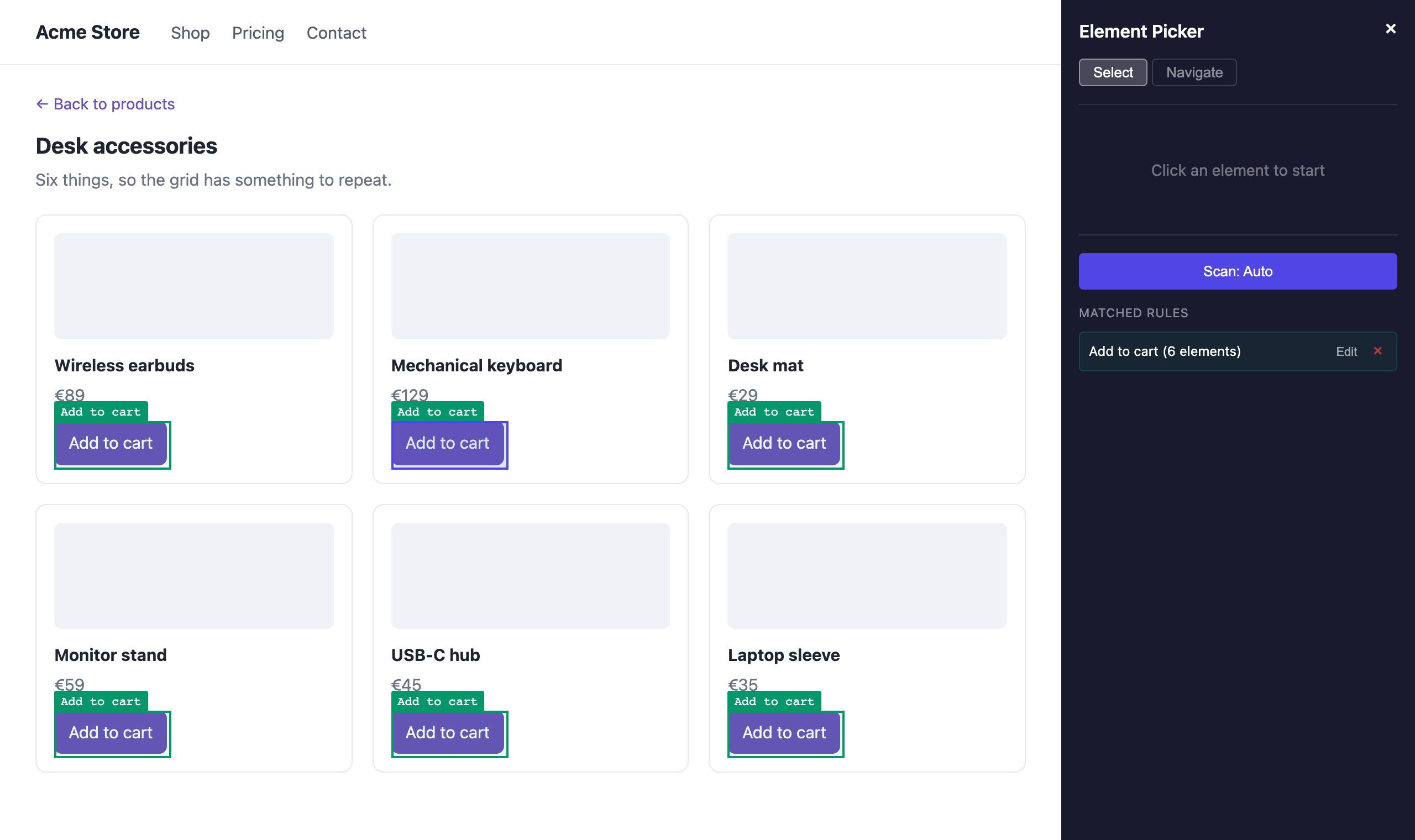
Klicken Sie auf Show rules and tags on this page. Jedes Element der Seite, das eine Regel zählt, wird grün markiert und mit dem Namen des Features versehen. Unter Rules on this page stehen diese Regeln. Die Markierungen bleiben, während Sie sich auf Ihrer Website bewegen, bis Sie auf Hide rules and tags klicken.
Unter Tagged elements stehen die Elemente, die im Code Ihrer Website mit data-track benannt sind. Sie werden ohne Regel gezählt.
Solange Regeln und Tags eingeblendet sind, meldet das Fenster mit Already counted for the feature …, wenn ein Feature das ausgewählte Element schon zählt. Eine neue Regel zählt es dann zusätzlich für das neue Feature.
Eine Regel ändern oder löschen
Bei eingeblendeten Regeln und Tags finden Sie die Regel unter Rules on this page:
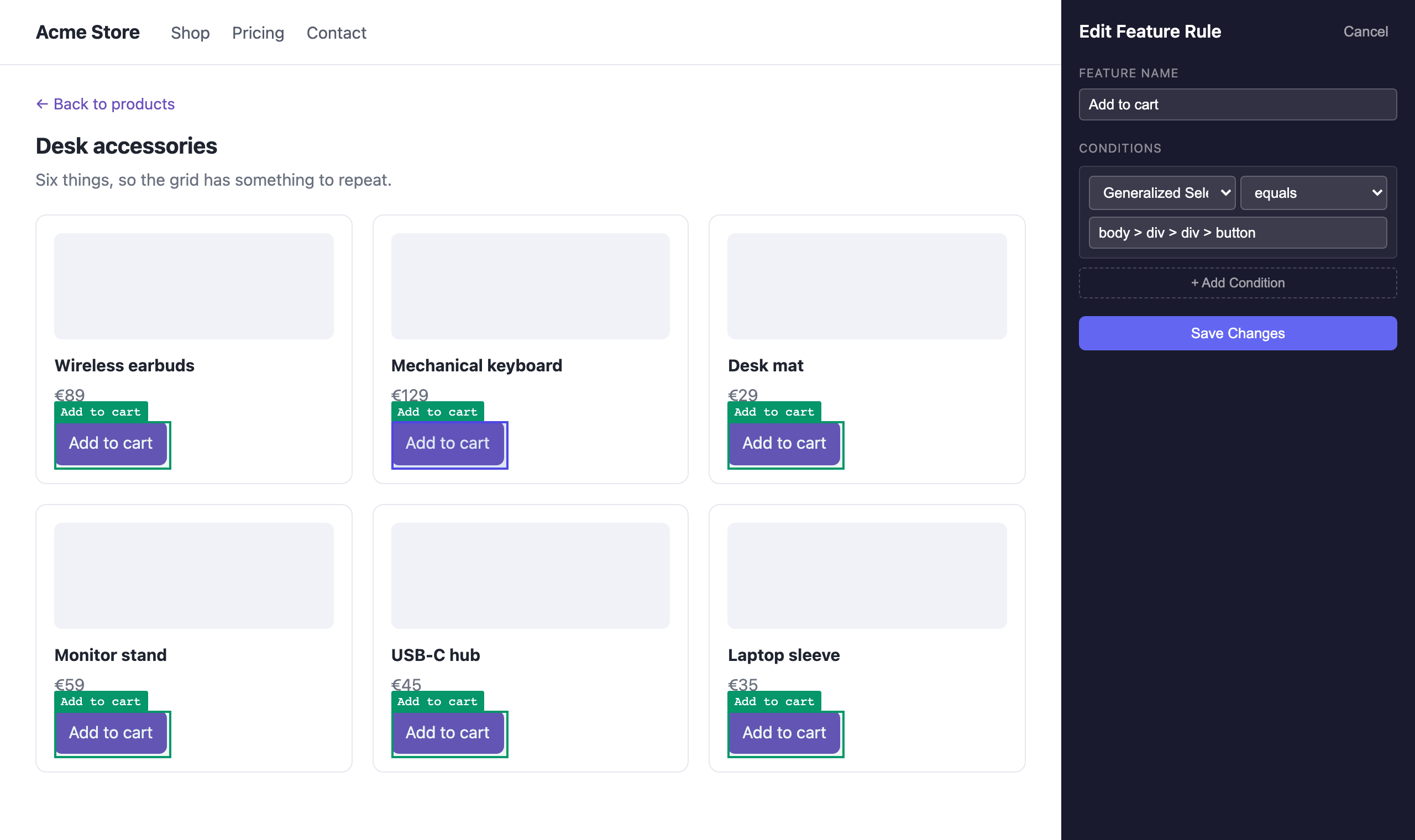
- Edit öffnet Edit rule. Ändern Sie den Namen oder die Bedingungen und fügen Sie mit + Add condition weitere hinzu, etwa Event type oder Site address. Klicken Sie dann auf Save rule.
- × löscht die Regel.
Eine Regel mit Alternativen zeigt View statt Edit. Sie ändern sie auf der Seite Features.
Wo die Zahlen erscheinen
Jeder Name erscheint auf der Seite Features. Eine neue Regel zählt auch frühere Klicks. In Funnels zählt eine Regel ab dem Tag, an dem Sie sie anlegen.
Sie können den Element Picker auch mit Element Picker öffnen auf der Seite Features starten oder mit Im Element Picker öffnen im Menü einer Seite unter Seiten.
Nächste Schritte
- Im Code benennen: Benennen Sie Buttons und Formulare mit
data-trackund senden Sie Events, die keine Klicks sind. - Features: Sehen Sie, wie oft jeder Name genutzt wird.