Documentation
Set up Privatrak, name what matters to you and read every report.
Click Map
The Click Map shows how often each button and link on a page of your site was clicked, with the numbers drawn right on the page. It also marks where clicks went wrong, so you see at a glance what people use and what confuses them.
Open the Click Map on a page
- Open Click Map in the sidebar.
- Under Page address, enter the full address of a page on your site, such as
https://example.com/pricing. - Click Open page. The page opens in a new tab, with the numbers on it.
- Move around your site in that tab as usual. The numbers follow you from page to page.
The dashboard tab shows the totals for the page you are on, such as Clicks on this page and Elements clicked. Go to page takes you back to your site’s tab, and Close page closes it.
You can also start on Pages. Open a page’s menu and choose Open Click Map in a new tab.
If no tab opens, allow pop-ups for the dashboard. If the page doesn’t respond, check that the tracker is installed on it.
Choose what you see
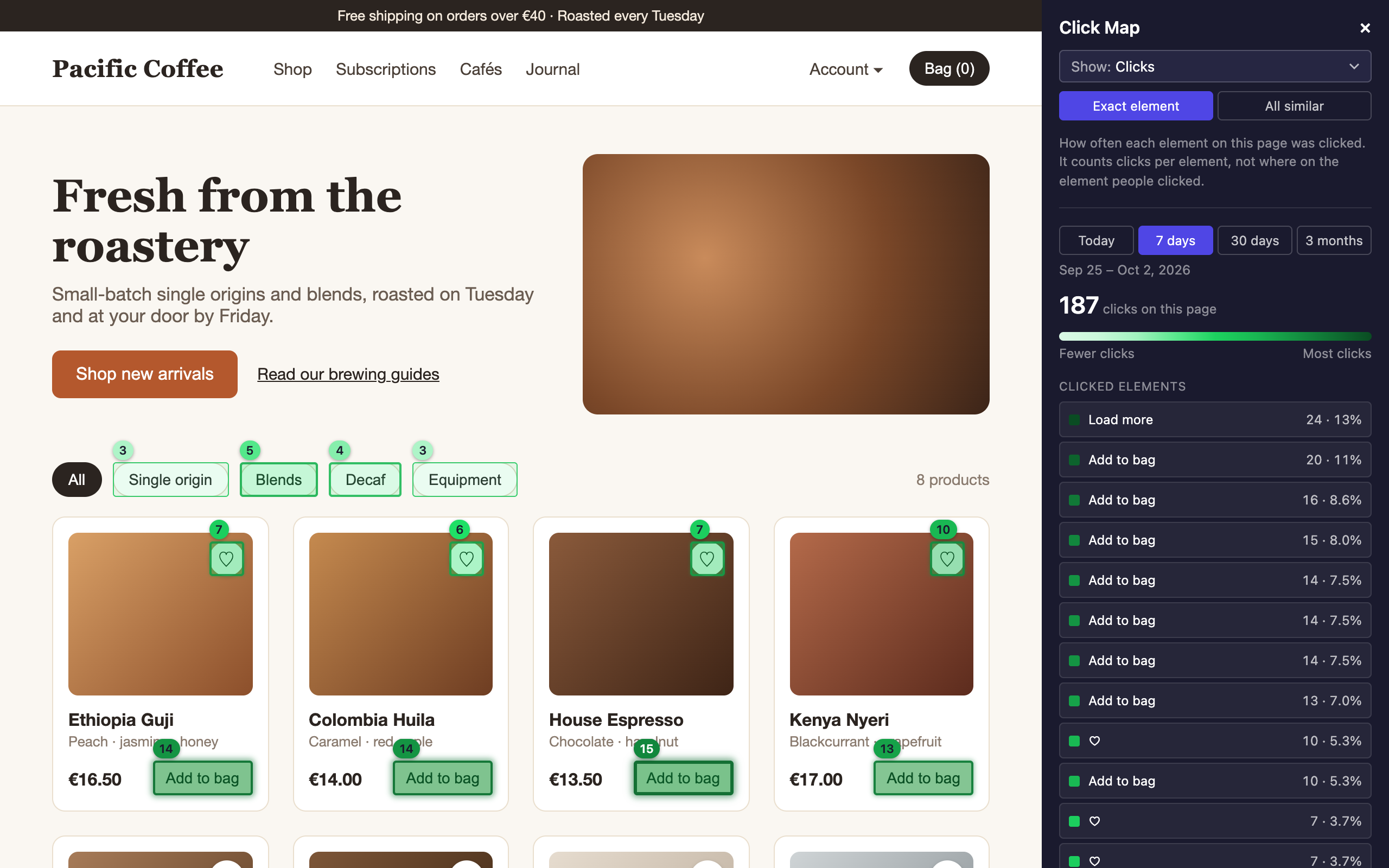
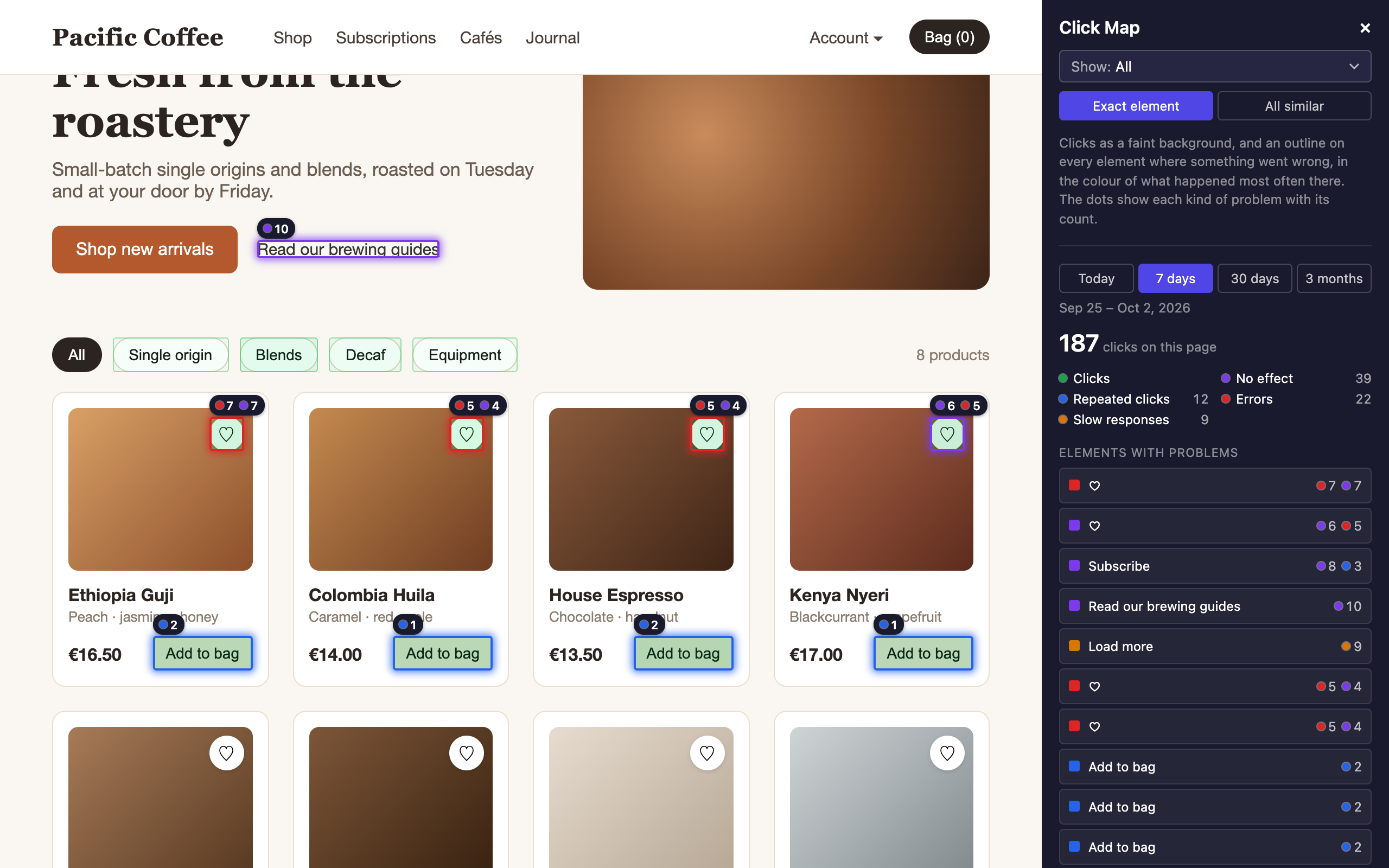
Use Show: in the Click Map window to choose what is drawn on the page:
- Clicks, in green: how often each element was clicked.
- No effect, in violet: how often someone clicked it and nothing happened.
- Repeated clicks, in blue: how often someone clicked it again and again.
- Errors, in red: how often a click on it was followed by an error.
- Slow responses, in amber: how often it took more than a second to respond.
With one choice, a stronger colour means a higher number.
With several, each element with one of those problems is outlined in the colour of its most frequent one, with a count for each. Show all shows everything at once. Elements you marked as resolved or ignored on Click Problems are not counted.
Count each element or all similar
- Exact element: every element counts on its own, so you see which product card got the clicks. The Click Map starts with this one.
- All similar: elements like it in the same place count together, such as the same button on every product card. A list or a grid then gets one number.
They mean the same as in the Element Picker.
Choose the dates
Choose Today, 7 days, 30 days or 3 months in the Click Map window, or any date range in the dashboard tab.
Clicked elements you can’t see
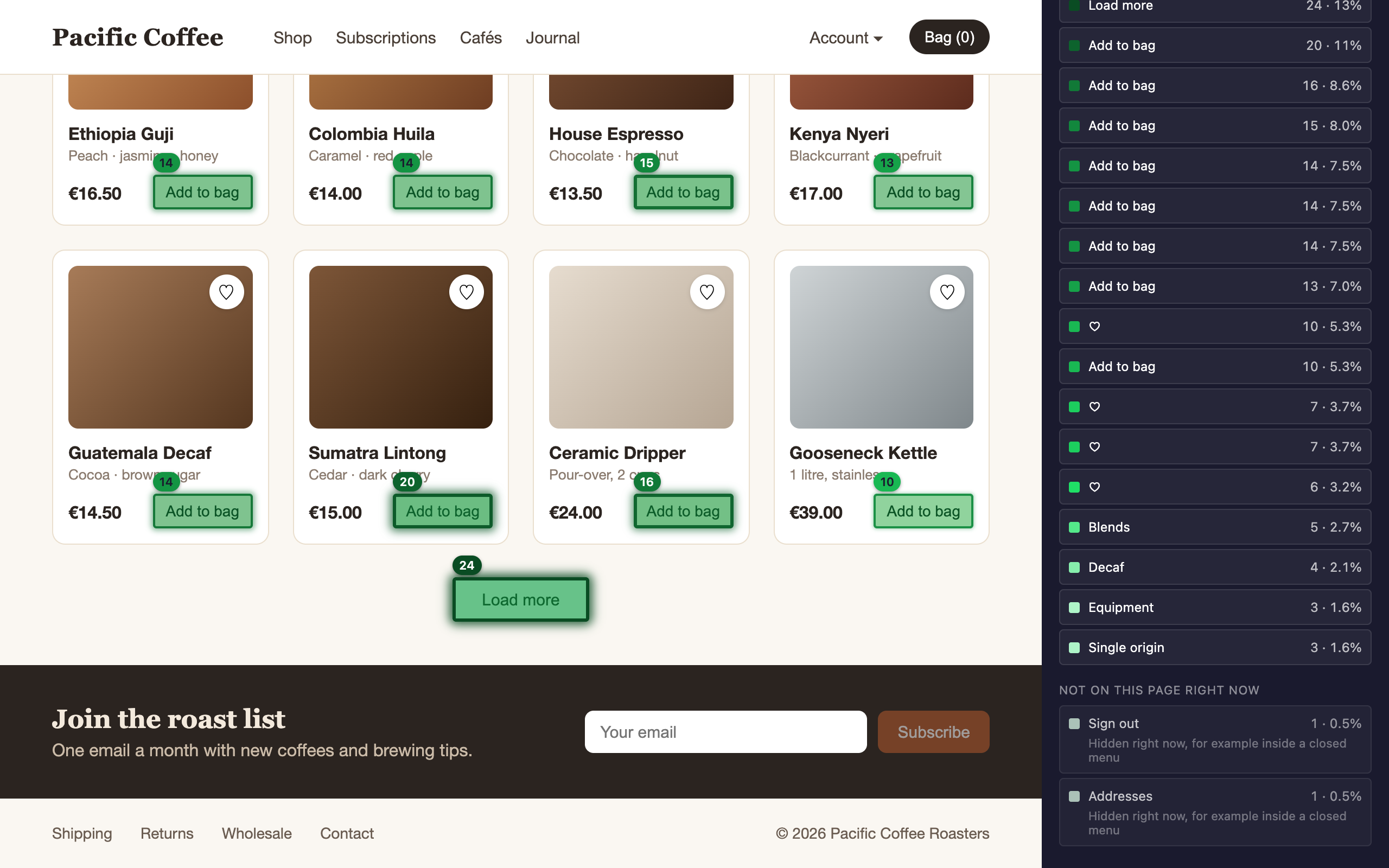
Some elements were clicked but aren’t visible right now, because a menu is closed or they only appear in the mobile layout. The Click Map window lists them under Not on this page right now, each with its number.
An element can also land there when your page has changed since the clicks. Switch to All similar to find it again.
What is counted
The Click Map counts clicks per element, not the spot on it. A large button gets one number, wherever people pressed it.
On a page with a great many clicked elements, the most clicked ones are marked, and the dashboard tab says how many others there are.
Click problems count once per element each time the page is opened. Click Problems explains each kind.
Only you see it
The numbers appear only in the tab the dashboard opened. Your visitors see your site as always. Nothing you click in that tab is recorded, so looking around doesn’t change your numbers. Privacy says what the Click Map keeps while it is open.
Next steps
- Click Problems: work through every element where clicks went wrong.
- Pages: see the most clicked elements of each page as a list.