Documentation
Set up Privatrak, name what matters to you and read every report.
Goals and revenue
A goal is the result you want from your visitors, such as a sign-up or a purchase. Once you set one, Sources and Campaigns show how many visitors from each source and campaign reached it: as conversions, as a conversion rate and, if you give the goal a value, as revenue. You see which sources bring sign-ups or sales, not only visits, with no cookies and no ad pixel.
A goal is a funnel that you mark as a goal. Its last step is what counts as reaching it.
Before you start
The result you want has to be something Privatrak already records: a page view, such as a thank-you page, or a feature, such as Start trial or Purchase.
Add a goal
- Open Sources or Campaigns.
- Click Add goal. If you already have goals, click Manage goals first.
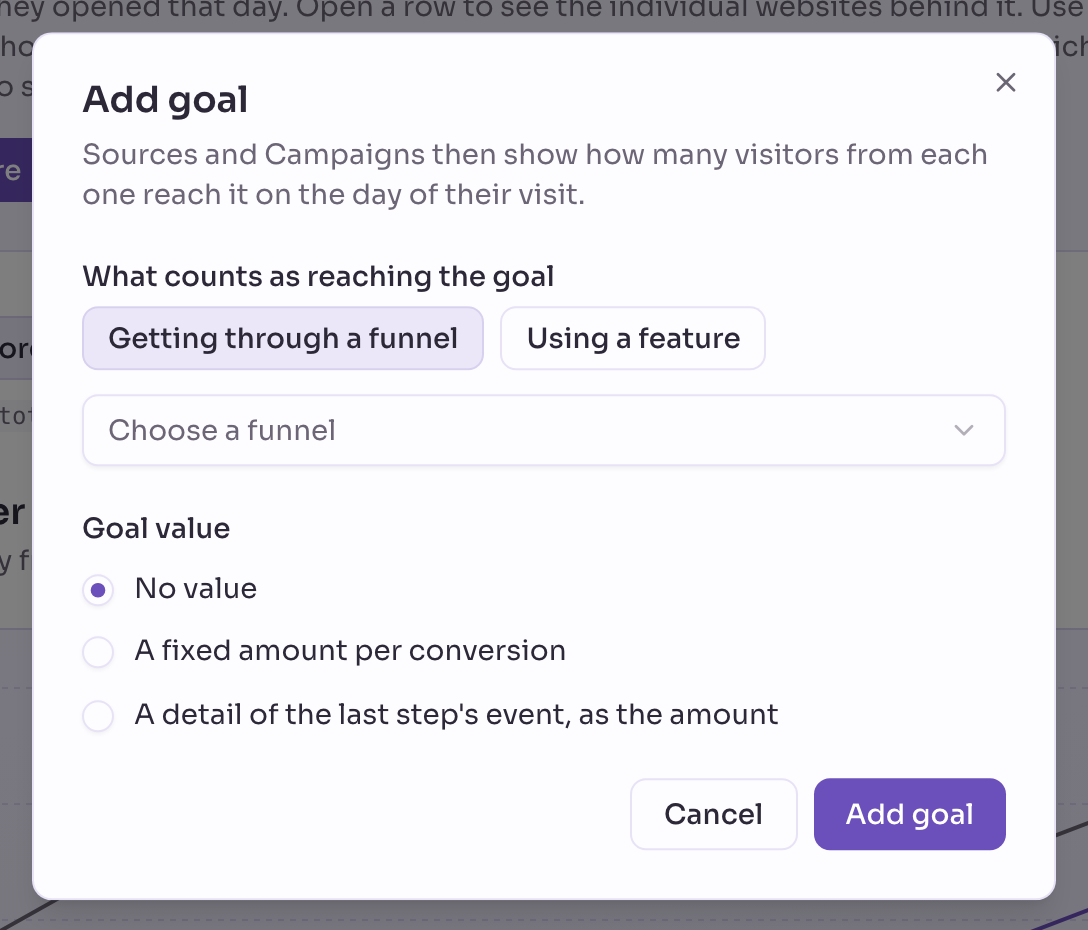
- Under What counts as reaching the goal, choose Getting through a funnel to use a funnel you already built, or Using a feature to count visitors who use one feature.
- Choose the funnel or the feature, then click Add goal.
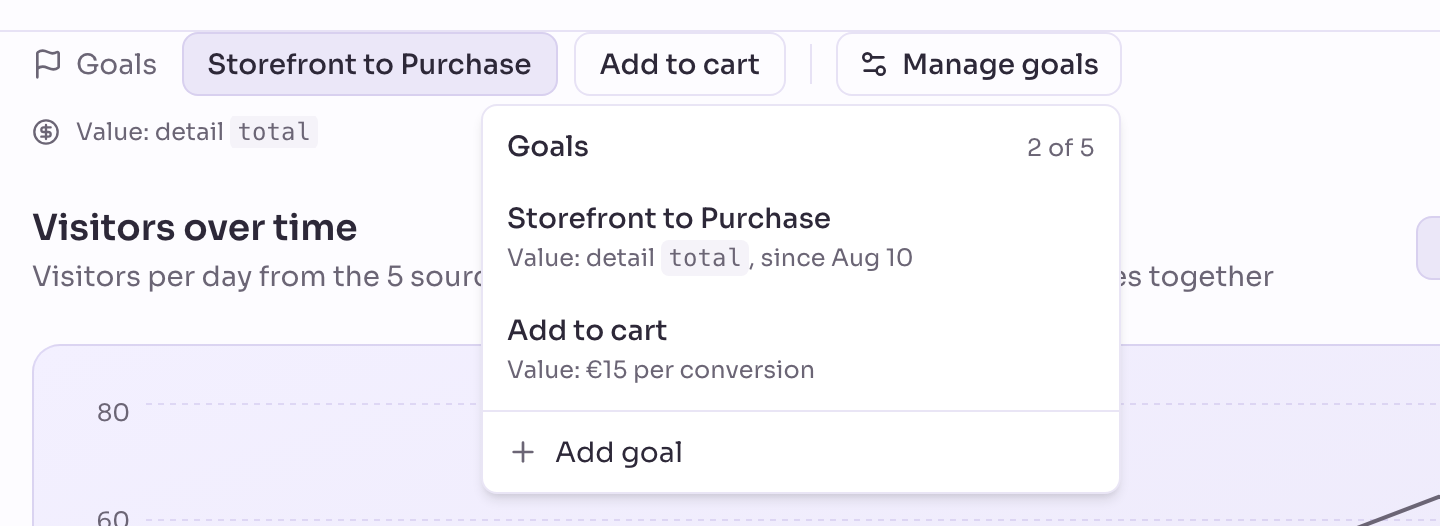
The goal appears above the chart, and every row shows its numbers.
For a feature, Privatrak creates a funnel from any page view to that feature and gives it the feature's name, such as Start trial. If a funnel with that name exists, Privatrak adds (goal). It counts from today.
Mark a funnel as a goal
Any funnel can be a goal. Mark it when you create it or later:
- New funnel: turn on Use as goal in the form.
- Existing funnel: open Funnels, then choose Edit in the funnel’s menu, or open the funnel and click Edit. Turn on Use as goal and click Save.
The first step of a funnel decides who can convert. If it is any page view, every visitor can. If it is your pricing page, only visitors who opened it count.
To change a goal’s name or value later, click Manage goals and choose the goal. The Edit goal window opens. To remove a goal, turn Use as goal off. The funnel and its numbers stay. If you delete the funnel, the goal and its goal numbers are gone too.
Give a goal a value
A goal value says what one conversion is worth, so you also see revenue. Set it in the same places as the goal, under Goal value, with one of three choices:
- No value: you see conversions and the conversion rate only.
- A fixed amount per conversion: enter the amount under Amount per conversion, such as
40for a sign-up worth 40. It applies to past days too. - A detail of the last step’s event, as the amount: enter the Name of the detail, such as
total. Your site sends it as a number with the last step’s event, such astotal: 49.90. Details shows how. The field suggests the details your site sent as numbers with that step in the last 30 days, and you can also type a name. Revenue counts from the day you choose the detail.
Amounts are in your project’s currency. You choose it when you create the project and can change it under Settings › General › Currency. Changing it does not convert amounts.
Use the detail for a shop, where visitors buy during the visit. If people sign up for a trial and pay weeks later, give the sign-up or trial goal a fixed amount, such as what a trial is worth to you on average.
A line under the goals shows the value of the selected goal. While it has none, click Set goal value in that line to open the goal.
Read the goal numbers
Pick a goal in the row above the chart. The page shows one goal at a time, because the numbers of different goals are never added together. For that goal the list has these columns:
- Conversions: how many visitors reached the goal’s last step on the day of their visit.
- Conversion rate: conversions as a share of all visitors from this row. With 200 visitors and 10 conversions, the conversion rate is 5 %.
- Revenue: the sum of the goal values of the conversions, in your currency. It stays empty while the goal has no value.
- Revenue per visitor: revenue divided by all visitors from this row, not only by those who converted.
Click Columns next to the search field to show or hide any of them. Privatrak remembers your choice for each table in this browser.
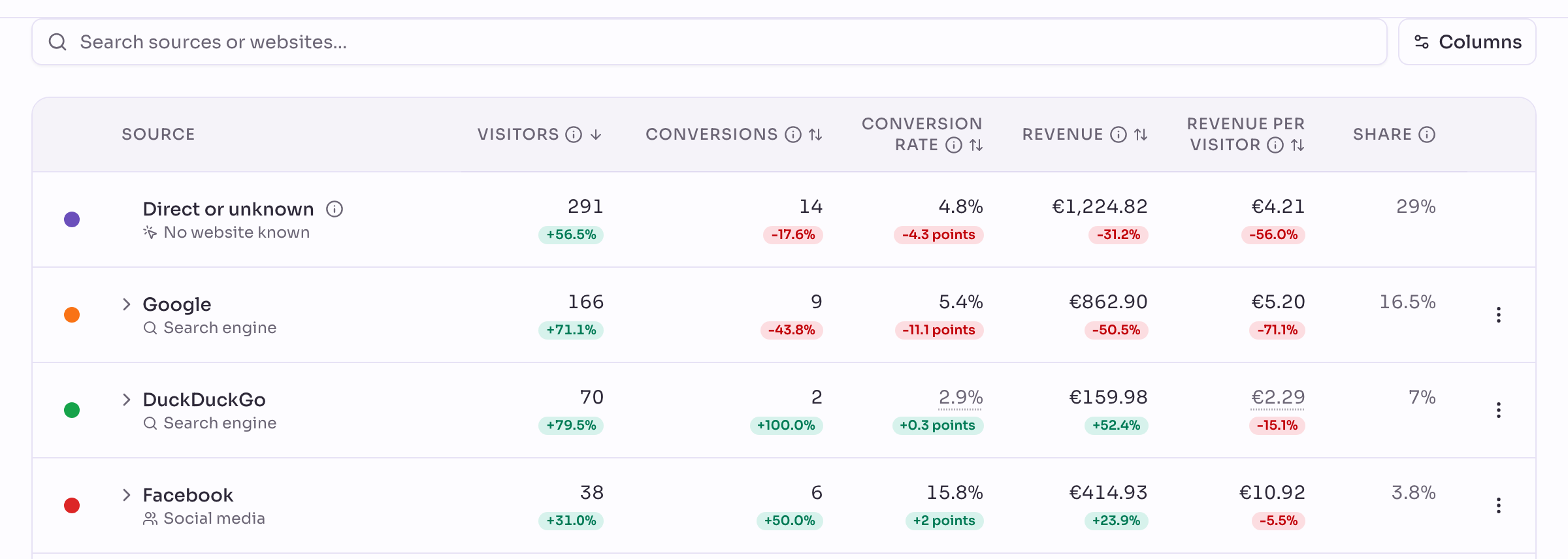
Under a number is its change against the previous period, when there is one. For the conversion rate it is in percentage points. Show changes in the Columns menu hides the changes.
You find the columns on Sources and Campaigns, and you can sort by each. Open a source to see the same numbers for its websites and campaign links. The chart can show conversions and, for a goal with a value, revenue. Click a campaign to see each goal’s steps for it.
Choose a trait under All Traits to narrow the numbers to one group of visitors.
The conversion rate of a funnel on the Funnels page divides by the visitors who did its first step. Do not compare the two numbers.
What counts as a conversion
Privatrak links a conversion to a source only on the day of the visit. A visitor who arrives from your newsletter on Monday and buys on Thursday counts for Thursday’s source, not for the newsletter. How visitors are counted explains the rule.
This suits purchases and sign-ups that happen in one visit. Revenue that arrives weeks later, such as a subscription paid after a trial, is not linked to the source. Use the sign-up or the trial as the goal instead.
When a goal starts counting
A goal counts from the day counting began for your project or the day its funnel was created, whichever is later. It shows no numbers for earlier days. When a goal is younger than your date range, the line under the goals says since when it counts. Click the link Show from and the date in that line to start the range on that day.
How many goals you can have
A project can have up to 5 goals. Each goal is a funnel, so it also uses one of the funnels your plan allows. Create a funnel lists how many. On Free, with 3 funnels, that means at most 3 goals. When you have 5 goals, turn off Use as goal on one before you add another.
Goals with an AI assistant
A connected AI assistant can read the goal numbers of your sources and campaigns. With full access it can also create goals and set their values. The MCP reference lists the tools.
Next steps
- Sources: see which sources bring conversions.
- Campaigns: see which campaigns and link variants convert.
- Track a campaign with UTM parameters: measure what your next newsletter or ad brings.