Documentation
Set up Privatrak, name what matters to you and read every report.
Install on WordPress
The Privatrak Analytics plugin adds cookieless analytics to your WordPress site, without any code. It records every page view and click, and names the actions that matter as features: menu links, search, comments and, in a WooCommerce shop, add to cart and purchases.
You install the plugin and paste your website key. Your first page views arrive in Privatrak within a few seconds.
Before you start
- A Privatrak project for your site. Getting started shows how to create one.
- WordPress 6.5 or later and PHP 7.4 or later.
- A WordPress account that can install plugins.
Install the WordPress analytics plugin
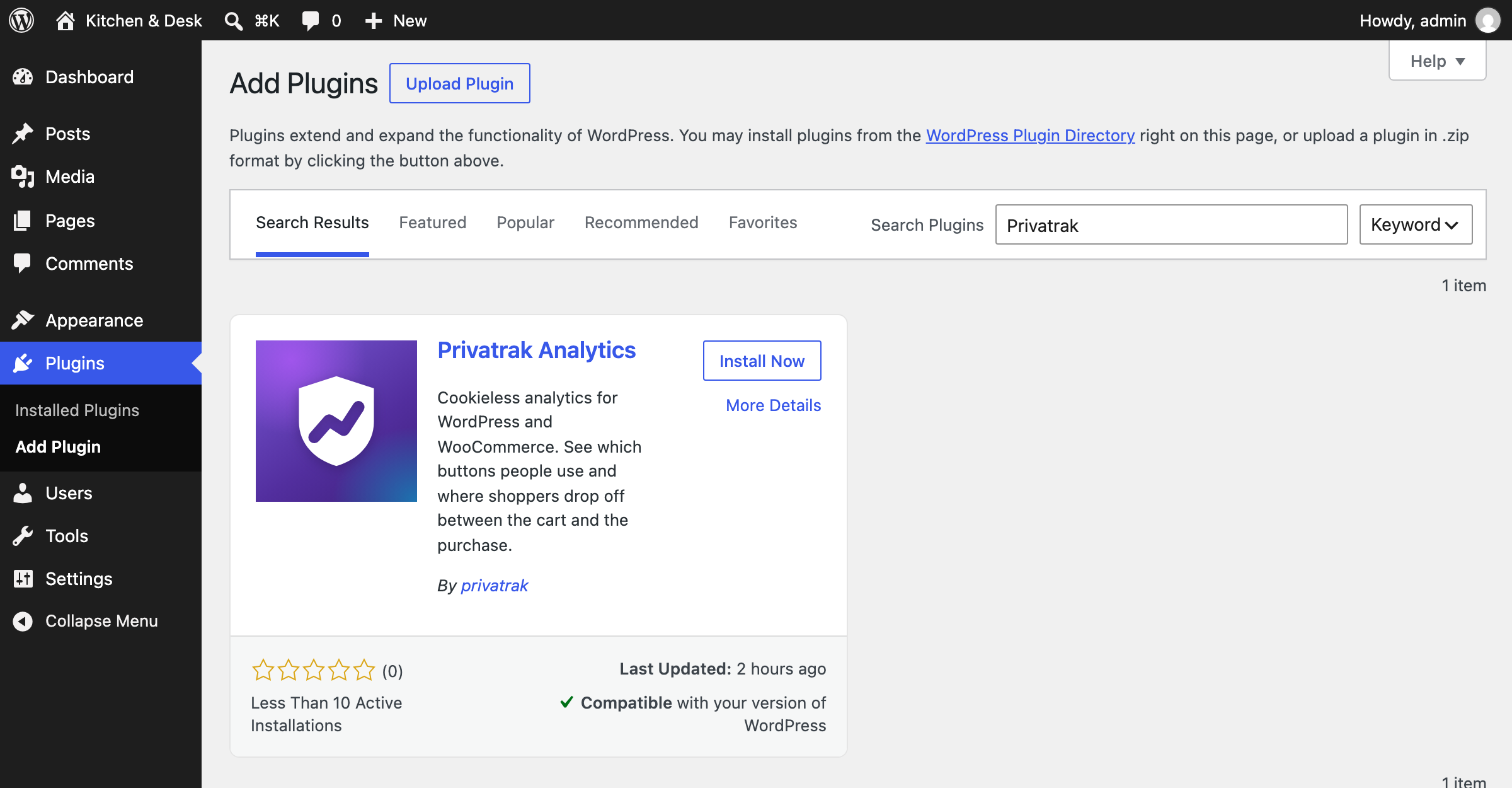
- In WordPress, go to Plugins › Add Plugin.
- Search for Privatrak.
- For Privatrak Analytics, click Install Now.
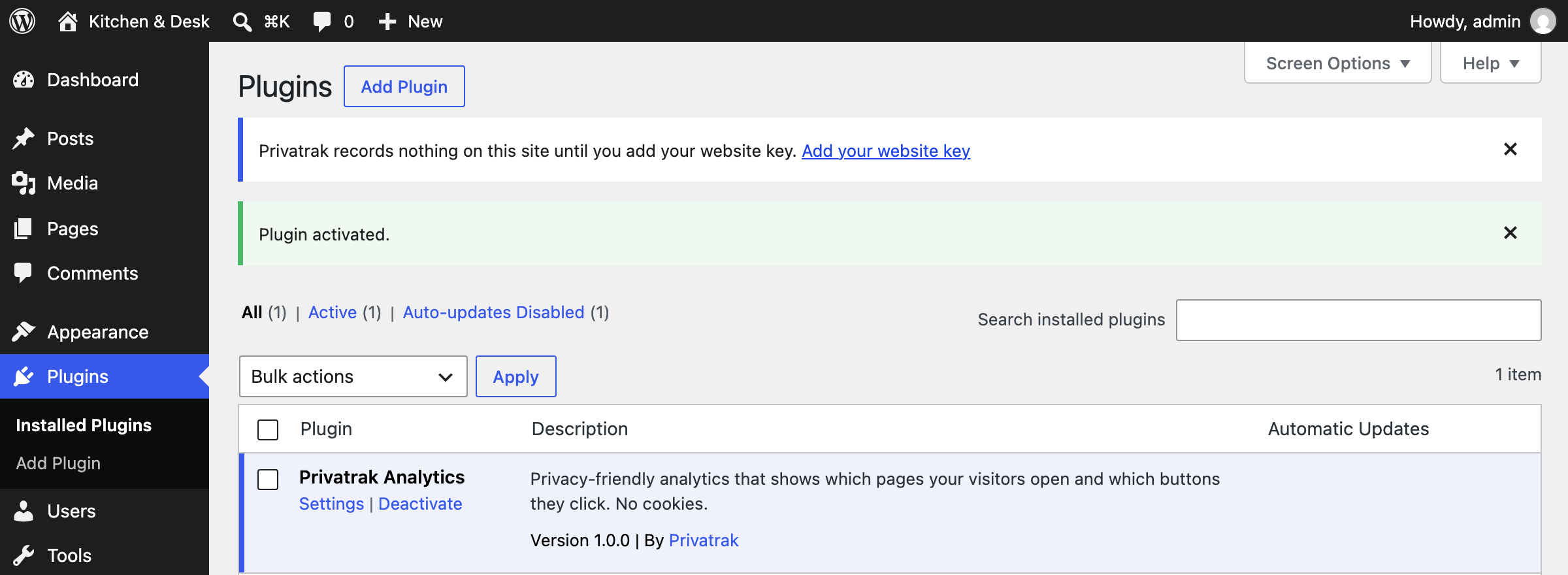
- Click Activate.
After you activate it, WordPress shows a notice: Privatrak records nothing on this site until you add your website key.
Connect the plugin to your project
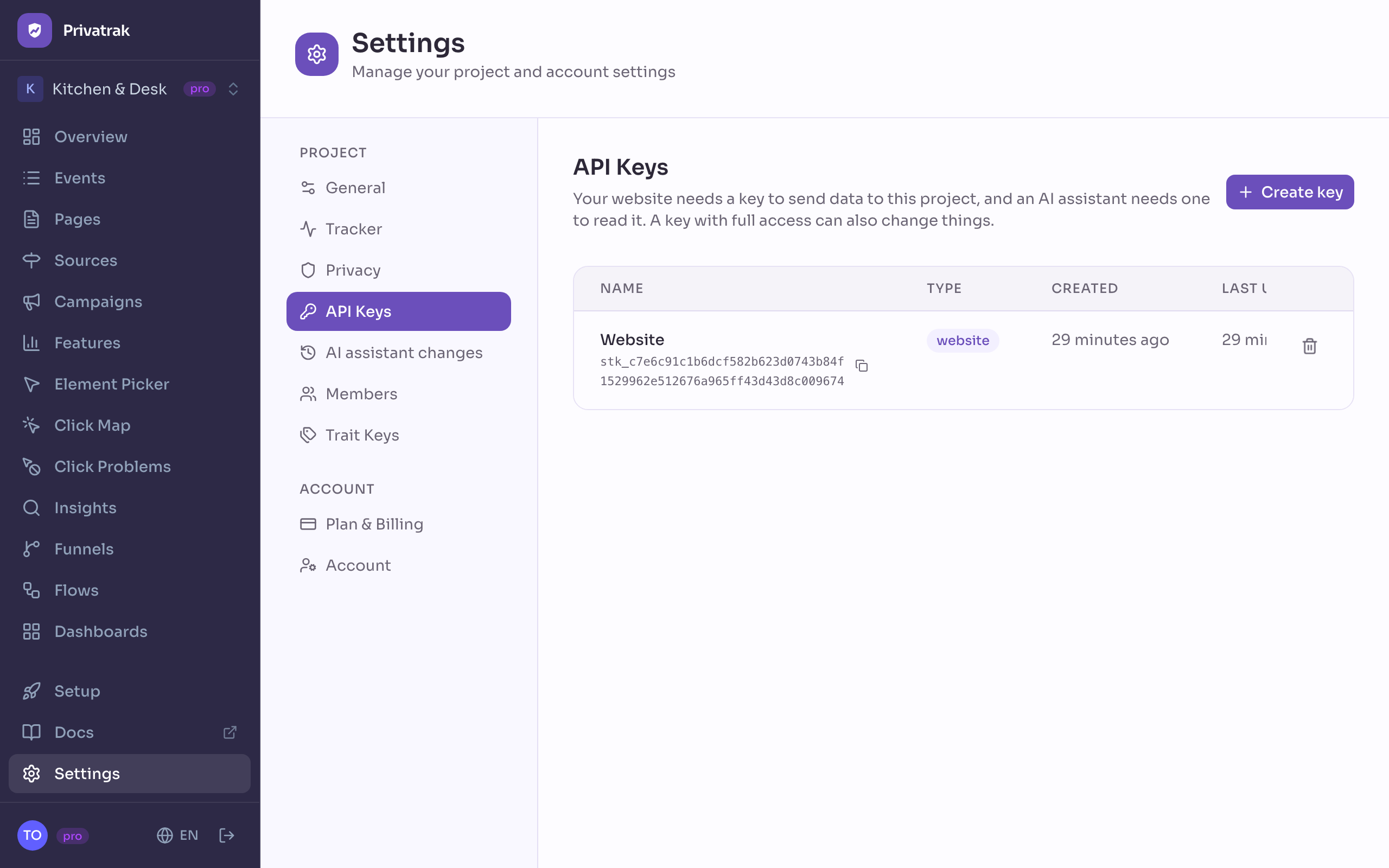
- In Privatrak, go to Settings › API Keys.
- Copy your website key, the key of the type Your website. If there is none yet, create one with Create key and the type Your website.
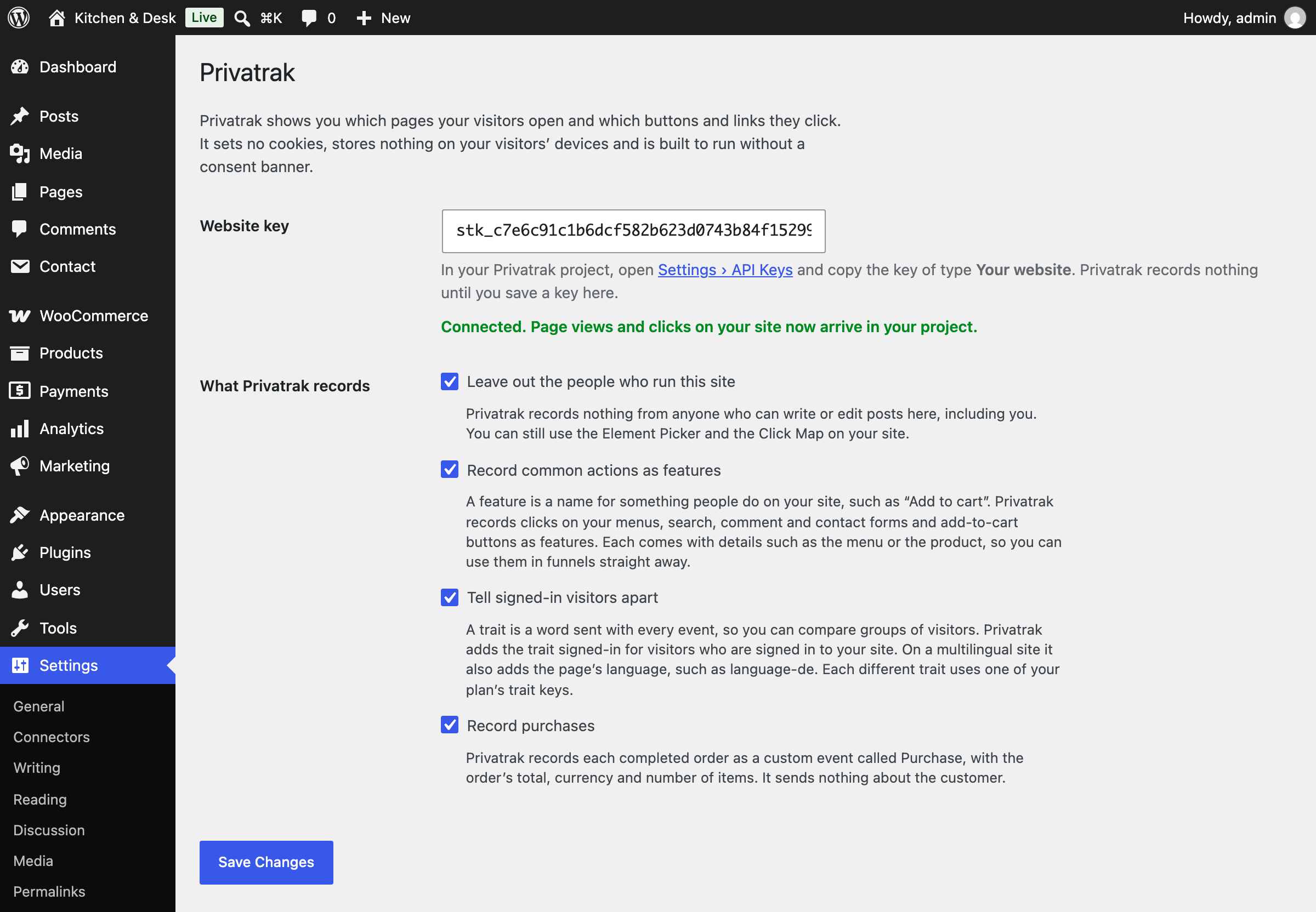
- In WordPress, go to Settings › Privatrak.
- Paste the key into Website key and click Save Changes.
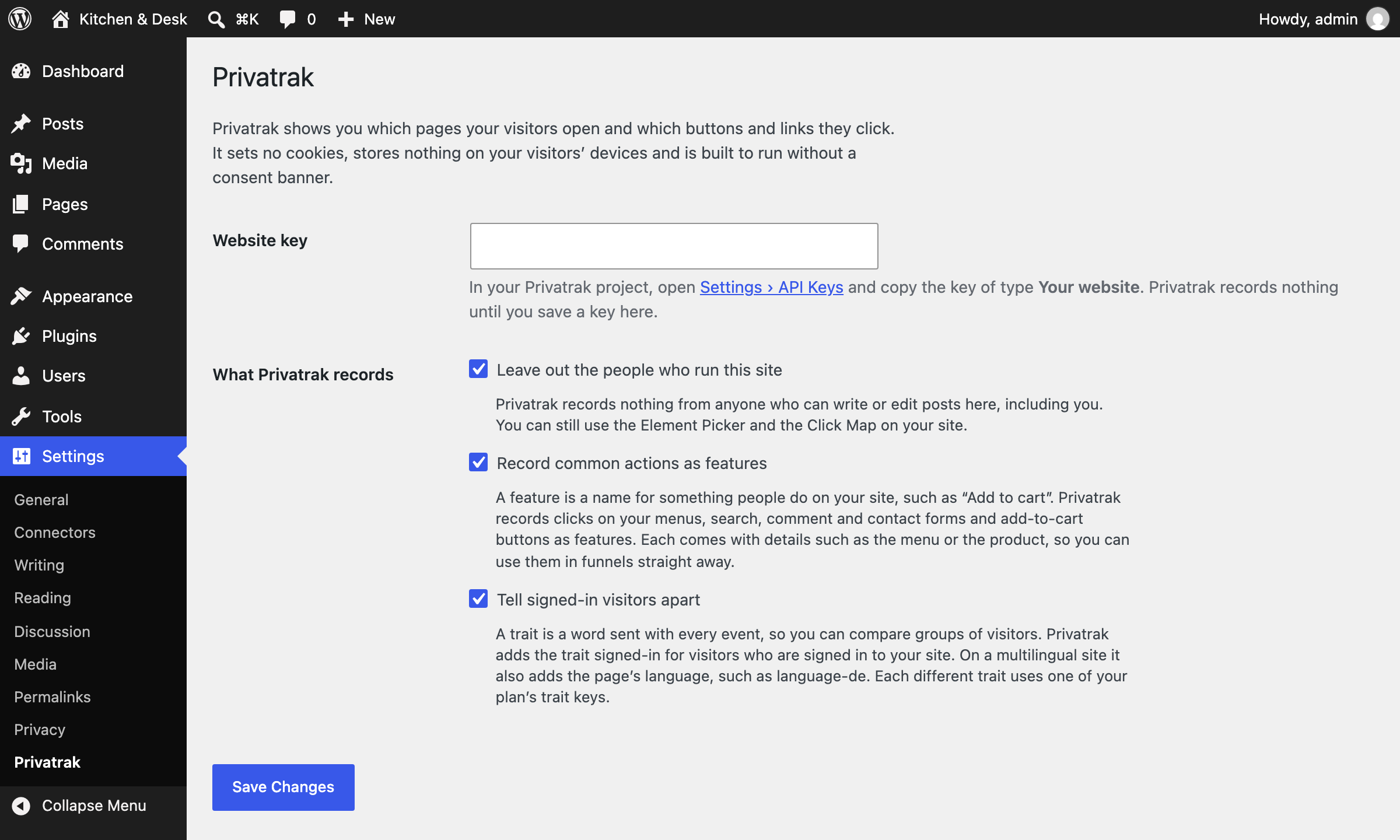
The plugin checks your key and shows Connected. Page views and clicks on your site now arrive in your project. If it doesn’t recognise the key, it says so. Copy the key again and save it once more.
If your project lists allowed domains, add your site’s domain under Settings › Privacy › Allowed domains. The plugin’s settings page shows which domain to add. If the list is empty, Privatrak accepts events from every site.
Check that tracking works
- Open your site in a private browser window. With the default settings, Privatrak doesn’t record you while you are signed in to WordPress.
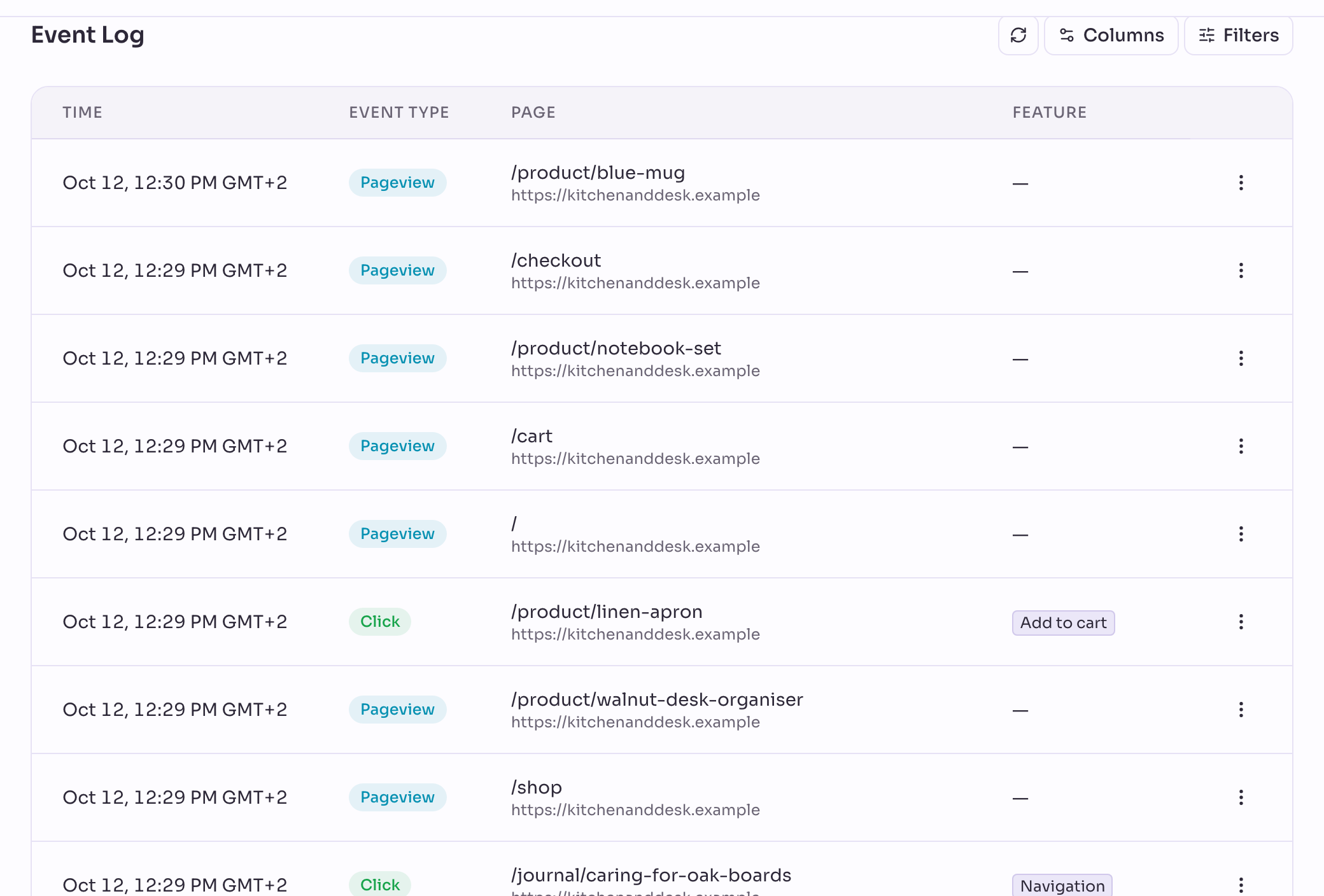
- In Privatrak, open Events and click Refresh events.
Your page view is the top row, with the type Pageview. From then on, Privatrak records page views and clicks on every page of your site.
If nothing arrives
- In WordPress, check that Settings › Privatrak says your site is connected.
- If your project lists allowed domains, check that your site’s domain is on the list.
- Page caching plugins work with Privatrak. Some speed plugins combine, delay or rewrite JavaScript, with settings such as Combine JavaScript or Delay JavaScript. These settings can stop all recording. Add
tracker.jsto the setting’s list of excluded files. - Still nothing? Write to support@privatrak.com.
What Privatrak records on WordPress and WooCommerce
Privatrak records every page view and click on your site automatically, whatever other plugins you use. The plugin also names common actions as features. A feature is a name for something people do on your site, such as Add to cart. You see how often each one is used on the Features page, and you can build a funnel from them right away.
The plugin’s feature names are always in English, whatever your site’s language. On a German shop, a click on “In den Warenkorb” is the feature Add to cart.
Each feature comes with details, such as the product or the menu. You can filter and break down by them in Insights.
On every WordPress site
- Navigation: a click on a link in one of your menus, in classic and block themes. Details:
item, the link’s text, andmenu, the menu’s name. In block themes, a menu without a name is listed by where it sits, such asheaderorfooter. - Search: a click on the search button.
- Comment: a click on the button that sends a comment. Detail:
post-type, such aspostorpage.
In a WooCommerce shop
- Add to cart: a click on an add to cart button. Details:
product,product-id,category,priceandcurrency. - Review: a click on the button that sends a product review.
- Purchase: each completed order, as a custom event. Details:
total,currencyanditems, the number of items. Nothing about the customer is sent.
The price is the price the shopper sees, so during a sale it is the sale price. Products with variations, such as sizes or colours, and grouped products have no price detail. They have no single price until the shopper makes a choice.
With Contact Form 7, Polylang or WPML
With Contact Form 7, a click on a form’s submit button is the feature Contact form. Its detail form is the form’s title.
On a multilingual site with Polylang or WPML, Privatrak adds a trait for the page’s language, such as language-de. A trait is a word sent with every event, so you can compare groups of visitors.
Forms and page builders from other plugins
Privatrak records the clicks in every other plugin too, such as WPForms, Gravity Forms, Elementor or Divi. Each click arrives with the text of its button or link.
To count one of these buttons under a feature name, pick it on your site with the Element Picker, or give it a data-track attribute. A data-track attribute already on your site stays as it is.
Would you like Privatrak to name the actions of a plugin that isn’t listed here? Write to support@privatrak.com.
Choose what the plugin records
In WordPress, go to Settings › Privatrak. Every option is on by default.
- Leave out the people who run this site: Privatrak records nothing from anyone who can write or edit posts in WordPress, you included. You can still use the Element Picker and the Click Map on your site while you are signed in.
- Record common actions as features: names the actions listed above. While it is on, these names take priority over feature rules you created for the same clicks. To keep your own rules for those clicks, switch it off.
- Tell signed-in visitors apart: adds the trait
signed-infor visitors who are signed in to your site, such as your shop’s customers, and the language trait on multilingual sites. Each different trait uses one of your plan’s trait keys. With this option off, the plugin uses none. - Record purchases: records each completed order as Purchase. You see this option when WooCommerce is active.
WordPress analytics without cookies
The plugin sets no cookies and stores nothing on your visitors’ devices. The details it sends contain no personal data. Privatrak is built to run without a consent banner, as long as any details you add yourself stay free of personal data too. Privacy lists what Privatrak stores.
Next steps
- Features: see how often each action is used and whether that grows.
- Funnels: see how many visitors who add something to the cart go on to buy.
- Element Picker: name any other button on your site by clicking it.
- WooCommerce analytics: everything Privatrak records in a WooCommerce shop.
- Track revenue in WooCommerce: build a revenue dashboard step by step.
- Measure your WooCommerce cart abandonment rate: build a conversion funnel from the cart to the purchase.
- Find what's broken in your WooCommerce checkout: see whether a broken button costs you sales.
- See what shoppers search for and click: search terms, named buttons and the Click Map.