Documentation
Set up Privatrak, name what matters to you and read every report.
Pages
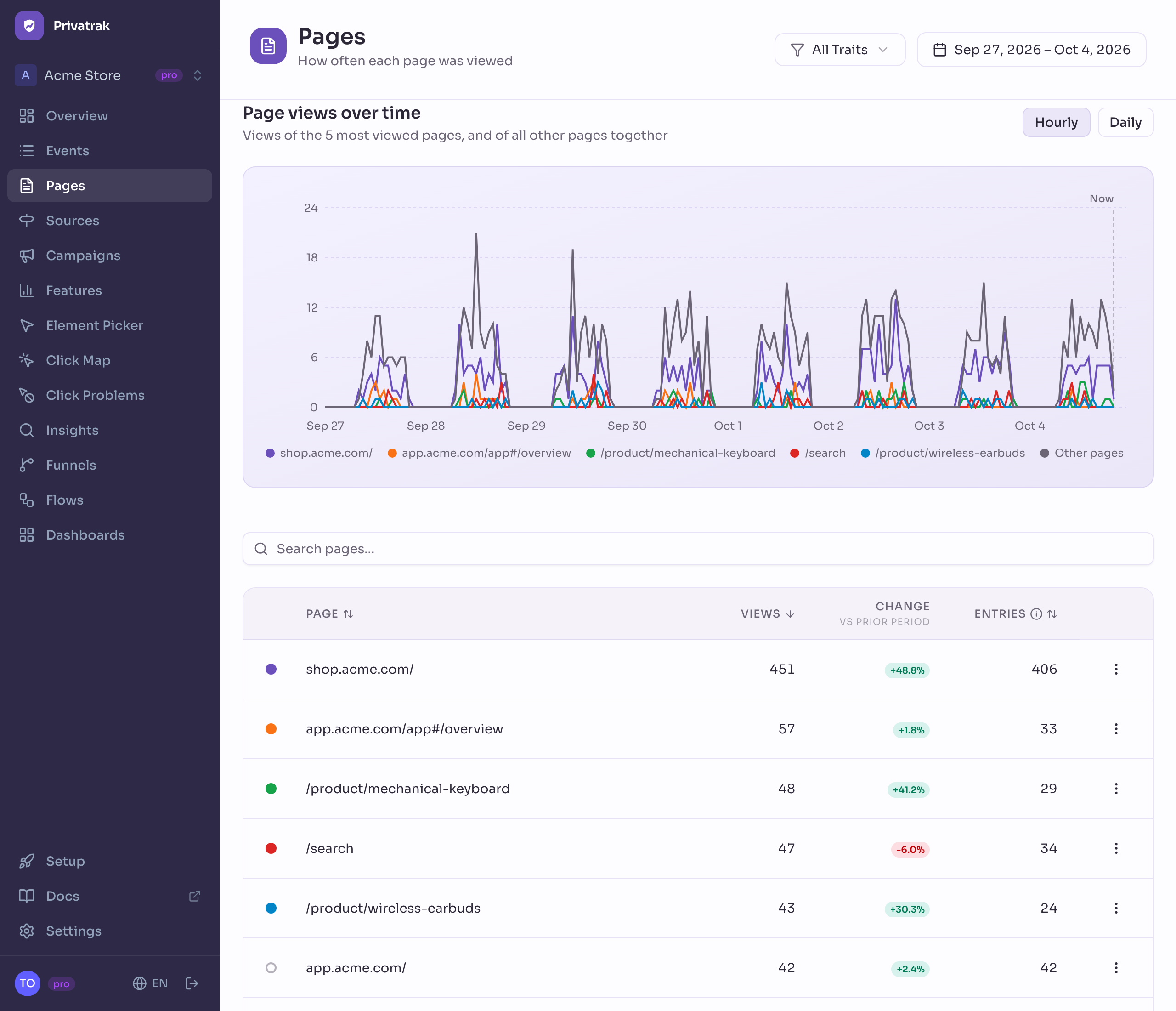
The Pages report lists every page your visitors opened and how many page views it had. You also see how many visitors started their day on it, with that page as their landing page. Open a page to see where its visitors came from, where they went next and what they clicked.
What counts as a page
A page is your site address plus the page path, such as shop.example.com/pricing. What follows ? or # in an address is not part of the page. So /search?q=shoes and /search?q=bags are one page, /search.
Sites that switch screens with addresses such as /#/settings get one page per screen. If two of your sites have the same path, the list shows the site address in front of it.
Read page views and entries
- Views: how often the page was opened. Opening it 3 times counts 3 times.
- Change: the views compared with the previous period of the same length.
- Entries: how many visitors started their day on this page. These are your landing pages, the first page visitors from search, ads and links see.
Sort by Views or Entries to find your busiest pages and your landing pages. Search finds a page by any part of its address. Use All Traits to read the list for one group of visitors.
Everything you set stays in the page address. Bookmark it, or send it to someone in your project, and it opens the same view.
Choose what the chart shows
The chart shows views of the 5 most viewed pages, plus one line for all other pages. Switch between Hourly and Daily to see them by the hour or by the day. Click the dot next to a page to show it in the chart, up to 10 pages. Reset chart brings back the 5 most viewed.
The chart follows your search. Search for /blog/ and it shows your most viewed blog pages.
One page in detail
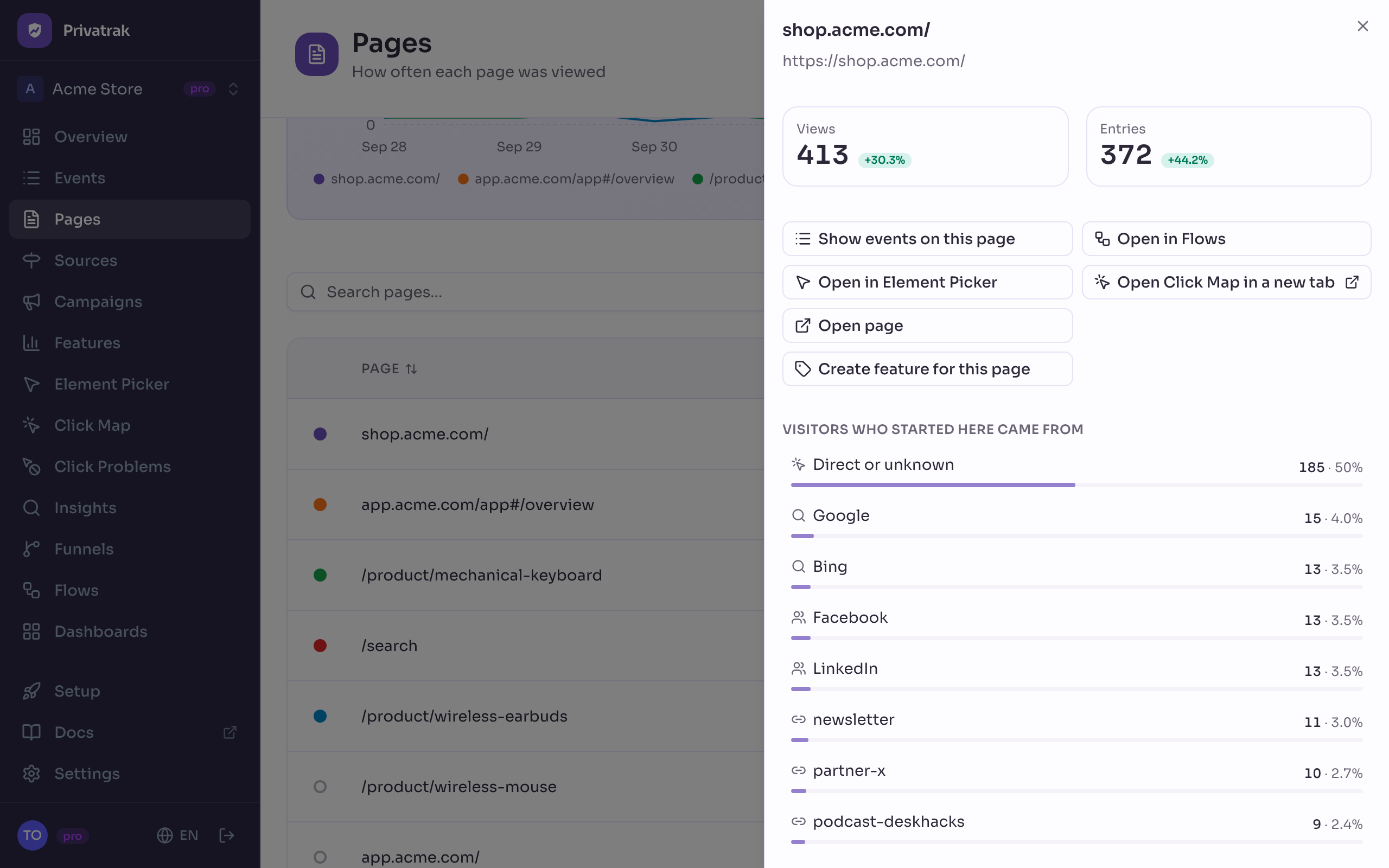
Click a page’s name, or choose View details in its menu. You see:
- Views and Entries, each with its change.
- Visitors who started here came from: the sources that brought visitors to this page as their first page of the day. Sources explains how a source is counted.
- Came from, Went next and Left the site: the page before this one, the page after it, and how many visits ended here. These lists count visits.
- What people click here: the buttons, links and forms used most on this page, each with the features that count it. Not part of a feature marks the ones you have not named yet.
What you can do with a page
Each page’s menu, and the detail view, offer these actions:
- Show events on this page: opens Events, filtered to this page.
- Open in Flows: opens Flows, starting from this page.
- Open in Element Picker: opens your page with the Element Picker, where you name a button or link by clicking it.
- Open Click Map in a new tab: opens your page with the Click Map, which shows how often each element on it was clicked.
- Open page: opens the page on your site in a new tab.
- Create feature for this page: opens the feature rule form, filled in for views of this page. Use the feature as a funnel step or on a dashboard.
Next steps
- Sources: see where your visitors came from.
- Flows: follow where visitors go after a page.
- Group pages into one feature: count a whole section of your site, such as every product page, as one.