Documentation
Set up Privatrak, name what matters to you and read every report.
Funnels
A funnel, also called a conversion funnel, measures the steps you care about, such as viewing your pricing page, starting a trial and paying. It shows how many visitors got through and where the others left. Open Funnels for a funnel analysis of each journey: its conversion rate and the drop-off at every step.
A funnel counts the steps a visitor takes on one day, because Privatrak counts a visitor once per day. Funnels are made for journeys people finish in one go, such as sign-up, checkout or a form over several pages.
Create a funnel
- Open Funnels and click New Funnel.
- Under Name, enter a name you will recognise in the list, such as
Signup Flow. - Describe the first step with its filters, as shown under Describe a step.
- Click Add Step for each further step, in the order you expect visitors to take them. A funnel has 2 to 10 steps.
- Leave Count everything a visitor did that day on. It decides how the funnel counts when you read it for one group of visitors.
- Check the steps, then click Create Funnel.
Your funnel starts counting right away. Its steps and this switch cannot be changed later, so check them before you create the funnel. You can rename the funnel at any time.
A project can have up to 3 funnels on Free, 10 on Starter and 25 on Pro. Enterprise has no limit. When you reach yours, New Funnel is greyed out. Plans and limits compares the plans.
Describe a step
Each step needs at least one filter, and an event must match all of a step’s filters. Each filter can be used once per step:
- Event Type: one kind of event, Pageview, Click, Form submit or Custom event.
- Page path: one page, such as
/checkout. It must match exactly, capital letters included. What follows?is not part of the path, so/checkout?coupon=springcounts as/checkout. - Site address: add it when more than one of your sites has that path.
- Feature: a feature name, from a
data-trackattribute, fromtrack()or from a feature rule.
For a group of pages, such as every product page, use Feature with a rule that groups them. Group pages into one feature shows how.
Steps are checked in order. A visitor counts at step 3 only after doing step 1 and then step 2. Other things may happen in between, so a visitor who reads the help page between two steps still counts.
Read the funnel analysis
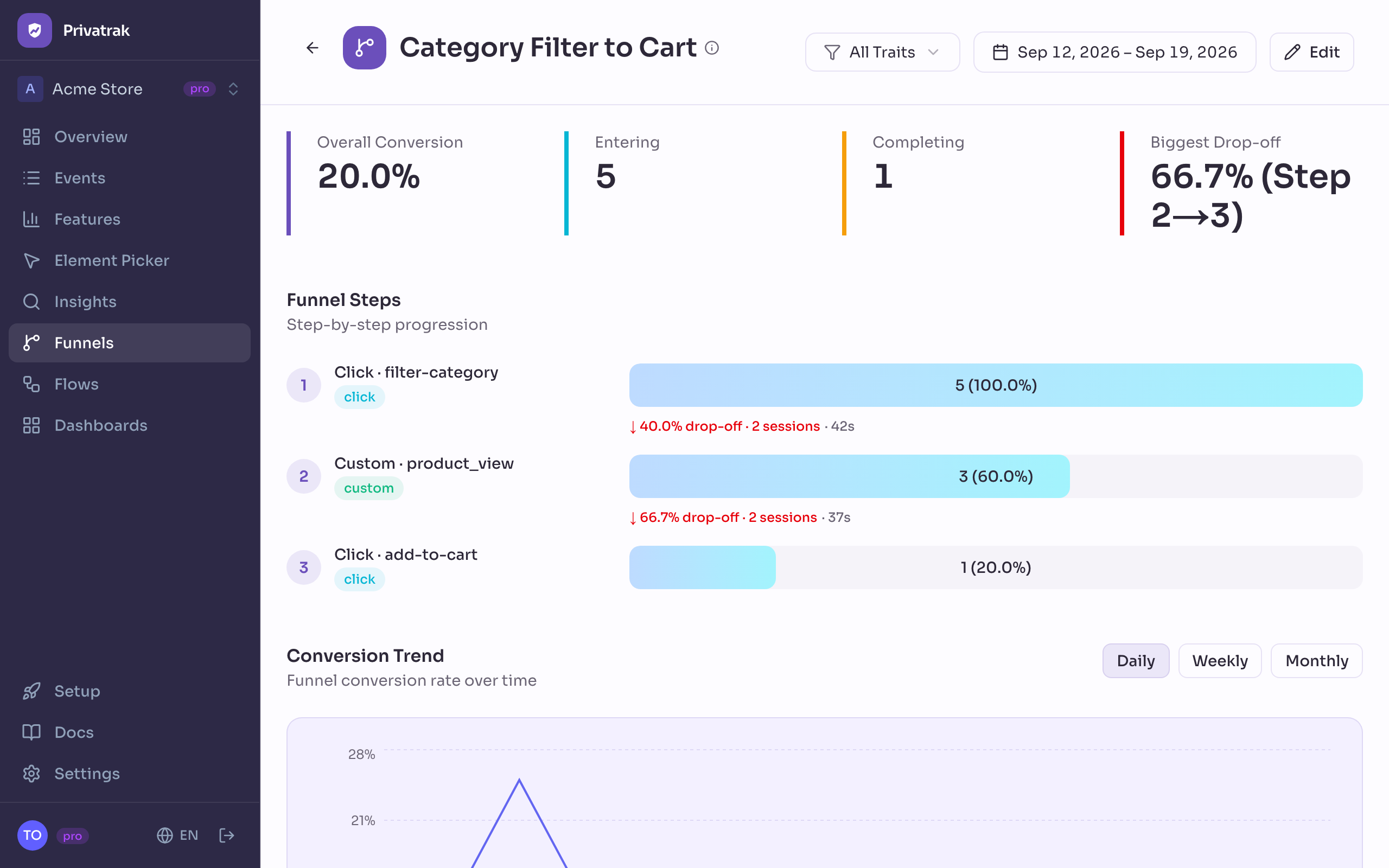
Click a funnel in the list to open it. Use the date range and All Traits at the top to read it for any period or for one group of visitors.
- Overall Conversion: the share of visitors who did the first step and then every other step.
- Entering: how many visitors did the first step.
- Completing: how many visitors also did the last step.
- Biggest Drop-off: the two steps between which the largest share of visitors left. Start looking there.
- Funnel Steps: each step with its visitors and their share of step 1. Between two steps you see the drop-off, how many visitors left and the typical time the others took to the next step.
- Conversion Trend: the conversion rate over time, Daily, Weekly or Monthly.
To rename or delete the funnel, click Edit, then Rename or Delete.
Read a funnel for one group of visitors
Choose a trait under All Traits to read the funnel for one group of visitors, such as one version of an A/B test. The question mark next to All Traits says how this funnel counts:
- This funnel counts everything a visitor did that day: if any of a visitor’s events that day carried the trait, all their steps that day count. A purchase on a thank-you page counts even when only an earlier page sent the trait.
- This funnel counts only steps on pages that sent the trait: a step counts only if the page it happened on sent the trait.
Which way a funnel counts is set by Count everything a visitor did that day when you create it. To count the other way, create a new funnel.
The funnel list
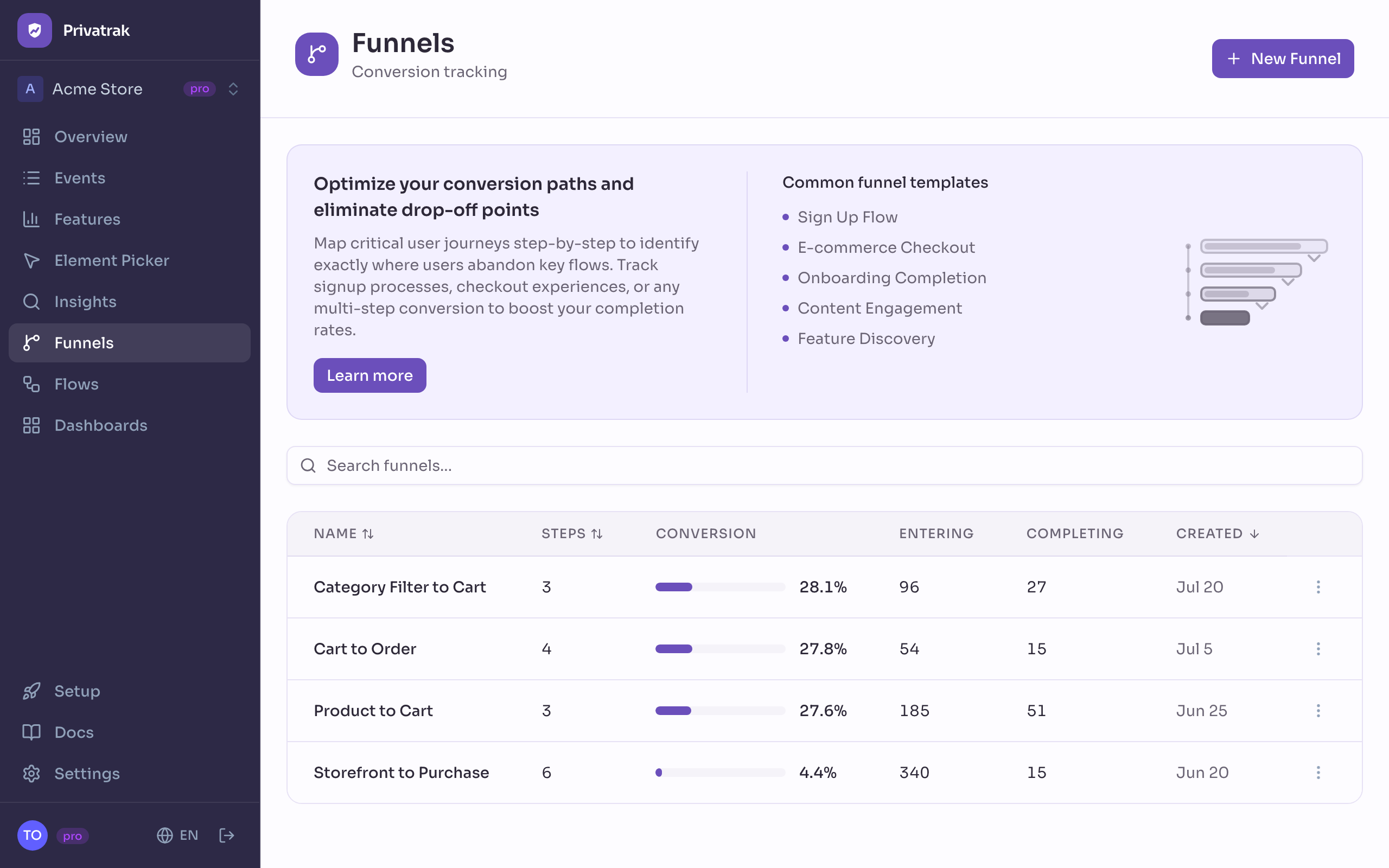
The Funnels page lists every funnel with its Steps, Conversion, Entering, Completing and the day it was Created. These numbers always cover the last 31 days, today included.
Use a funnel’s menu to Rename or Delete it. Deleting a funnel removes its numbers for good. Your events stay.
When counting starts
A funnel counts from the day you create it, and earlier days stay empty. So create the funnel before you launch the change or the campaign you want to measure.
The same goes for the feature rules your steps use. A rule you add or change counts in funnels from that day on. On the Features page, a rule also counts past events.
A funnel or Flows?
A funnel measures steps you already know. To find out what visitors do next when you don’t know the steps yet, use Flows. Flows or a funnel? compares the two.
Next steps
- Group pages into one feature: use a whole section of your site as one step.
- Track a campaign with UTM parameters: start a funnel with a campaign and count the purchases it brings.
- Run an A/B test: compare how two versions of a page convert in the same funnel.