Documentation
Set up Privatrak, name what matters to you and read every report.
Campaigns
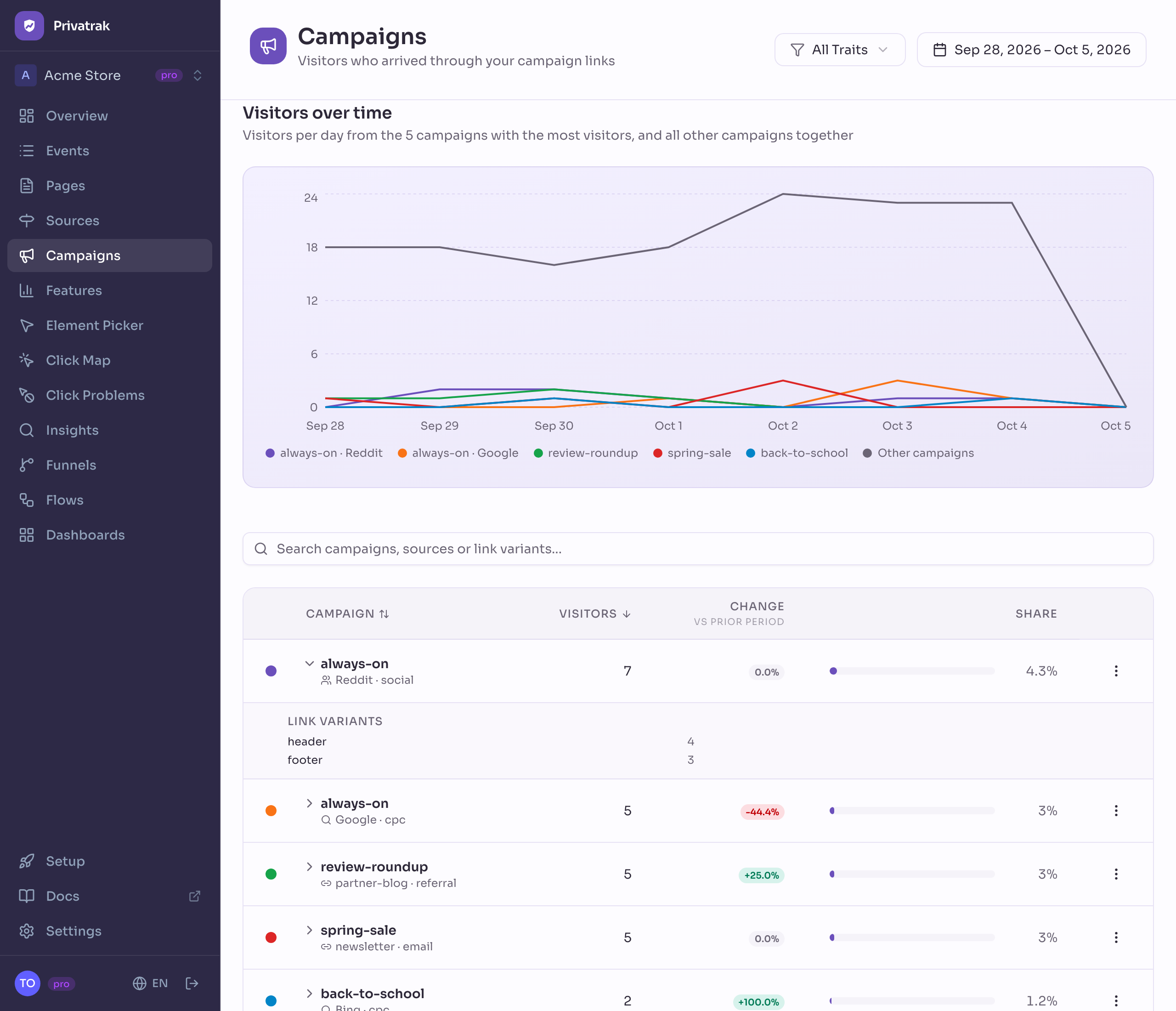
The Campaigns page counts the visitors who came through your campaign links: the link in a newsletter, an ad, a social post or on a partner’s website. You see which campaigns bring visitors and which version of a link works best. You create the links right here, with the UTM parameters already in them.
Create a campaign link
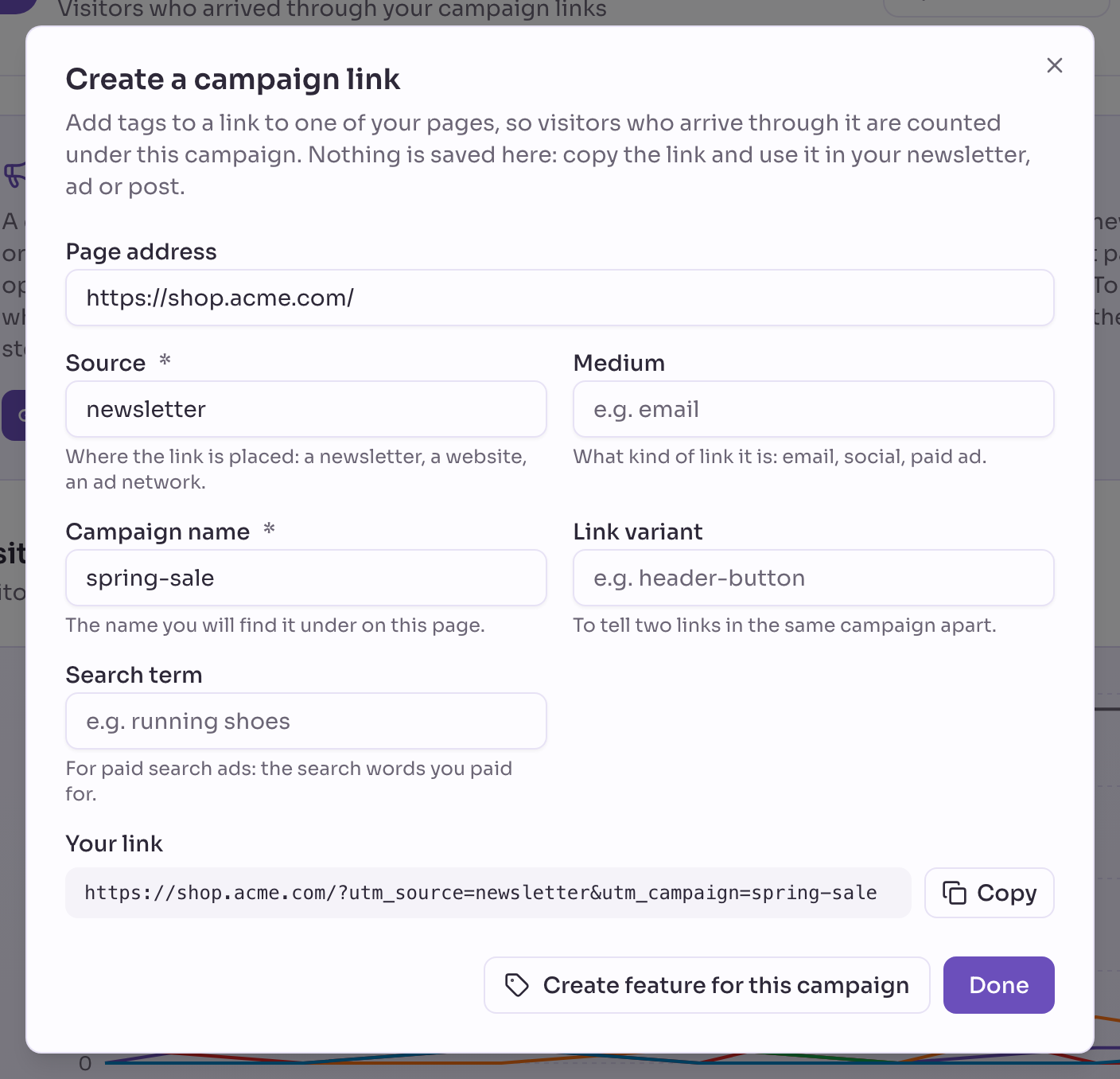
- Click Create campaign link at the top of the Campaigns page.
- Under Page address, enter the page visitors should land on. Your site’s address is filled in for you.
- Fill in Source and Campaign name. Medium, Link variant and Search term are optional. The fields suggest values you already use, so your newsletter is spelled the same way every time.
- Click Copy under Your link and paste the link into your newsletter, ad or post.
Nothing is saved in Privatrak. The campaign appears on this page as soon as someone opens the link.
The form warns you, without stopping you, when a link would split your numbers or not be counted:
- A value differs from one you already use only in capital letters, such as
Spring-Salenext tospring-sale. - Campaign name, Link variant or Search term contains capital letters.
- A value contains spaces. They turn into
+in the link, so use dashes instead. - The page is on a website that is not under Settings › Privacy › Allowed domains. Visits through that link would not be counted.
Create feature for this campaign opens the feature rule form for this campaign right away, before the first visitor arrives. Set up and track a campaign shows how to measure its sign-ups or sales with it.
The UTM parameters in a campaign link
A campaign link is a normal link to your site with tags, the extra details at the end of a link. They are also called UTM parameters. Visitors don’t notice them, and the page opens as usual:
https://example.com/?utm_source=newsletter&utm_campaign=spring-sale
Newsletter tools and ad networks add the same tags, so their links are counted here too. Privatrak reads five of them:
- Source (
utm_source): where the link is placed, such asnewsletter,linkedinorpartner-blog. - Medium (
utm_medium): what kind of link it is, such asemail,socialorpaid. - Campaign name (
utm_campaign): the name you find it under on this page, such asspring-sale. - Link variant (
utm_content): tells two links of one campaign apart, such as the button at the top of an email and the link at the bottom. - Search term (
utm_term): for paid search ads, the search words you paid for.
Some websites add ?ref= to their links. Privatrak counts its value as the source.
Write campaign names, link variants and search terms in lower case. Capital letters count in these three. Spring-Sale and spring-sale are two rows, and a feature for one does not count the other. Source and medium ignore capital letters.
How visitors are counted
Privatrak counts each visitor once per day, under the campaign link that brought them to their first page that day. How a visitor gets a source explains the rule. Sources shows every visitor, with or without a campaign link.
Read the list
Each row is one campaign with its source and medium. So the same campaign in your newsletter and on LinkedIn makes two rows you can compare. A link with a source but no campaign name shows as (no campaign name).
Each row shows its Visitors, their Change against the previous period and their Share of all campaign visitors. Open a row to see how many visitors each of its Link variants and Search terms brought.
Sort by Campaign or Visitors. Search finds a campaign by its name, source, medium, link variant or search term.
Chart
The chart shows visitors per day from the 5 biggest campaigns, plus one line for all other campaigns. Click the dot next to a campaign to show it in the chart, up to 10. Reset chart brings back the top 5. The chart follows your search.
What you can do with a campaign
Each campaign’s menu has these actions:
- Show events from this campaign: opens Events with the events whose address carried this campaign’s tags, usually the pages visitors landed on.
- Create feature: opens the feature rule form, filled in for page views through links with this campaign’s name, source and medium. Use the feature as the first step of a funnel to see whether the campaign leads to sign-ups or purchases.
- Create another link for this campaign: opens Create a campaign link with the source, medium and campaign name filled in, for a new link variant or another page.
Next steps
- Set up and track a campaign: step by step, from choosing the tags to counting purchases.
- Sources: compare your campaigns with every other source.
- Funnels: see whether a campaign leads to sign-ups or purchases.