Documentation
Set up Privatrak, name what matters to you and read every report.
Let it set up your project
Your AI assistant can set up your product analytics in Privatrak for you. It names the buttons and links that matter, creates funnels for your most important journeys and builds a starter dashboard. Later it changes them whenever you ask, and you can undo everything it did in one step.
Before you start
- Your assistant is connected with Read and write, or it uses a key of the type Full access.
- For names in your code, your assistant can open your website’s code, for example Claude Code started in your code’s folder.
Start the setup
In Claude Code, type /privatrak:setup_project in the folder of your website’s code. In other assistants, ask: “Set up Privatrak for my project.” You can add what matters most, such as “Focus on the checkout.”
What it does
- It looks first. It reads what your project already has. When you run the setup again, it fills gaps instead of creating everything twice.
- It names what matters. Where it can change your website’s code, it adds a data-track name to the buttons and links that matter and gives you the change to review. Nothing goes live until you publish it. Where it can’t change the code, it creates feature rules and checks each one against your past events first.
- It builds funnels and a dashboard. It creates two or three funnels for journeys such as signing up or buying, and a starter dashboard, within what your plan allows.
- It reports back. At the end it lists everything it created or changed, and how to undo it.
Funnels count from the day they are created, and their steps can’t be changed later. Your assistant checks every step against your past events before it creates a funnel.
A name in your code counts from the day you publish the change. If your project already has visitors, your assistant also adds a feature rule with the same name, so the feature shows numbers from before the change too.
Set it up without changing your code
If your code should stay as it is, for example because someone else looks after the website, tell your assistant. In Claude Code, start the setup with /privatrak:setup_project rules. In any assistant you can say: “Set up Privatrak using feature rules only, without changing any code.”
Your assistant then names features with feature rules only, based on the page and the visible text of what people click. It checks every rule against your past events before it saves it. Rules count past events too, so your features show numbers from before the setup.
At the end your assistant names the few elements worth naming in your code later. A name in the code keeps counting when a button’s text or a page address changes.
Undo what your assistant did
Everything an assistant changes in your project is listed on the AI assistant changes page in Settings, including click problems it resolved or ignored. Each row is one set of changes: a Full setup or a Change in a chat.
- Open Settings › AI assistant changes.
- Choose Undo next to a set of changes.
- Check what will happen. Under Will be undone you see what is removed, changed back or brought back. Under Stays as it is you see what someone else changed since, which stays untouched.
- Choose Undo changes.
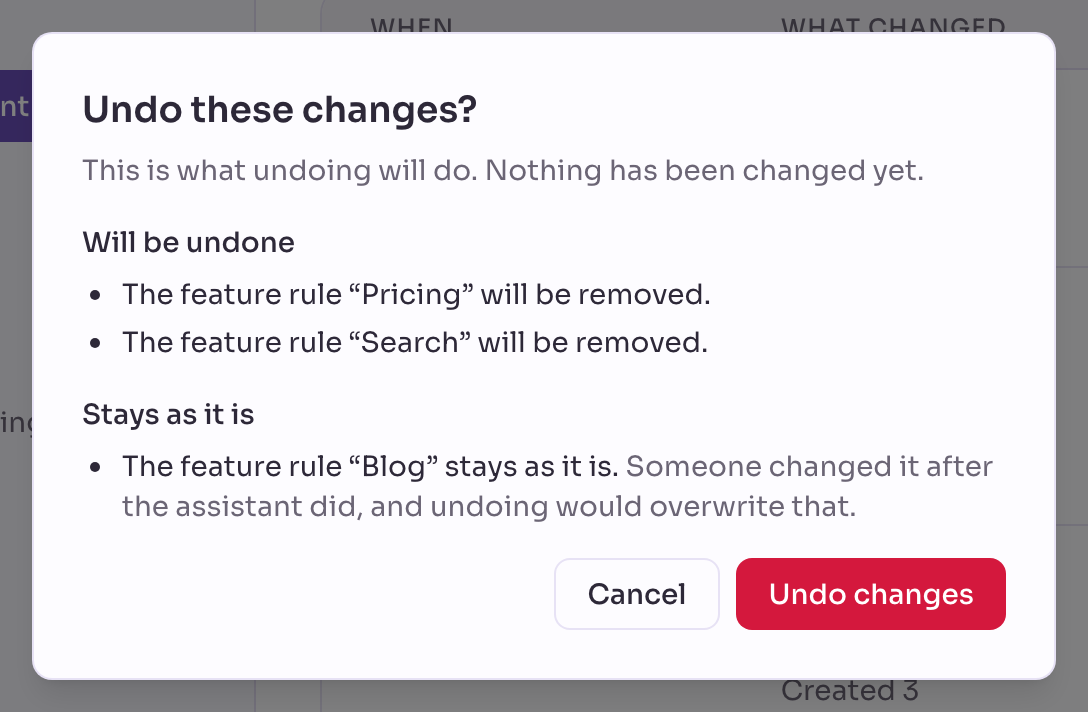
Undoing a funnel your assistant created also deletes the days it has counted. Privatrak tells you how many days that is before you confirm.
You can also ask your assistant to undo its changes. It tells you what would happen before it does anything. Changes to your code are undone like any other change to your code.
Keep new features named
The setup names what exists today. For features you add later, give your assistant a standing instruction. Put this text in the instructions file it reads in every conversation: CLAUDE.md for Claude Code, AGENTS.md for Codex, and AGENTS.md or a rule in .cursor/rules for Cursor.
## Analytics (Privatrak)

This site is tracked with Privatrak. Features are named with `data-track` attributes.

- When you add a button, link or form someone would use as a feature, give it a
  `data-track` name, e.g. `<button data-track="export-csv">Export</button>`.
- Follow the naming scheme already used here. Never rename an existing
  `data-track` or `track()` name: that splits its history and breaks the
  funnels and dashboards that use it.
- Put context in `data-track-*` attributes (e.g. `data-track-plan="pro"`),
  not in the name.
- Never put personal data (names, email addresses, user IDs) in a name or an
  attribute.
- For outcomes that are not clicks, such as a completed payment, call
  `window.tracker.track("purchase-complete", { plan: "pro" })`.
- If the Privatrak MCP server is connected, read
  privatrak://guide/instrumentation before instrumenting.
Change the example names to your own naming scheme. The instruction works even without a connection to Privatrak.
Next steps
- Ask about your data: what to ask once your project is set up.
- Features: check and change the rules your assistant created.