Documentation
Set up Privatrak, name what matters to you and read every report.
Click Problems
Click Problems lists the buttons, links and other elements on your site where clicks went wrong, such as dead clicks and rage clicks. Fix the worst first and mark them resolved. If a problem comes back, Privatrak shows it again.
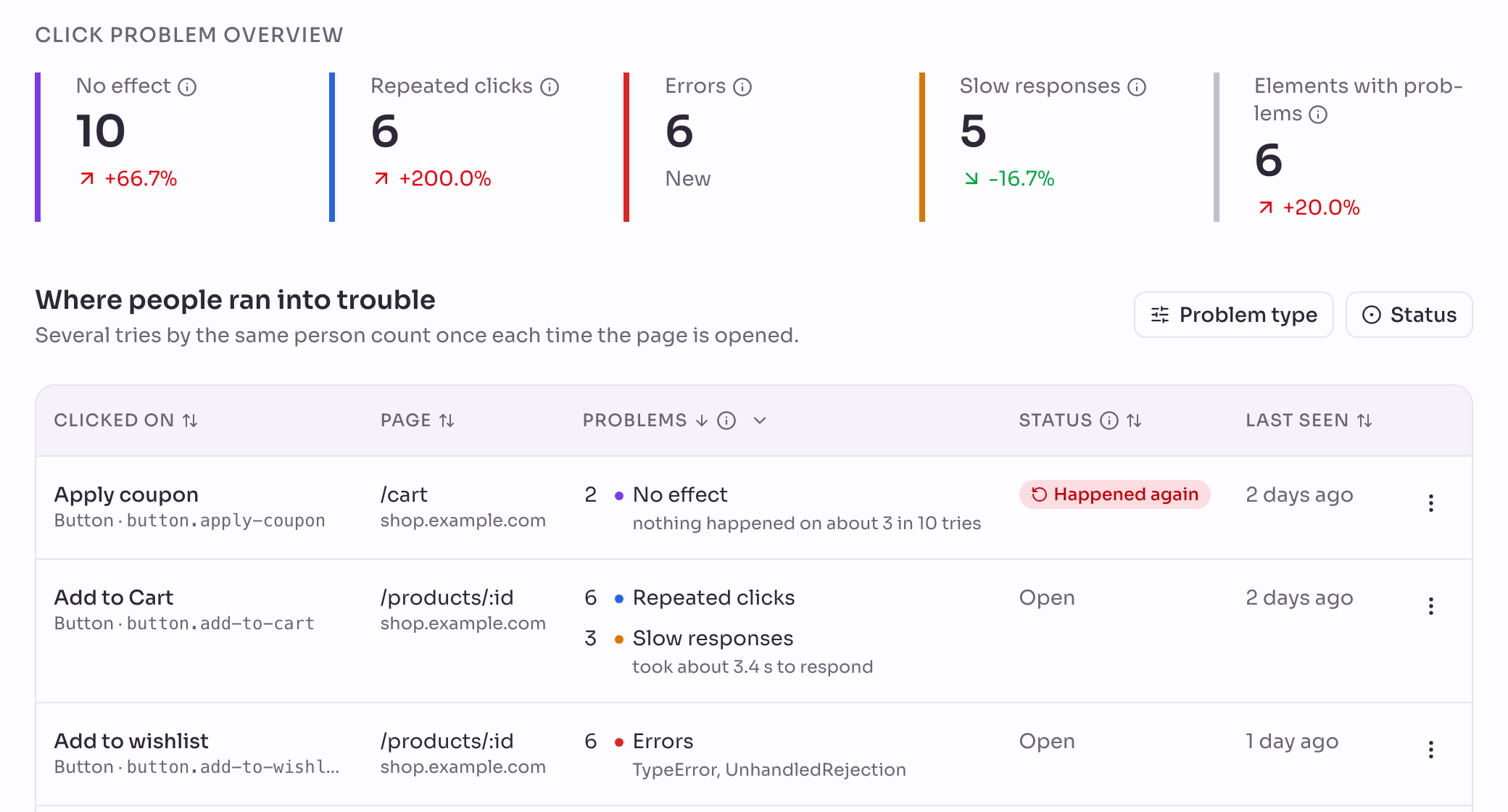
The four kinds of click problem
Privatrak recognises four kinds. Other tools often call the first two dead clicks and rage clicks.
- No effect: someone clicked and nothing happened. Nothing on the page changed and the address stayed the same. Typical causes are a heading that looks like a link, a switched-off button or a broken one. A link that opens another page never counts here.
- Repeated clicks: someone clicked the same thing 3 or more times, each within a second of the one before. Usually it didn’t seem to respond.
- Errors: a click was followed by an error in your site’s code. The list names the kind of error.
- Slow responses: something happened, but only after more than a second, such as a page that took that long to appear. The list shows the typical wait.
How problems are counted
Each problem counts once per element each time the page is opened, however often someone tried. Someone who tries a broken button 4 times adds 1 to No effect. So the numbers tell you how many page views ran into a problem.
Click problems are events. They appear on Events and count towards your monthly event limit. They never count as using a feature.
Click Problem Overview
At the top, Click Problem Overview adds up each kind across your site for the date range, and Elements with problems counts the elements that had one. Each number shows its change against the previous period. Elements that are Open or Happened again are counted.
Work through the list
- Open Click Problems and choose a date range.
- Use Problem type to show one kind, or sort the Problems column by one kind, such as Errors first.
- Open the menu at the end of a row and choose Show on your site in a new tab. The page opens with the Click Map, and the element is picked out.
- Fix the problem on your site.
- Choose Resolve. The row leaves the list.
If clicks on it have no effect or cause an error again, it comes back as Happened again, with how often since. Repeated clicks and slow responses don’t bring it back.
If an element is meant to be like that, such as a heading that is only a heading, choose Ignore. It stays hidden for good.
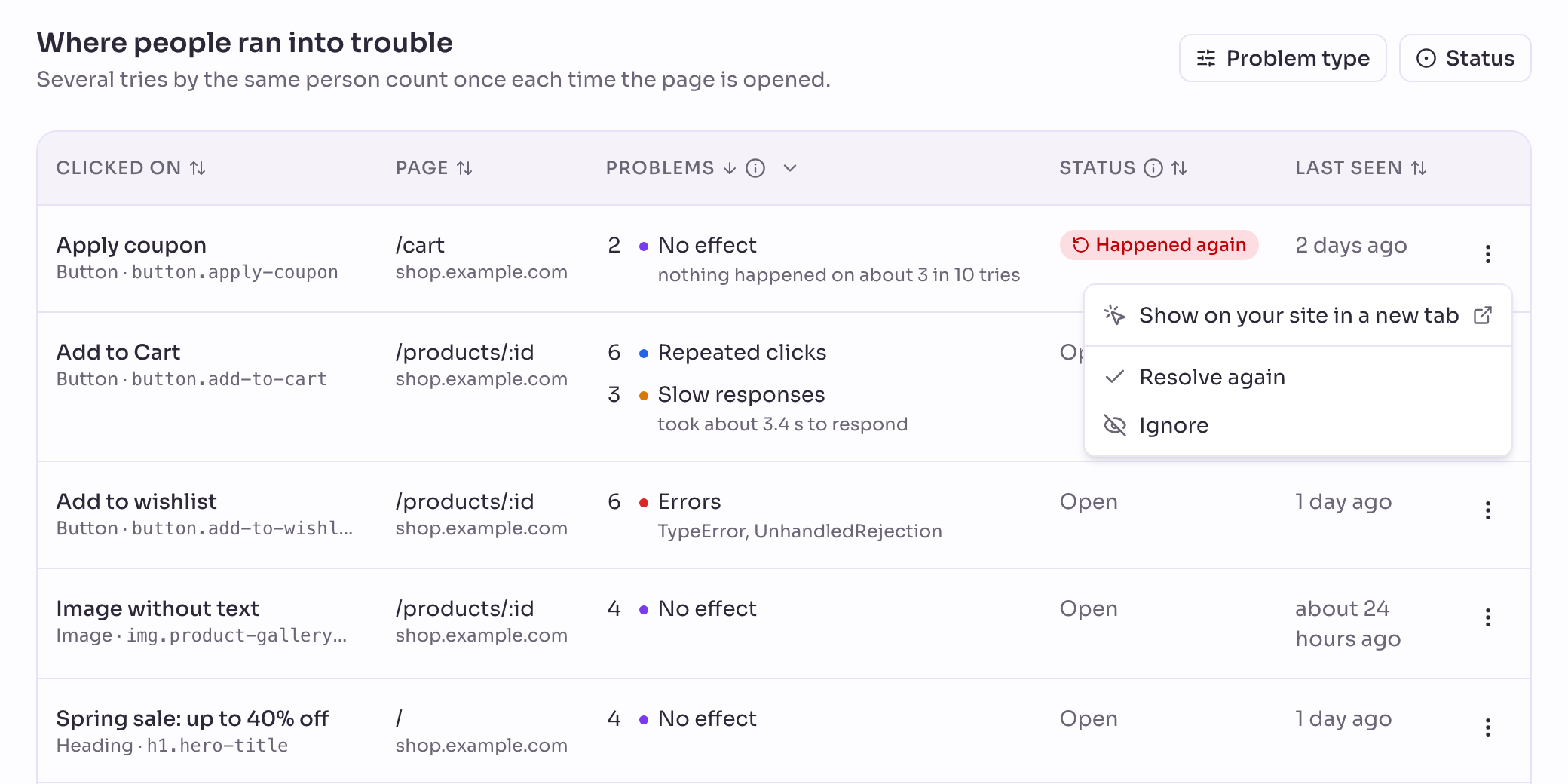
Read the list
- Clicked on: the element, named by its text, such as Add to cart, or by its kind, such as Button without text.
- Page: the page the element is on.
- Problems: each problem that happened, with its count. No effect adds how often nothing happened, such as “nothing happened on about 7 in 10 tries”.
- Status: where the element stands. See Statuses.
- Last seen: when the problem last happened.
Filters and sorting are part of the page address, so a link you share opens the same view.
Statuses
- Open: not dealt with yet.
- Happened again: you resolved it, and since then clicks on it had no effect or caused an error.
- Resolved: you marked it as fixed.
- Ignored: hidden for good.
The list starts with Open and Happened again. To see the others, choose Resolved or Ignored under Status. Their menu offers Reopen to put an element back in the list, and Resolve instead or Ignore instead to change your choice. An element that happened again offers Resolve again.
On the Overview
The Overview shows the 5 elements with the most problems, with a count for each kind. See All Click Problems opens this page.
With your AI assistant
A connected AI assistant can read this list and find each element in your site’s code. If you chose Read and write when you connected it, your assistant can also resolve, ignore or reopen elements, for example right after it fixed one. You can undo its changes in one step.
Turn kinds on or off
Each kind has its own switch under Settings › Tracker, such as Record clicks with no effect. They work while Interactions is on.