Documentation
Set up Privatrak, name what matters to you and read every report.
AI reviews
The AI reviews page shows every AI review your assistant has saved for the project. A review is your assistant’s reading of your whole site, one page or one funnel: a short answer, up to 3 things to do next and the numbers behind them. You mark what you did and see what changed afterwards. To have your assistant write one, see Get an AI review.
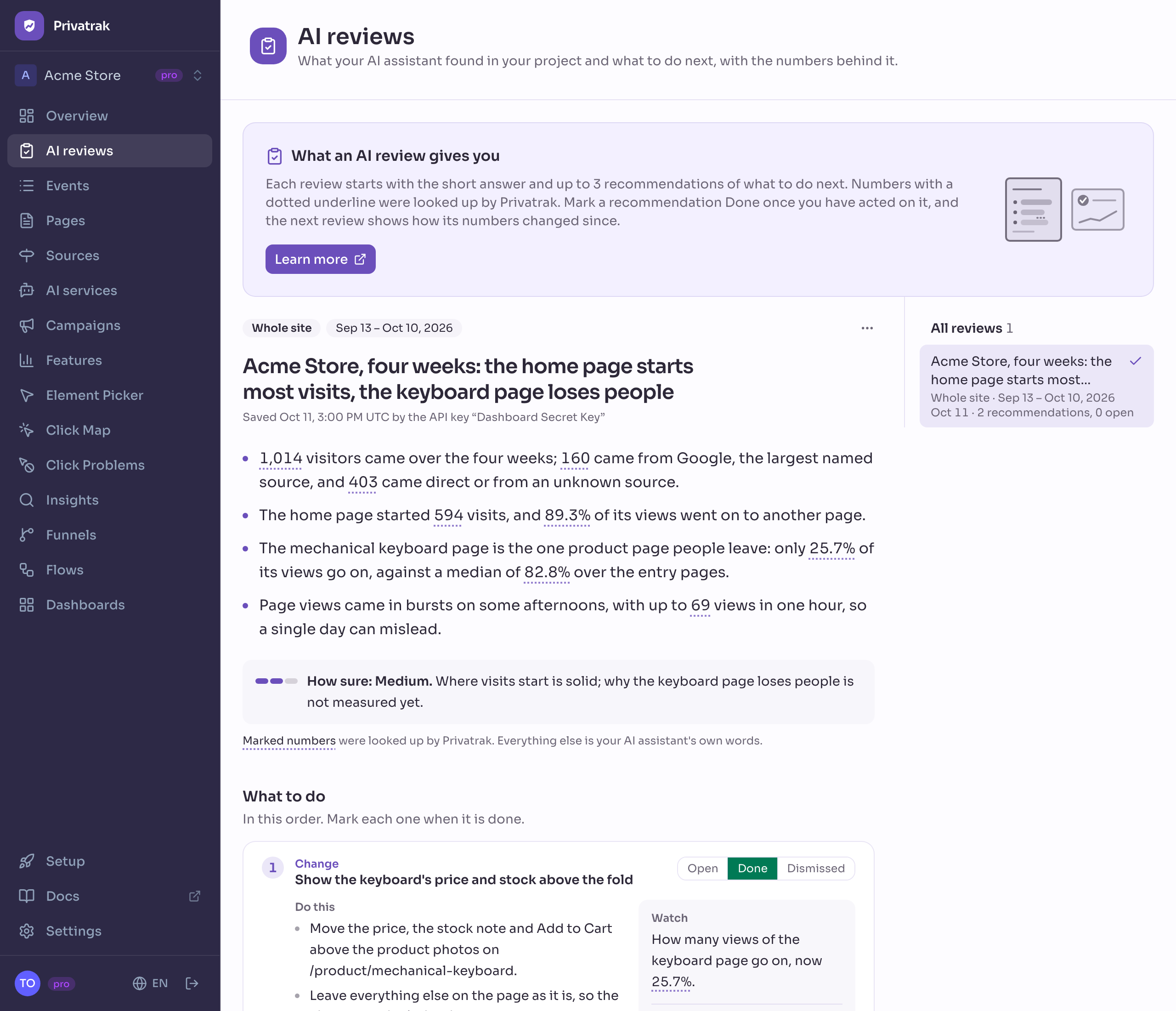
Choose a review
The newest review opens first. On a wide screen the list All reviews sits beside it, with the number of reviews. Each row shows the review’s title, what it covers and for which days, the day it was saved and how many of its recommendations are still open. Click a row to read that review. The list shows 10 reviews at a time.
On a phone the list opens from the button under the page title. The button shows the title of the review you are reading and how many reviews there are. The address of the page names the review, so you can send it to anyone in the project.
Read the header
Above the title, small labels say what the review is about:
- Whole site, Page with the page address, or Funnel with its name: what the review covers.
- Key action: the feature or funnel the review judges against. It shows only when the review has a key action.
- The days the review covers.
The line under the title says when and by whom the review was saved. It names the API key, or your assistant and your name when it signed in. When your assistant updated the review, the line adds when and by whom.
The button with three dots opens the actions for this review. It holds Delete review.
Read the short answer
The short answer comes first: 2 to 5 points, the answer first and then what to do. Under it, How sure shows three bars and the level, Low, Medium or High, with the reason. It is your assistant’s own judgement.
Numbers with a dotted underline were looked up by Privatrak. Marked numbers explains what they are and what a click does.
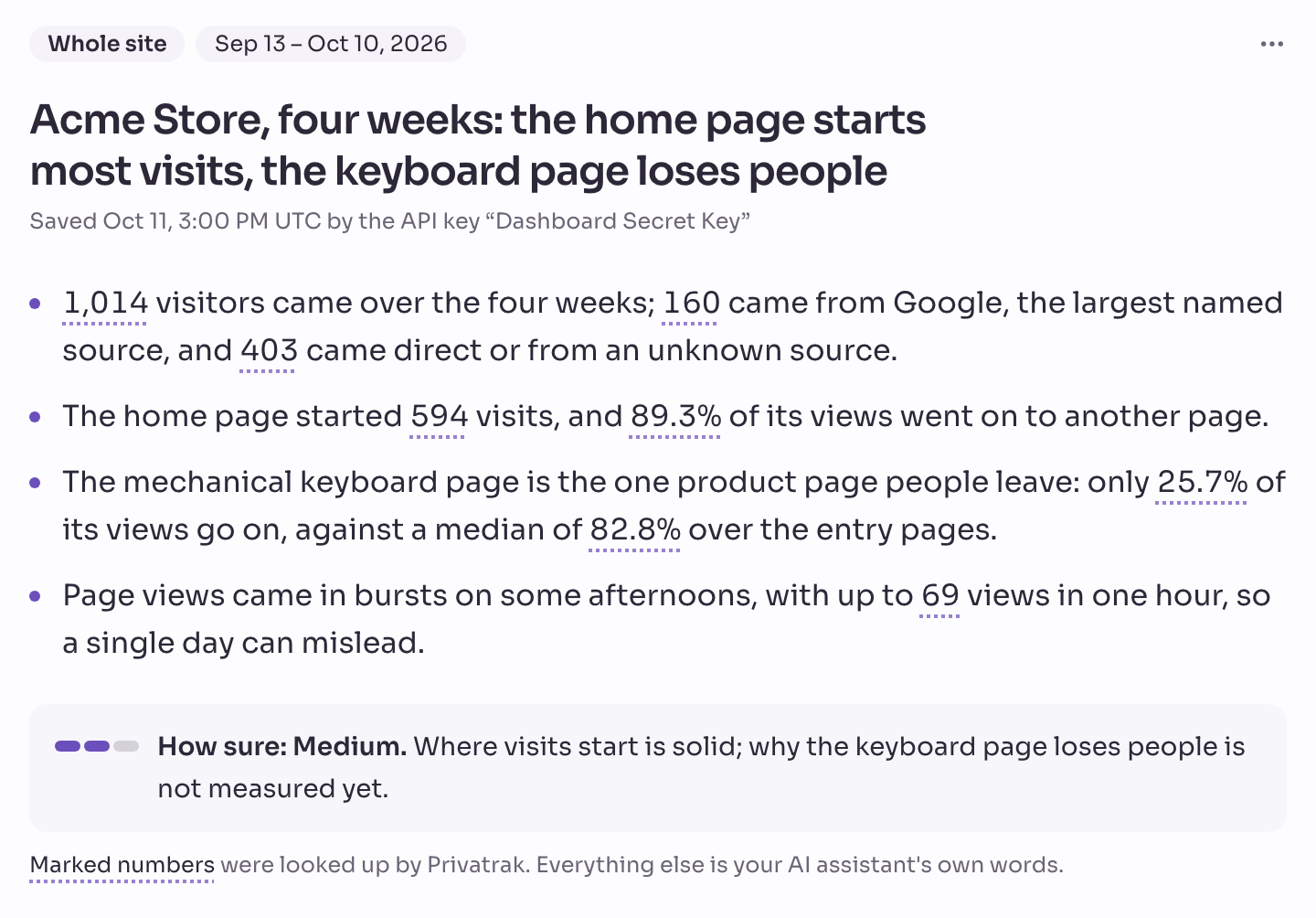
Work through the recommendations
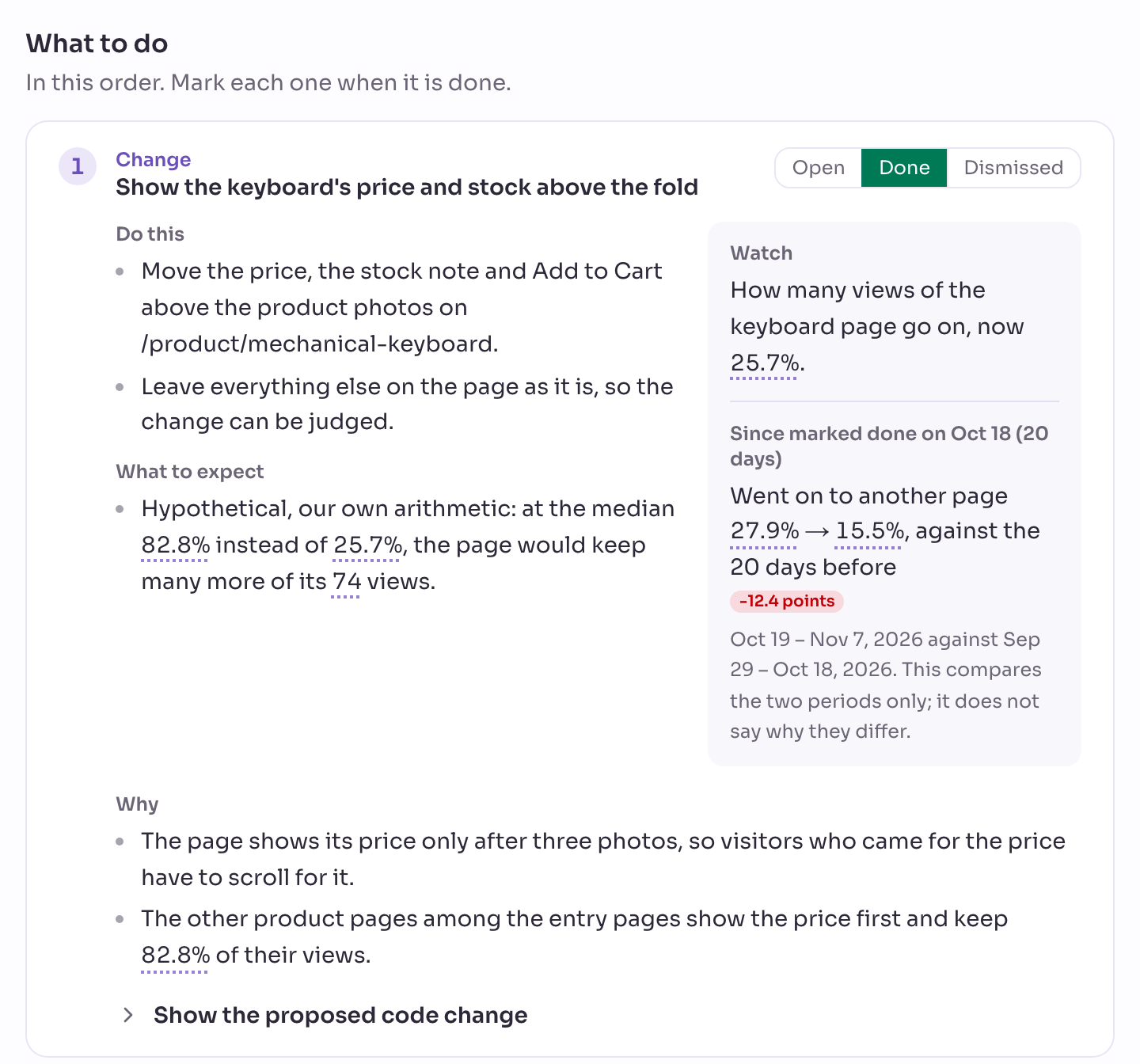
What to do lists 1 to 3 recommendations, in the order to do them. Each starts with its kind, Measure, Change or Fix, and has these parts:
- Do this: what to do.
- What to expect: what should happen when you do it.
- Why: what in the numbers points to it.
- Watch: the number to look at afterwards.
A Measure recommendation is for something the numbers cannot answer yet. Instead of a change, it lists Open questions, and how to measure each. Each row names a Funnel, a Feature rule, a Detail, a Custom event, a Trait or Other, the question, how and where to measure it, and the effort: minutes, an hour or a day. With Read and write access, your assistant can set up the Privatrak parts for you.
Mark what you did
Every recommendation starts as Open. Click Done once you acted on it, or Dismissed when you decided against it. The status shows at once, and the count of open recommendations in the list changes with it. You can also tell your assistant.
See what happened after you acted
A recommendation marked Done shows Since marked done on and the date, under its Watch box. Privatrak takes the numbers that Watch names and compares the days since you marked it with the same number of days before. Each number shows its value before and after, and how it changed.
The comparison starts once at least 7 complete days have passed and both periods hold enough data. Until then it says it is too early. Under the numbers it names the two periods, and it says when some of those days have no data at all.
It shows how the two periods differ and nothing about why, because other things change in the same days. When your assistant writes your next review of the same page, funnel or site, it reads these results too.
Use a proposed code change or setup
A recommendation can end with Show the proposed code change or Show the proposed setup. Click it to unfold it. A code change shows file by file, and a setup describes a feature rule or a funnel in words. Both have a button to copy them. Privatrak never applies either. Hand a code change to whoever edits your site, or ask your assistant to create the setup.
Check the possible explanations
When the review has a key action and several explanations compete, Possible explanations lists each one with If true, we would see, What we see and a verdict: Fits, Partly fits, Doesn’t fit or Unclear. A verdict says how well the numbers support an explanation. It is not proof.
See what stands out
What stands out lists what the numbers show on their own, ranked by how unusual it is and how many visits it affects. Each item has The numbers and Why it stands out. A small number beside its title points to the numbers behind it. Click it to jump there.
Read the numbers
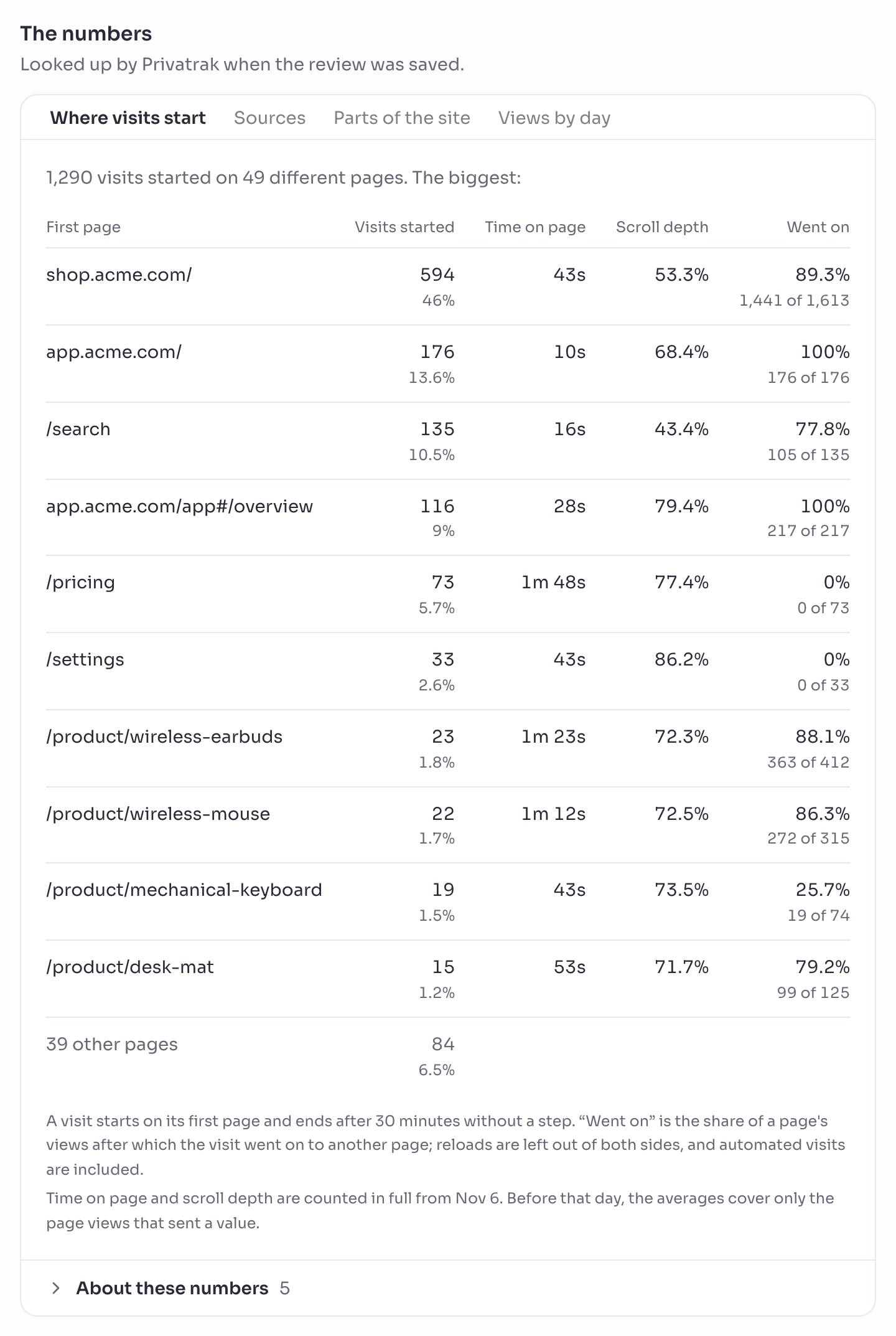
The numbers are tables that Privatrak builds when the review is saved. They stay as they were then. The tabs depend on what the review covers:
- Whole site: Where visits start, Sources, Parts of the site and Views by day.
- Page: What came next, Beside other entry pages, Clicks that matter and Views and sources.
- Funnel: Steps, Trend and Step pages.
Views by people leave out automated visits. Went on is the share of a page’s views after which the visit went on to another page. A note under each table says how to read it.
About these numbers unfolds under the tabs. It lists what to keep in mind, such as the share of automated visits, a site that began reporting after the days began, or an earlier period that starts before Privatrak counted here.
See what else was checked
What else we checked lists the ideas your assistant followed or ruled out. Each shows what it found and its Decision. How this review was made lists what your assistant says it looked at and whether a second check challenged the draft. Privatrak does not check it.
Open the numbers Privatrak looked up
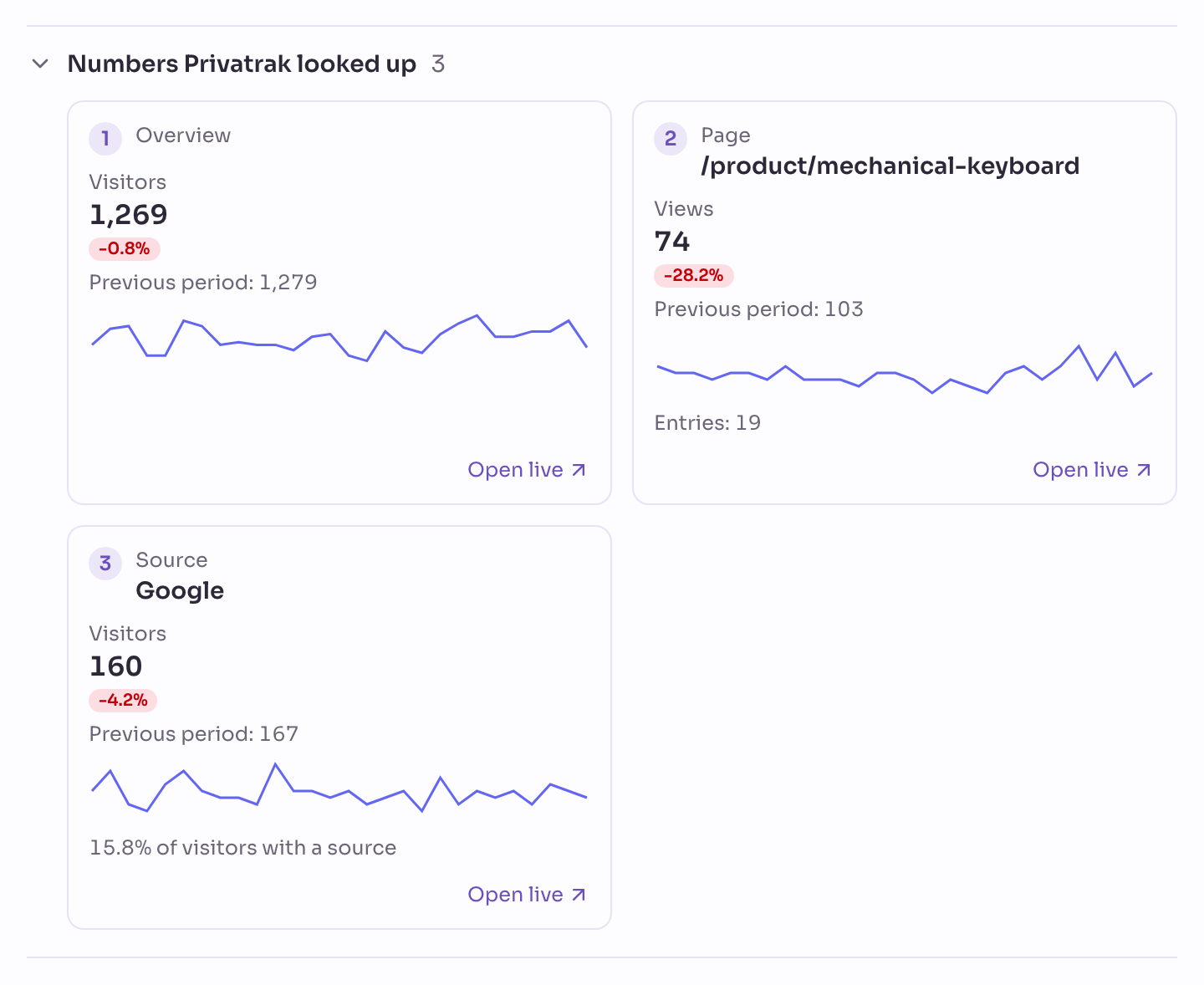
Numbers Privatrak looked up holds a card for each number behind the review’s statements. A card says what it is about, such as the Overview, a page, a source or a funnel, and shows the number with its change against the previous period, its value then and a small chart.
Click Open live on a card to open the matching report for the same days. When the data for those days is older than your plan’s data retention, the card says Data no longer kept instead. The numbers on the card stay as they were looked up.
Marked numbers
Marked numbers were looked up by Privatrak. Everything else is your AI assistant’s own words. A marked number has a dotted underline. Read an unmarked number as your assistant’s own statement.
Point at a marked number to see where it comes from. A number with a small number beside it comes from a card in Numbers Privatrak looked up. Click it and the cards unfold, scroll to that card and light it up. A marked number without one comes from the tables under The numbers. Click it and the tab that holds it opens and lights up.
Get your first review
Until your assistant saves a review, the page says No AI reviews yet. To get one:
- Click Connect an AI assistant. It opens Settings › API Keys. Follow Connect an AI assistant to connect Claude, Cursor, Codex or another assistant.
- Choose Read and write when you connect it, so it can save reviews.
- Ask your assistant for a product review, as Get an AI review shows.
When the review is saved, it appears here. A note below the box tells you about scheduled AI reviews on the Enterprise plan, which Privatrak runs and sets up on agreement.
Check how many reviews you have saved
On plans that limit AI reviews, the top of the page shows {used} of {limit} reviews this month. When the month’s reviews are used up, it also shows the day your assistant can save the next one, and View Plans. Plans without a limit show nothing. How many reviews you can save has the numbers for each plan.
Keep and delete reviews
Privatrak keeps a review until you delete it. Its numbers stay as they were when it was saved, even after the data behind them is older than your plan’s data retention.
- Open the review.
- Click the button with three dots and choose Delete review.
- Confirm with Delete in the dialog Delete this review?.
The review and its recommendations are gone. A deleted review still counts toward the reviews saved this month.
Who can do what
- Everyone in the project, whatever their role, can read reviews, mark recommendations and delete reviews.
- Your assistant saves and updates reviews. For that it needs Read and write or a full access key. With Read or an AI assistant key it reads your saved reviews and gives another in the conversation, but saves nothing. It cannot delete reviews.
- In the public demo the page is read-only. Setting a status and Delete review are switched off.
Next steps
- Get an AI review: what to ask your assistant, and what it looks at.
- Pages: open a page a review names and see its numbers live.
- Funnels: follow the steps a funnel review talks about.